

Here we describe how to configure Asix SCADA with SMSEagle for SMS alerts & notifications.
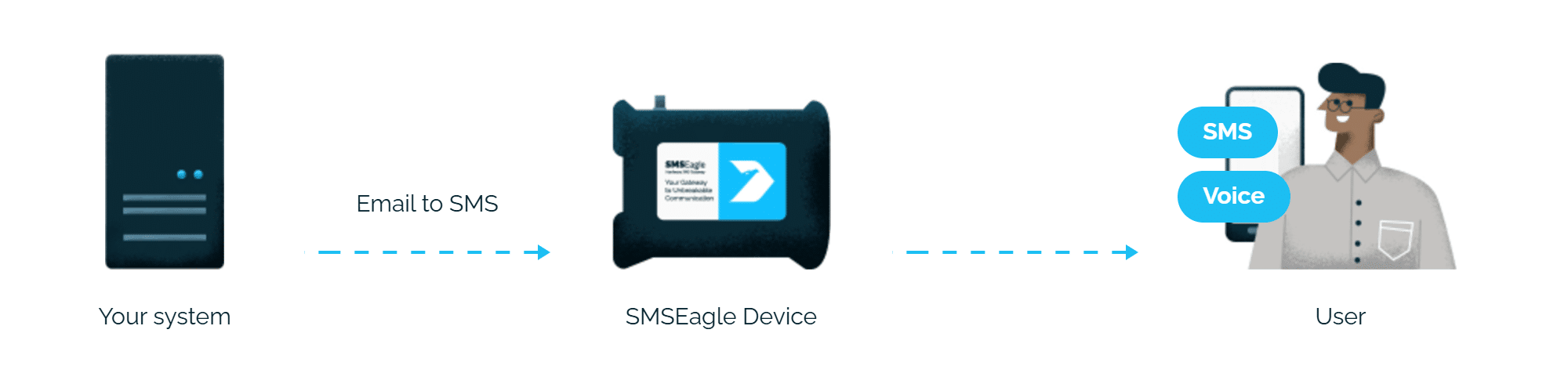
SMSEagle is a hardware SMS gateway that works offline. Therefore, no external connection to a third-party system is required. All notifications are generated locally and sent directly to the mobile network. The solution can be used in secure installations without Internet access.
SMSEagle Configuration
This integration will use Email To SMS plugin (see details: Email To SMS plugin). This plugin is included in each version of SMSEagle device.
Enable Email To SMS plugin in web-GUI > menu Emails > Email to SMS > Settings tab.
Create a forwarding rule in the Rules tab. You can forward all emails to SMS or emails from specific domains.
Asix SCADA Configuration
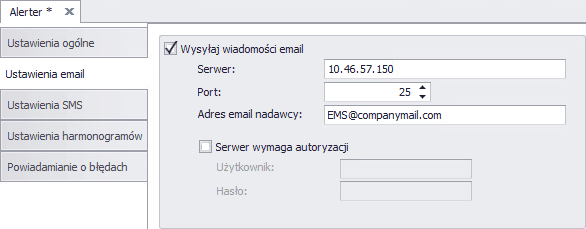
To configure email settings, choose Alerter -> Email Settings:
Server SMTP server is used to send email notifications to users. Enter the address of the SMTP server you want to use. Note that the SMTP server must be able to accept all email addresses to be used. This is the primary SMTP server that will normally be used (you can use SMSEagle as the SMTP server).
Port Enter the SMTP server port (if you are using SMSEagle as an SMTP server, use port 25).
Authentication Check if the SMTP server requires authentication, enter the username and password in these fields. (If you are using SMSEagle as your SMTP server, do not check authentication).
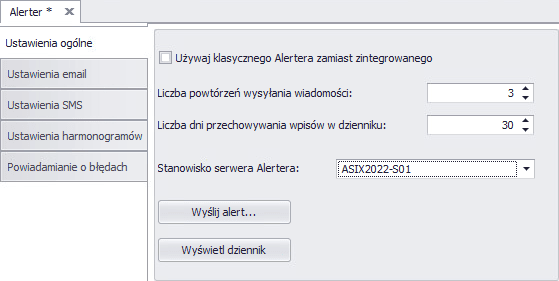
Then in Alerter -> Global Settings, define the position of the Alerter server (the position from which notifications are to be sent)
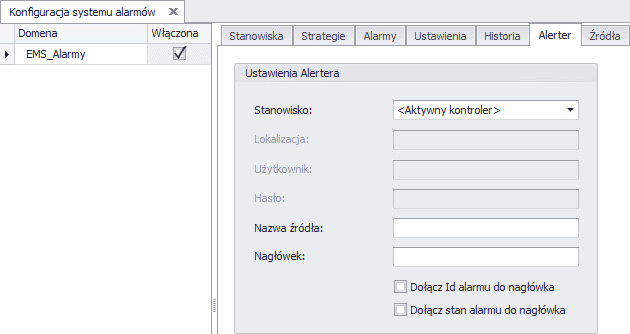
The next step is to indicate the configuration of the Alerter in the alarm domain (this is the place where alarm definitions are stored in the SCADA system), in our case we only set the Position to <Active Controller> because – for example – we have redundant servers and only the active server is to send out notifications.
The final step is to configure the recipient groups in the Security tab. The email address consists of the notification group name@address_IP_gateway SMSEagle, such as: Automation@192.168.0.101
All done! This is all the configuration on the SCADA system side, after these steps you can assign recipients to alarms:
In the SMSEagle gateway, it remains to create groups with the same names and assign contacts to these groups:
SMSEagle as SMTP server (optional)
You can use the SMTP server installed on the SMSEagle device to send emails. Then the SMTP server configuration is as follows:
SMTP host: the IP address of the device
SMTP port: 25
Authentication: the SMSEagle SMTP server does not require authentication.
Encryption: none
Note: The SMTP server on the SMSEagle device will only accept messages addressed to it. Other messages will be rejected.
Then in Alerter -> Global Settings, define the position of the Alerter server (the position from which notifications are to be sent)
Wake-up Calls & Text-to-speech Calls (optional)
SMSEagle device can be equipped with an additional voice feature that offers wake-up calls for urgent ring-only alerts or text-to-speech calls to convert text alerts into voice calls. Complete the following steps if you want to add a follow-up voice call:
in SMSEagle webGUI > menu Emails > Email to SMS edit the forwarding rule you created earlier
in the parameter “Call after sending SMS” choose a desired value:
Yes – ring only: SMS will be followed with a wake-up (ring only) call
Yes – text to speech: SMS will be followed with a simple text-to-speech voice call (English language only)
Yes – text to speech (advanced): SMS will be followed with a text-to-speech voice call (better quality & multiple language support)
Notice: Wake-up Calls and Text-to-Speech Calls are only available to users who have purchased the VOICE add-on for their SMSEagle device.
Explore SMSEagle Demo device
SMSEagle is a hardware & software solution that guarantees a swift delivery of your messages to designated recipients, whether it’s for notifications, alerts, or important updates.
After registering to a demo you get a remote access to our physical device NXS-9750.
In industrial environments, Modbus TCP gets used to keep an eye on PLCs, sensors and automation systems. But the thing is, Modbus just doesn’t come with built-in notification tools that
We are pleased to announce the introduction of a new hardware revision of our NXS-9700-5G device Revision 5 (Rev.5). This updated hardware platform will replace the previous Revision 4 (Rev.4)
The NIS2 Directive (EU 2022/2555) introduces a fundamental shift in the approach to cybersecurity risk management. An organisation’s responsibility no longer ends at its own infrastructure—it now explicitly extends to
The NIS2 Directive (EU) 2022/2555 replaces the 2016 regulatory framework, introducing harmonised cybersecurity governance requirements for essential and important entities across the European Union. One of its key operational provisions
The objective of the NIS2 Directive is to enhance the level of cybersecurity and operational resilience of organizations providing services that are essential and important for the functioning of the
The NIS2 Directive (Directive (EU) 2022/2555) introduces a significant shift in the approach to cybersecurity. Its objective is not limited to protecting IT systems, but to ensure that essential services