Send SMS and voice calls straight from Outlook, no web interface needed
The SMSEagle Outlook plugin adds a message window to Outlook on Windows. A user writes the text there and the device delivers it through its SIM card – as SMS, a wake-up call, or an advanced text-to-speech call – without anybody opening the web interface.
Go to Settings > Global settings > API, open API v2, and create a key named for this integration – for example Outlook plugin – owned by the user Outlook traffic should be recorded under.
Scope it down
Switch on only the send methods Outlook needs
In the permissions box, enable just the methods your users are meant to use: section Messages: Send SMS; section Calls: Make a TTS call, Make a TTS Advanced call, and nothing else. Sending to contacts and lists happens inside Outlook, so the plugin never calls the contact or group methods.
One new button, no new app
A New SMS/Call button appears right on the Home tab
Once the plugin is installed and Outlook is reopened, New SMS/Call shows up in the SMS group on the Home ribbon – no separate application to open or remember.
Configure delivery once
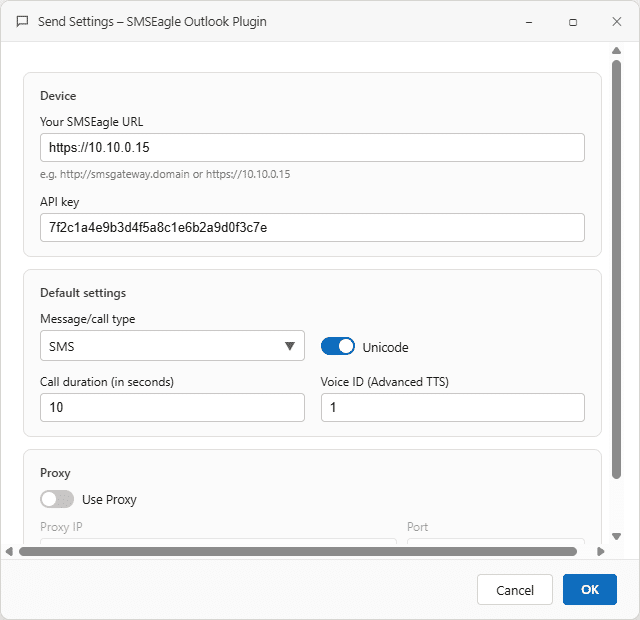
Enter the device URL and API key in Send Settings
Fill in the SMSEagle URL and the API key from Step 1, then set the defaults – message type, Unicode, call duration, and the advanced TTS voice – every new message window starts from these.
Type, pick, or expand a list
Write the message and choose who gets it
Type numbers separated by commas, or pull them from the Outlook address book or a distribution list. Choose SMS, TTS, or TTS Advanced, and click Send – the device queues it immediately.
SMSEagle combines hardware and software into a single, self-contained gateway. It is designed for critical environments, so security is built in from the ground up, confirmed by CE, FCC, ISED, UKCA, PTCRB, RCM, IMDA, TDRA, CB Scheme, GCF, carrier certifications (Verizon, AT&T) and ISO 27001.