Protect sign-in with a one-time code sent by SMS or your authenticator app
SMSEagle can send a one-time passcode by SMS, or check one from an authenticator app, before letting anyone into the web interface. Turn it on for your own account, assign it to specific users, or make it mandatory for everyone.
SMS or an authenticator app, whichever fits your team
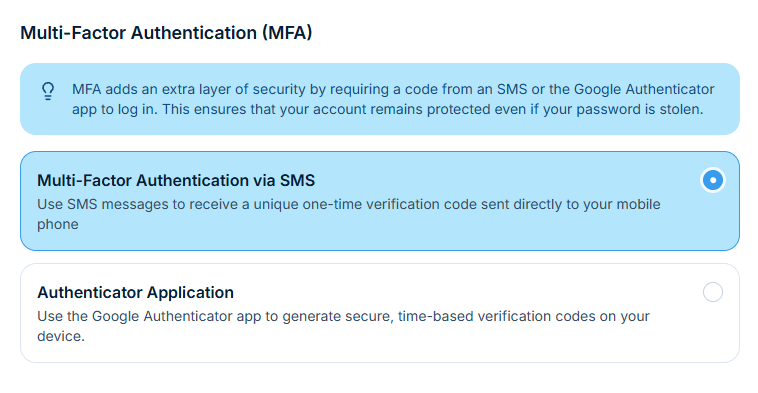
Pick Multi-Factor Authentication via SMS for a code sent to the phone on file, or Authenticator Application for a time-based code from an app such as Google Authenticator, after a one-time QR scan.
Active after the first code
Nothing is active until the first code is verified
Enabling a method does not make it live yet – it still has to be confirmed. Scan the QR code or wait for the SMS, then enter the code once to finish the setup.
One code, then you're in
A single extra step at sign-in, nothing more
After the password, the device asks for the current code from SMS or the authenticator app. A wrong code simply asks again – no lockouts, no support ticket.
Assign it directly
Set MFA for any account from System > Users
An administrator picks None, SMS, or Authenticator app for any user. The account is set to require that method, and the person finishes the setup themselves at their next sign-in.
Or make it mandatory
Force MFA for every account, new or existing
Apply Force MFA to all users, and once the policy is saved it applies to every account straight away – nobody signs in again without it.
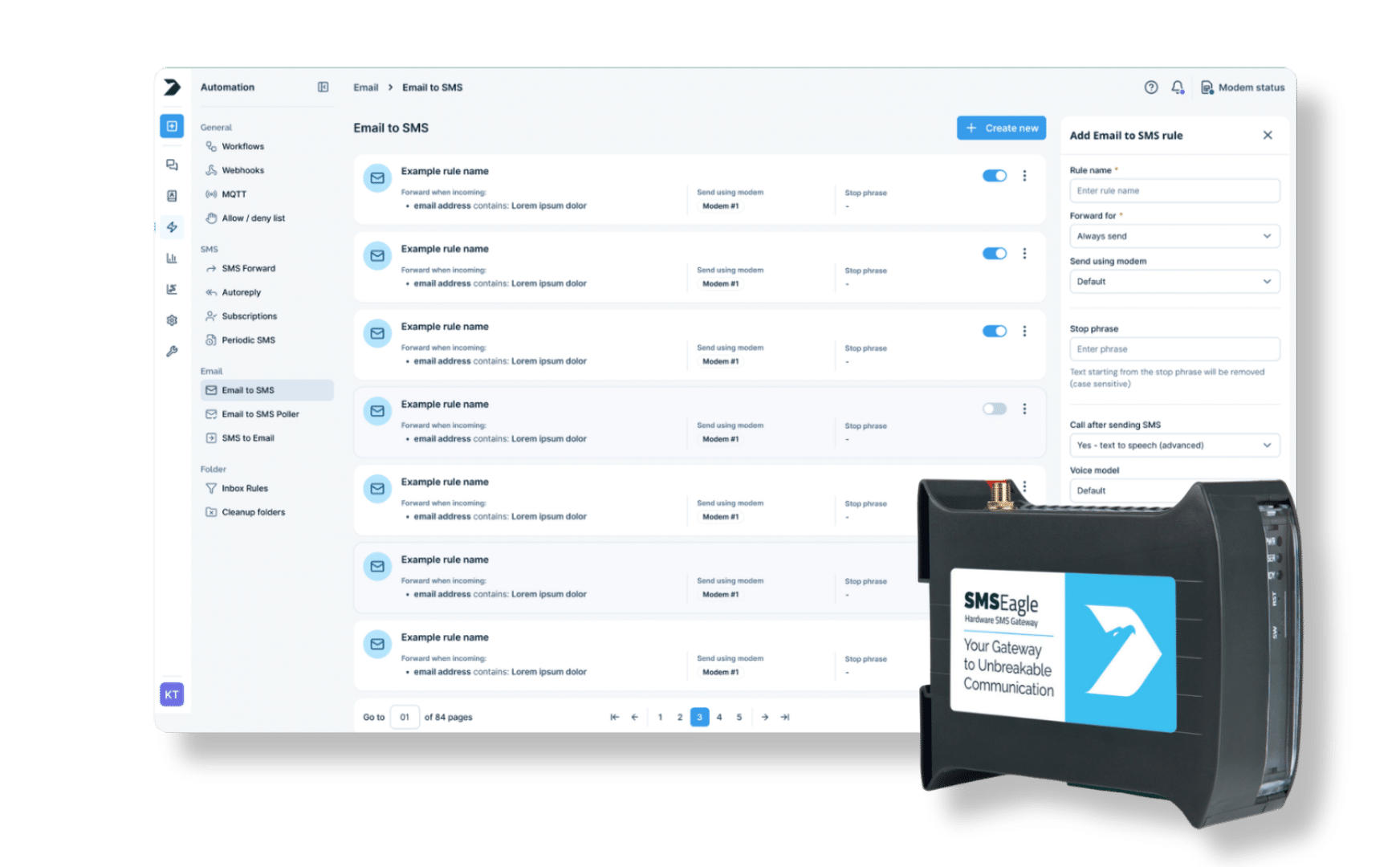
SMSEagle combines hardware and software into a single, self-contained gateway. It is designed for critical environments, so security is built in from the ground up, confirmed by CE, FCC, ISED, UKCA, PTCRB, RCM, IMDA, TDRA, CB Scheme, GCF, carrier certifications (Verizon, AT&T) and ISO 27001.
After the password is accepted, the device asks for a one-time code sent by SMS or generated by an authenticator app, so a stolen password alone is not enough to sign in.
Which methods are supported?
Multi-Factor Authentication via SMS, and an Authenticator Application such as Google Authenticator, set individually per account.
Can an administrator require MFA for everyone?
Yes. Settings > Global settings > Application has a Force MFA policy: do not force, for new users only, or for all users.
What happens if I lose access to my phone?
Every account with MFA enabled holds a single-use recovery code, accepted in place of the one-time code. Once it is used, a new one is created automatically.
Does MFA affect the API?
No. MFA guards the web sign-in only. HTTP API requests authenticate with an access token and are unaffected.
Is MFA available on all SMSEagle devices?
Yes, MFA is a built-in feature available on all current SMSEagle hardware SMS gateways.