SMPP is the protocol telecom systems use to exchange SMS. Enabling it turns SMSEagle into an SMPP server: external systems connect to it as if it were an operator gateway and hand it messages to send through your SIM cards.
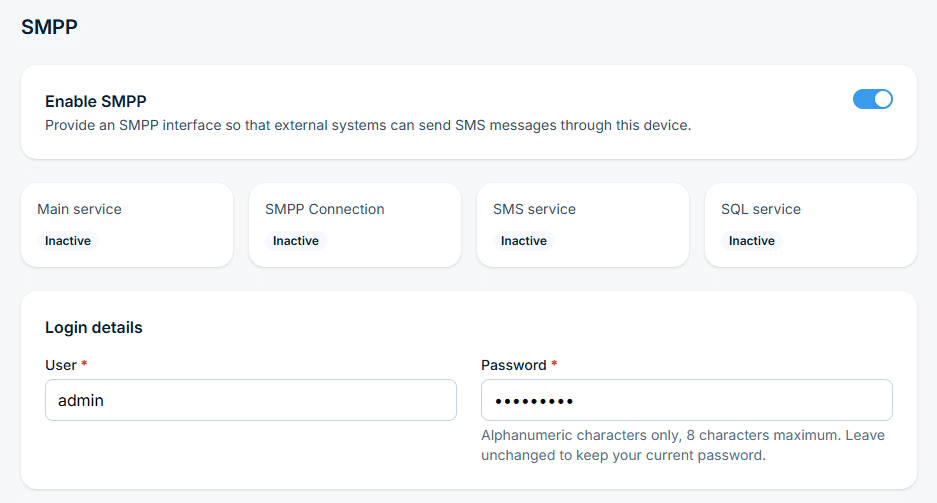
Go to Settings > Channels > SMPP and turn Enable SMPP on. The status cards, credentials, and modem access sections appear only once it’s enabled.
See whether the service is running
Check whether each part of the SMPP service is running
Core service, SMPP connection, SMS service, and SQL service each show Active or Inactive. Right after enabling, and before the reboot, expect some of them to still read Inactive – that’s normal at this stage.
Set who's allowed to connect
Choose the user name and password connecting systems will use
Enter a user name and password in Login details. The password accepts letters and digits only, up to 8 characters – leave it unchanged to keep the current one.
Choose which SIM cards SMPP uses
Restrict which modems SMPP clients can use
Turn on Limit modems to reveal the modem checklist, and tick only the ones SMPP may use. Leave it off to let clients send through any modem in the device.
Everything on one settings page
Enable, set credentials, and restrict modems - without jumping between menus
Settings > Channels > SMPP holds the whole configuration: the on/off switch, the status of every part of the service, the login credentials, and the optional modem restriction.
SMSEagle combines hardware and software into a single, self-contained gateway. It is designed for critical environments, so security is built in from the ground up, confirmed by CE, FCC, ISED, UKCA, PTCRB, RCM, IMDA, TDRA, CB Scheme, GCF, carrier certifications (Verizon, AT&T) and ISO 27001.
SMPP turns your SMSEagle into an SMPP server. External systems connect to it like an operator gateway and hand it messages to send through your SIM cards.
Is SMPP available on every device?
No, only on selected device models. If Settings > Channels > SMPP is not in your sidebar, your device does not support it.
Are there restrictions on the password?
Yes. The SMPP password accepts letters and digits only, up to 8 characters – a protocol-level limit your connecting system needs to work with.
Do I need to restart after enabling SMPP?
Yes. After saving, a reboot is required before the SMPP changes take effect – the settings are stored immediately, but the service does not run with them until the device restarts.
Can I limit which modems SMPP uses?
Yes, optionally. Turn on Limit modems and tick only the modems SMPP clients may use – useful when a SIM is reserved for something else.
How do I know SMPP is actually running?
Check the four status cards on the SMPP page – Core service, SMPP connection, SMS service, and SQL service should all read Active once the service is up after the reboot.