Zendesk sends the SMS through its standard URL target, so you only enter the SMSEagle address and API token.
SMS from triggers and automations
You add the SMS as an action in Zendesk triggers or automations, so the message goes out when a ticket meets your conditions.
No per-message fees
SMSEagle sends SMS through a regular SIM card, so you only pay for your mobile plan.
How it works
1
Trigger fires
A new ticket, condition, or automation rule in Zendesk matches, and the trigger’s “Notify target” action runs.
2
API call
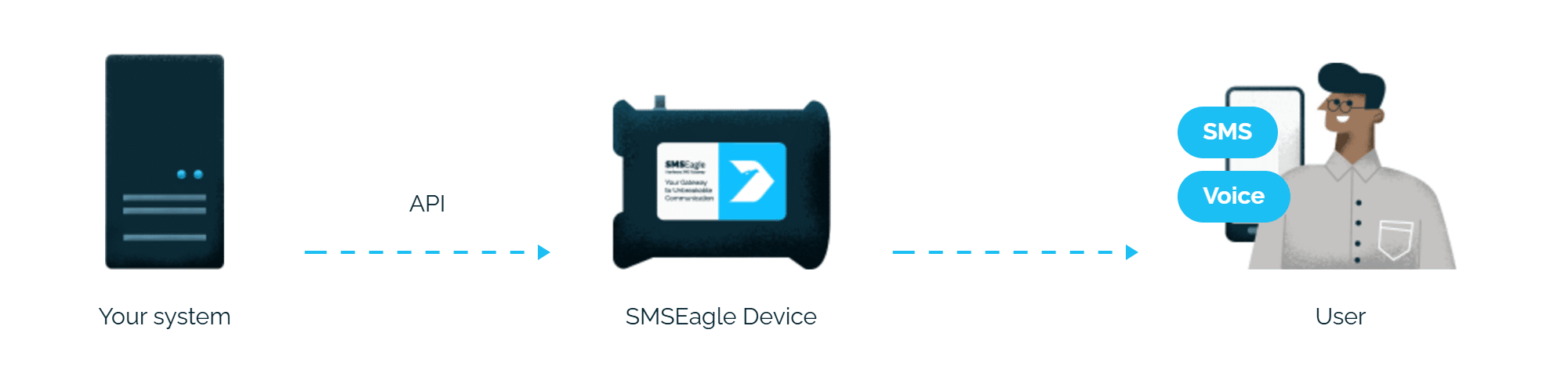
The URL Target sends a request straight to SMSEagle’s API, with the recipient placeholder and message text filled in.
3
SMS alert
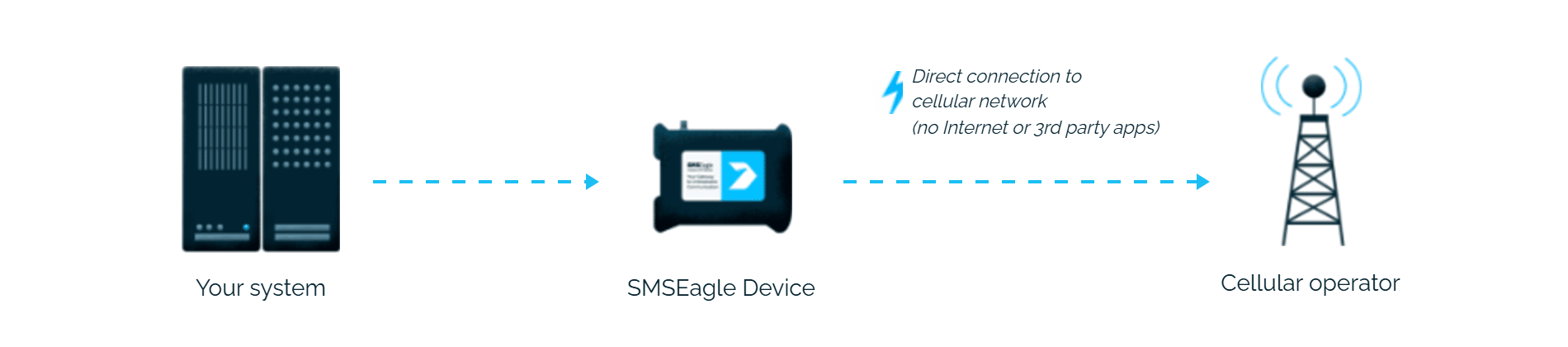
SMSEagle delivers the alert over its own cellular connection, not through a third-party service, as an SMS to the recipient’s phone.
Set up in about 10 minutes
No app marketplace install required. With a single URL Target pointed at SMSEagle’s HTTP API, any Zendesk trigger or automation can fire an SMS in minutes, using the same phone number placeholders you already use for email.
SMSEagle sends Zendesk Support alerts to the right person by SMS, day and night.
No per-message fees
SMSEagle sends SMS through a regular SIM card, so you only pay for your mobile plan.
Alerts keep going if one carrier fails
On devices with two SIM cards from different operators, SMSEagle switches to the second one when the first operator’s network is down.
Alerts keep working even if one device fails
Two SMSEagle devices can work as an HA cluster: if one fails, the other takes over sending.
SMSEagle configuration
Zendesk Support uses API to communicate with SMSEagle. Create a new user in your SMSEagle device for API access via webGUI.
Create a new user in SMSEagle (menu System > Users, user access level: “User”).
Grant API access to the created user:
go to Settings > Global settings > API and open the API v1 page
click Create API key, fill in Key name and select the user created above as Owner
Add access permissions in section Permissions for: Send SMS, Send to contact, Send to group
click Create key. The access token is shown only once, right after saving
Zendesk Support configuration
In order to send outbound SMS via triggers and automations, we will be using the extension URL Target.
Login to Zendesk
Click Settings -> Extensions
Click Targets tab -> click add target
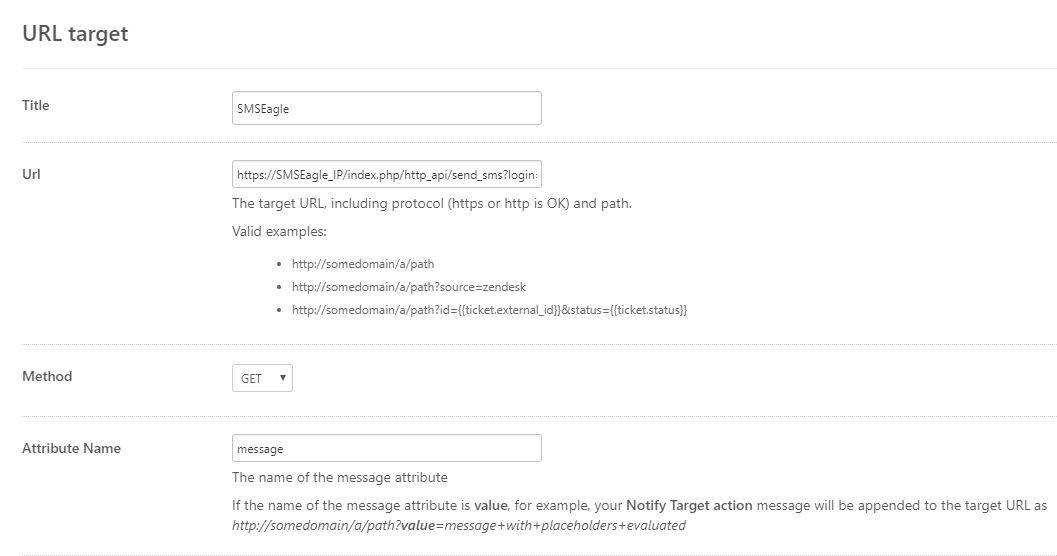
After clicking add target, please click on URL target
You will then have to fill the required values for:
Title → Name your target as desired
URL → https://SMSEagle_IP/index.php/http_api/send_sms?access_token=YOUR_API_TOKEN&to={{ ticket.requester.phone}} if you want to send SMS to the ticket requester. You may choose to use other placeholders with the to parameter instead of {{ticket.requester.phone}}. Replace SMSEagle_IP with your gateway’s IP address, and YOUR_API_TOKEN with the access token generated in point above.
Method → use GET
Attribute Name → message
Basic Authentication → leave blank as your credentials are set in the URL field
To check if all the details are correct, click on Test Target → Submit. You should get a success response if the details are correct (i.e. SMSEagle URL and credenials). Once you have successfully tested it you can go ahead and create the target.
To configure Zendesk to send your SMS notifications using a trigger, click Triggers under Business Rules: Click Add Trigger and configure the trigger.
Populate the Conditions fields that you want to be true for the Trigger and set up the action to be performed. In this case, the action will be ‘Notifications: Notify target‘ and you will select the previously created Target. You can populate the message field with the text that you want to be sent, using Zendesk placeholders as desired.
Note that if have used the {{ticket.requester.phone}} placeholder in your target, you must ensure that the phone number field is correctly populated in the Zendesk user profile (using the international format, ie. +1, +44).
You can now send an SMS from Zendesk using the SMSEagle HTTP API!
The recipient configured in your target (eg. the ticket requester) will receive an SMS via the SMSEagle.
Explore SMSEagle Demo device
SMSEagle is a hardware & software solution that guarantees a swift delivery of your messages to designated recipients, whether it’s for notifications, alerts, or important updates.
After registering to a demo you get a remote access to our physical device NXS-9750.