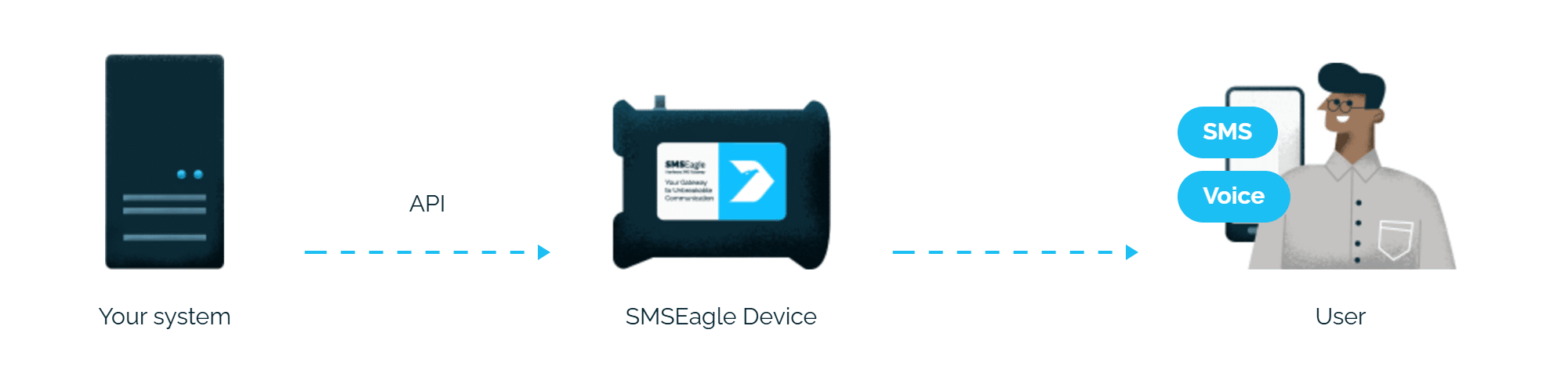
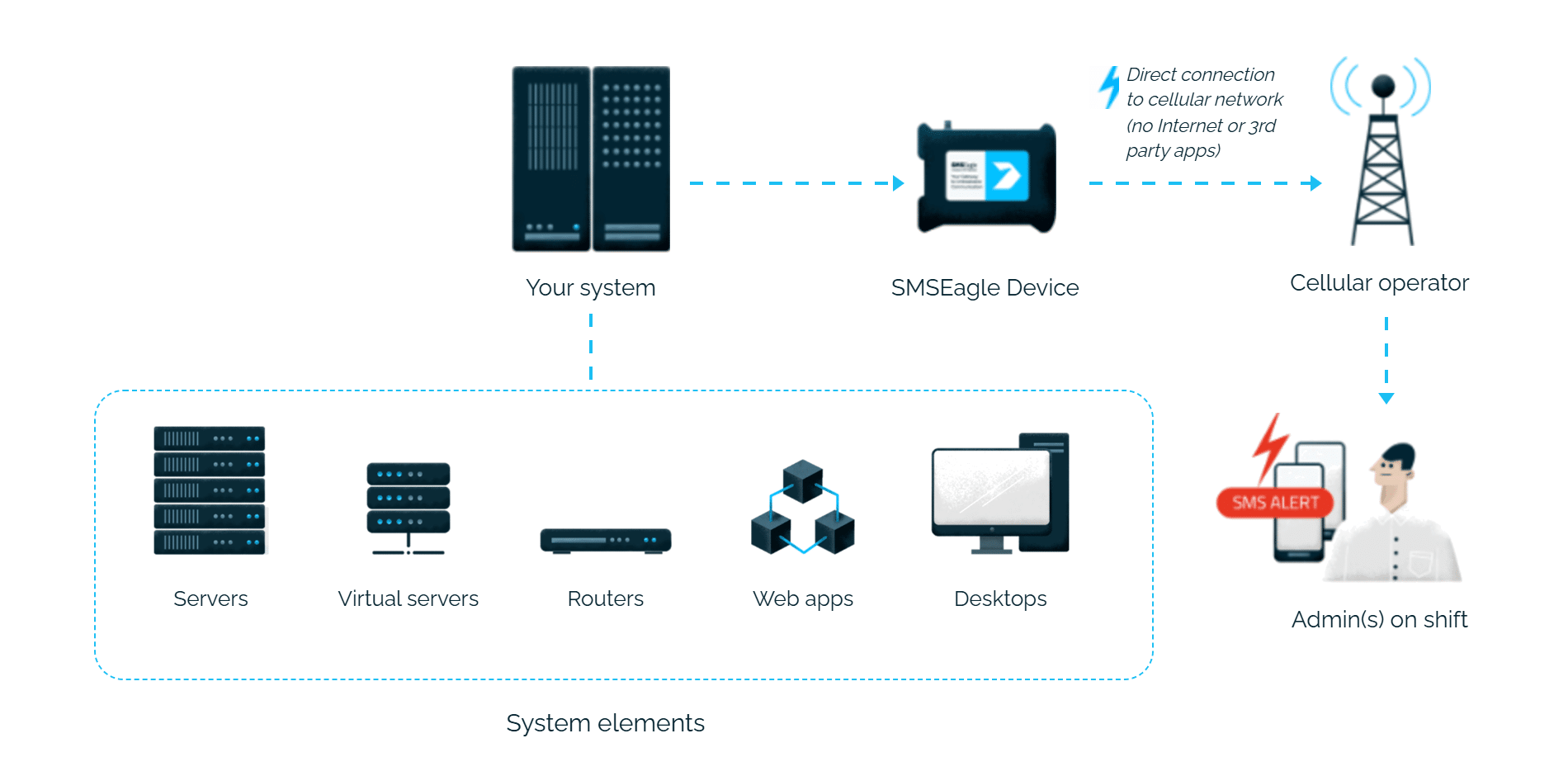
Splunk alerts reach the person on duty as an SMS. SMSEagle sends them over its own cellular connection, so they don’t depend on internet access or a cloud service.
SMSEagle sends Splunk alerts to the right person by SMS, day and night.
No per-message fees
SMSEagle sends SMS through a regular SIM card, so you only pay for your mobile plan.
Alerts keep going if one carrier fails
On devices with two SIM cards from different operators, SMSEagle switches to the second one when the first operator’s network is down.
Alerts keep working even if one device fails
Two SMSEagle devices can work as an HA cluster: if one fails, the other takes over sending.
SMSEagle configuration
Create a new user in SMSEagle (menu System > Users, user access level: “User”).
Grant API access to the created user:
go to Settings > Global settings > API and open the API v2 page
click Create API key, fill in Key name and select the user created above as Owner
Add access permissions in section Permissions for: Send SMS, Ring call
click Create key. The access token is shown only once, right after saving
Splunk configuration
Visit plugin site at Splunkbase. Download tar archive.
Go to Splunk -> Manage Apps -> Choose File to Upload and Done.
Restart Splunk
Go to Apps -> SMSEagle -> Configuration
Enter SMSEagle URL.The URL should be in form: IP.ADDRESS.OF.SMSEAGLE (for example: 192.168.0.150 or sms.mydomain.com)
Choose APIv2 as integration method
Enter SMSEagle API token
That’s it! 😊
Using plugin
Perform a search in Splunk and then navigate to : Save As -> Alert -> Trigger Actions -> Add Actions -> SMSEagle SMS Alerts. On this dialogue you can enter: • “Message” – contains SMS text. You may use Splunk custom alert action tokens in this field. The action tokens will be replaced with values from alert. More information can be found in Splunk docs under topic “Advanced options for working with custom alert actions”. • “Phone Number” or “Phonebook Group name”. “Phone Number” should be in format: country code + number, for example: +1XXXXXXXXXXXXX (Without any _ or any other symbol). “Phone Number” can also be a comma delimited list of numbers. “Phonebook Group name” is a name of a group created in SMSEagle Phonebook. • “High Priority” – if set to yes, message will have a high priority in SMS sending queue • “Unicode” – if the Message contains national characters, set “Unicode” to yes • “Flash” – “No” for normal SMS, “Yes” for flash SMS • “Date” – (optional) enter date in YYYYmmDDHHMM to schedule it to a particular GMT date time.
Logging
Browse to See triggered Alerts: Settings -> Alert Actions -> SMSEagle SMS Alerts -> View Log Events Or you can search logs of alerts directly in Splunk : index=_internal sourcetype=”ta:smseagle:sms:alerting:log” action_name=sms_eagle
Explore SMSEagle Demo device
SMSEagle is a hardware & software solution that guarantees a swift delivery of your messages to designated recipients, whether it’s for notifications, alerts, or important updates.
After registering to a demo you get a remote access to our physical device NXS-9750.