
Home / Integration plugins / Schneider Geo SCADA SMS Integration

+

Send SMS/voice alerts from Schneider Geo SCADA

Schneider Geo SCADA alerts reach the person on duty as an SMS or a phone call. SMSEagle sends them over its own cellular connection, so they don’t depend on internet access or a cloud service.

Uses Geo SCADA email notifications

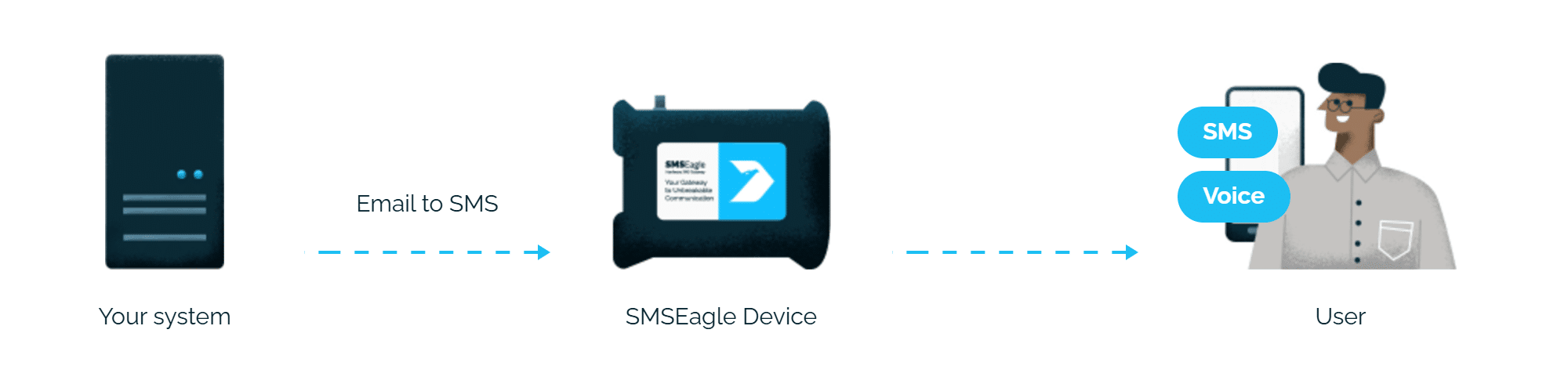
Geo SCADA sends its usual alarm email to PHONE_NUMBER@SMSEagle_address, and SMSEagle turns it into an SMS.

No mail server needed

SMSEagle can receive emails from Geo SCADA itself, so alerts don’t depend on your company mail server.

Works without internet

SMSEagle sends alerts through its own SIM card straight to the mobile network, so they don’t depend on internet access or a cloud SMS provider.

How it works

1

Configure email sending in Geo SCADA

Set up an email server for your Geo SCADA system (SMSEagle itself can act as this SMTP server).

2

Configure the Email Action

In the Geo SCADA ViewX ribbon, configure the Email Action’s redirection scheme and set the recipient address.

3

Alarms arrive as SMS and voice calls

SMSEagle delivers the alert over its own cellular connection, not through a third-party service, as an SMS or a phone call to the recipient’s phone.

Set up in about 10 minutes

Setting up SMSEagle with Geo SCADA takes minutes – configure a single Email Action in your Geo SCADA system, point it at SMSEagle, and alarms start arriving as SMS and voice calls immediately.

SMSEagle sends Geo SCADA alerts to the right person by SMS or phone call, day and night.

An SMS followed by a phone call

After the SMS with a Geo SCADA alert, SMSEagle can also call: a ring-only call or a call that reads the alert aloud. You set it once in the Email to SMS rule.

Fill-in-the-call-36

If the first person doesn't respond, the alert is sent to the next

Escalation groups and shift schedules make sure the Geo SCADA alert reaches the person on duty, and the next person on the list if nobody responds.

Acknowledge alarms by replying to the SMS

The engineer replies to the alarm SMS with a keyword. SMSEagle passes the reply to Geo SCADA by email, and the alarm is acknowledged.

SMSEagle configuration

This integration will use Email To SMS plugin (see details: Email To SMS plugin). This plugin is included in each version of SMSEagle device.

  • Enable Email To SMS plugin in the web interface: Settings > Channels > Email > Email to SMS.
  • Create a forwarding rule in Automation > Email > Email to SMS. You can forward all emails to SMS or emails from specific domains.

Geo SCADA configuration

  1. To successfully redirect an alarm by forwarding the details in an e-mail:
    • The servers on your system have to be configured to send e-mail messages.
      • Access the Geo SCADA Expert Server Configuration Tool.
      • Expand the System Configuration branch of the tree-structure.
      • Select E-Mail to display the E-Mail settings.
      • Make sure that Outgoing Mail (SMTP) server is configured
      • If you don’t have Outgoing Mail (SMTP) server configured, you may use SMSEagle as SMTP server (see notes below). In such case use the following configuration:
      • In the Outgoing Mail (SMTP) section, define these settings:
        • Server: IP address of your SMSEagle device
        • Port: 25
        • Timeout: 2000
        • Use secure connection: None (alternatively you can choose TLS for better encryption)
        • Name: Enter the name that is displayed in the From field in each message sent. For example: GeoSCADA
        • E-Mail Address: noreply@localhost
    • The database items for which alarms might need redirecting have to be assigned geographical coordinates (if your system uses Geo SCADA Expert’s Geographical Location features and alarms are to be redirected to users that are in the relevant geographical region)
    • The users to which you want to send e-mails must have:
      • Geographical regions within which they are ‘responsible’ for alarms (if alarms are to be redirected to users that are in the relevant region) (see Assign Regions of Responsibility)
      • Geographical coordinates (if Geo SCADA Expert is to compare a user’s geographical location with an alarm’s region when determining to whom alarms should be redirected)
      • Configured User e-mail accounts for Email To SMS redirection:
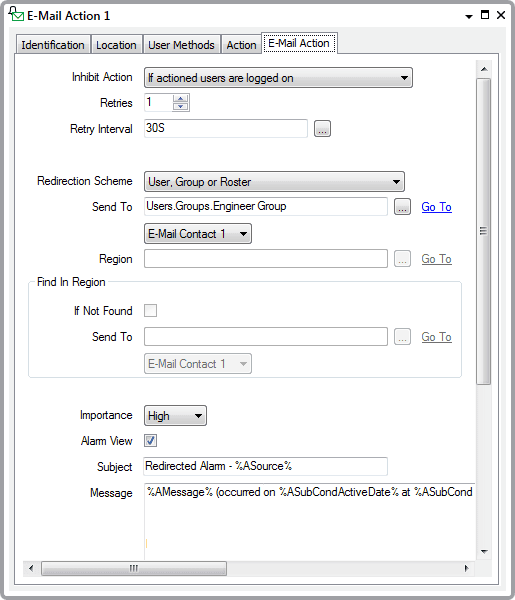
  • Display the Action Form for the E-mail Action that you want to configure (select the View tab on the ViewX ribbon > Database > right-click on the redirection action in the Database Bar > E-Mail Action tab)
  • Select the E-Mail Action tab.
  • Use the Inhibit Action combo box to define under what circumstances Geo SCADA Expert should be inhibited from sending the e-mail
  • Use the Redirection Scheme combo box to specify whether you want to redirect alarms to users that are in the relevant region or suitable geographical location. If your system does not use Geo SCADA Expert’s Geographical Location, or you want to redirect alarms regardless of a users’ region or location, select the default option ‘User, Group or Roster‘.
  • The Send To field directly below the Redirection Scheme combo box only applies when the Redirection Scheme is set to the default option of ‘User, Group or Roster‘.
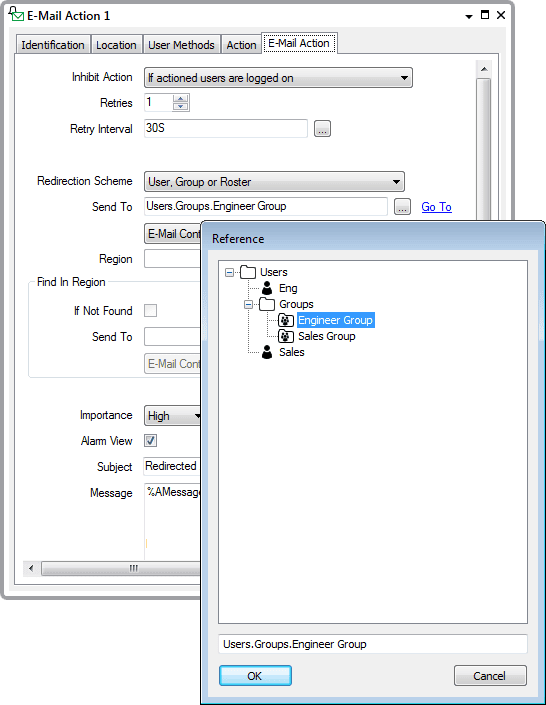
    If another Redirection Scheme option is selected, the Send To field is grayed out and unavailable for use.Use the Send To field to specify the User, User Group, or User Roster to which Geo SCADA Expert is to redirect alarms. To do this:
    • Select the browse button next to the Send To field.
      A Reference browse window is displayed.
      • Use the Reference browse window to locate and select the name of the required User, User Group, or User Roster
         
      • Select the OK button.
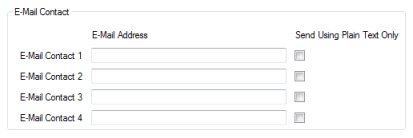
    • Regardless of the option chosen for the Redirection Scheme, use the E-Mail Contact combo box to specify to which e-mail the message is to be sent. Each user can be allocated up to four e-mail addresses through which they can be contacted. Select the email you created for Email2SMS in point 1 “Define the e-mail contact settings in the E-Mail Contact”.
    • Set the Alarm View check box to specify whether the e-mail is to include a hyperlink to the relevant Alarm View (if such a view exists for the item that is in alarm). Clear the check box if no hyperlink is required.
    • Enter the title of the e-mail in the Subject field.
      Regardless of the E-Mail’s format, the Subject is sent as 7-bit US-ASCII, a character set to which limitations apply (see Plain Text Format E-Mails).
    • Select the Message field.
      Enter the e-mail message. This can include trip sequences (see Trip Sequences Supported by Redirection Actions, and see Use Trip Sequences to Include Geographical Information).

      If the Send Using Plain Text Only feature is activated on the recipient’s user account, the recipient will only be sent e-mails in plain text format.

    • Save the configuration. Select the Save button  on the Quick Access Toolbar.
    • When you have configured the required E-Mail Actions, you can proceed to Configure Alarm Redirections for an Item or Group.

    For more details about the Email Actions parameters, please read the documentation: Geo SCADA Define the E-Mail Action Details

SMSEagle as SMTP Server (optional)

As described in point 2 above, for sending e-mail messages you can use SMTP server installed on the SMSEagle device. In this scenario your email from Geo SCADA will be directly sent to SMSEagle (without using any external email servers). SMTP server on the SMSEagle device will accept messages addressed for it only. The other messages will be rejected


Wake-up Calls & Text-to-speech Calls (optional)

SMSEagle has a voice feature that offers wake-up calls for urgent ring-only alerts or text-to-speech calls to convert text alerts into voice calls. Complete the following steps if you want to add a follow-up voice call:

  • in the SMSEagle web interface: Automation > Email > Email to SMS edit the forwarding rule you created earlier
  • in the parameter “Call after sending SMS” choose a desired value:
    • Ring only: SMS will be followed with a wake-up (ring only) call
    • Yes – text to speech: SMS will be followed with a simple text-to-speech voice call (English language only)
    • Yes – text to speech (advanced): SMS will be followed with a text-to-speech voice call (better quality & multiple language support)

Alarm Acknowledgement from SMS to Geo SCADA (optional)

With SMSEagle and Geo SCADA you can setu up  alarm acknowledgement via SMS. When an SMS alarm message is received from SMSEagle, an engineer can reply using a special keyword to acknowledge the alarm in Geo SCADA. Complete the steps below if you want to add alarm acknowledgement with SMS. This configuration will use SMS to Email mechanism to convert SMS into email acknowledgement. 

  • Access the Geo SCADA Expert Server Configuration Tool.
  • Expand the System Configuration branch of the tree-structure.
  • Select E-Mail to display the E-Mail settings.
    • Make sure that Incoming Mail (POP3/IMAP) server is configured. Your Geo SCADA must be able to receive incoming emails
    • In the E-Mail Acknowledgment Criteria section, define Acknowledgment Keyword. This will be a unique keyword to acknowledge the alarm.
    • Save and apply the changes to the server
  • Setup SMTP Configuration in the SMSEagle web interface.
    • In Settings > Channels > Email > SMTP Configuration fill in the SMTP server configuration. SMSEagle will use this server to send emails to Geo SCADA.
    • Test the configuration and save it.
  • Setup SMS to Email in the SMSEagle web interface
    • In Automation > Email > SMS to Email click Create new rule
    • Set Type of email forwarding: To email of last sending user
    • Set Email subject: {WORDS,1}
    • Leave other settings with default values (or adjust them to your needs)
    • Save the rule with the Save button

With the above setup the engineer who receives an alarm SMS should respond with the Acknowledgment Keyword that was defined in Geo SCADA settings. The SMS with the acknowledgment will be converted to email and sent to Geo SCADA server.

Explore SMSEagle Demo device

SMSEagle is a hardware & software solution that guarantees a swift delivery of your messages to designated recipients, whether it’s for notifications, alerts, or important updates.

After registering to a demo you get a remote access to our physical device NXS-9750.

  • 14-days free trial
  • Access to over 20 functionalities

What is hardware
SMS Gateway?

Learn more about
SMSEagle features