The integration uses the Incoming Webhook connector built into the channel, so you don’t register your own Teams app. You only need the webhook address from the channel settings.
You choose what appears in the channel
A Webhooks rule can post incoming SMS, sent SMS or delivery reports to Teams, or all three as separate rules, so the channel shows only the messages your team needs.
SMS works even if Teams is down
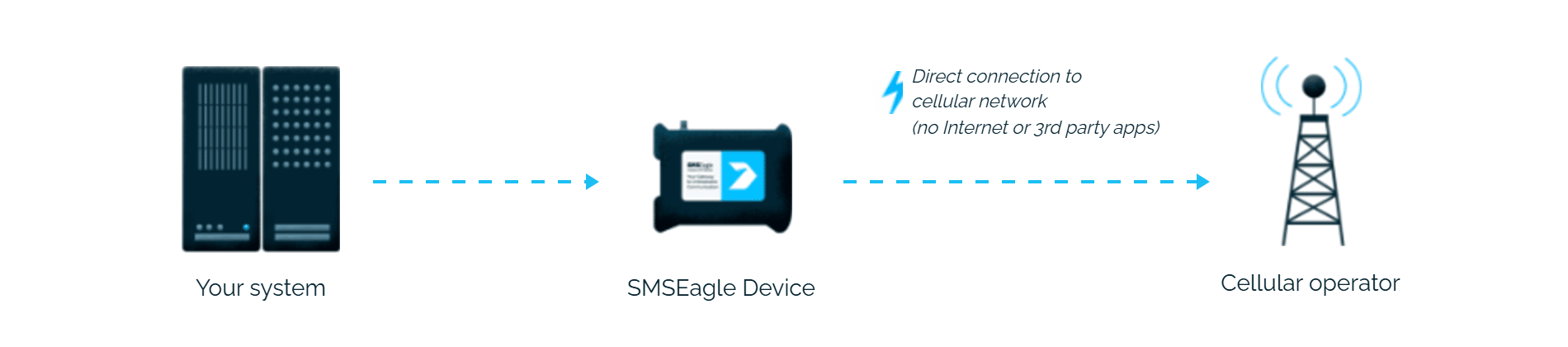
SMSEagle sends and receives SMS through its own SIM card, independently of Teams and the internet. If the post to Teams fails, the messages are still sent.
How it works
1
SMS event on SMSEagle
An SMS arrives on the device, is sent from it, or a delivery report comes back – whichever event the Webhooks rule is set to watch.
2
Webhook to the Teams connector
SMSEagle posts a JSON payload to the Incoming Webhook URL configured for the Teams channel, with no middleware in between.
3
Message appears in the channel
The SMS, sent message or delivery report appears as a post in the Teams channel, straight away.
Set up in about 10 minutes
No custom connector to build. With an Incoming Webhook URL from a Teams channel and a matching rule on SMSEagle, SMS activity is posting into Teams in about 10-15 minutes.
SMSEagle brings SMS into Microsoft Teams, so your team sees messages in the channel it already uses.
SMS in the channel your team already uses
Incoming SMS appear in a Teams channel, so nobody has to watch a separate inbox or device.
Delivery reports in one place
Delivery reports can go to the same channel, so the team sees whether an SMS reached the recipient.
SMS keeps working even if one device fails
Two SMSEagle devices can work as an HA cluster: if one fails, the other takes over.
SMSEagle configuration
This integration will use Webhooks (aka Callback URL) feature (see details: Webhooks).
1. Go to the Webhooks in SMSEagle Web-GUI.
2. Create a new rule for Teams .
3. In the URL field paste the link from MS Teams Setup, select URL Method to POST and content type to JSON
4. In the Send request for select which SMS you want to get posted – Incoming, Sent, or DeliveryReports. Create new rules for other types if necessary.
Microsoft Teams configuration
1. Go to desired channel you want post messages to, and click Manage channel 2. Expand Connectors and click Edit
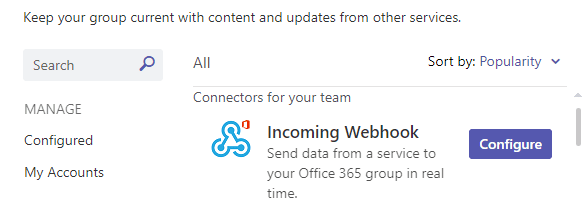
3. In the Connectors find ‘Incoming Webhook’ and click Configure
4. In the new window provide a name for new webhook and click Create
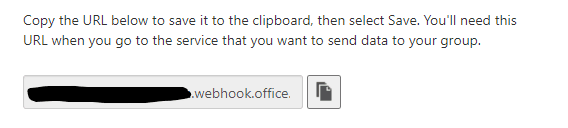
5. After webook is created, copy the URL
Explore SMSEagle Demo device
SMSEagle is a hardware & software solution that guarantees a swift delivery of your messages to designated recipients, whether it’s for notifications, alerts, or important updates.
After registering to a demo you get a remote access to our physical device NXS-9750.