


Home / Integration plugins / Microsoft SCOM 2012 SMS Integration

+

Send SMS alerts from Microsoft SCOM 2012

Microsoft SCOM 2012 alerts reach the person on duty as an SMS. SMSEagle sends them over its own cellular connection, so they don’t depend on internet access or a cloud service.

A ready PowerShell script

You download the SMSEagle PowerShell script and add it as a command notification channel in SCOM, with no code of your own to write.

Works with your SCOM subscriptions

SCOM sends an SMS for the alerts covered by the notification subscriptions you set up.

Works without internet

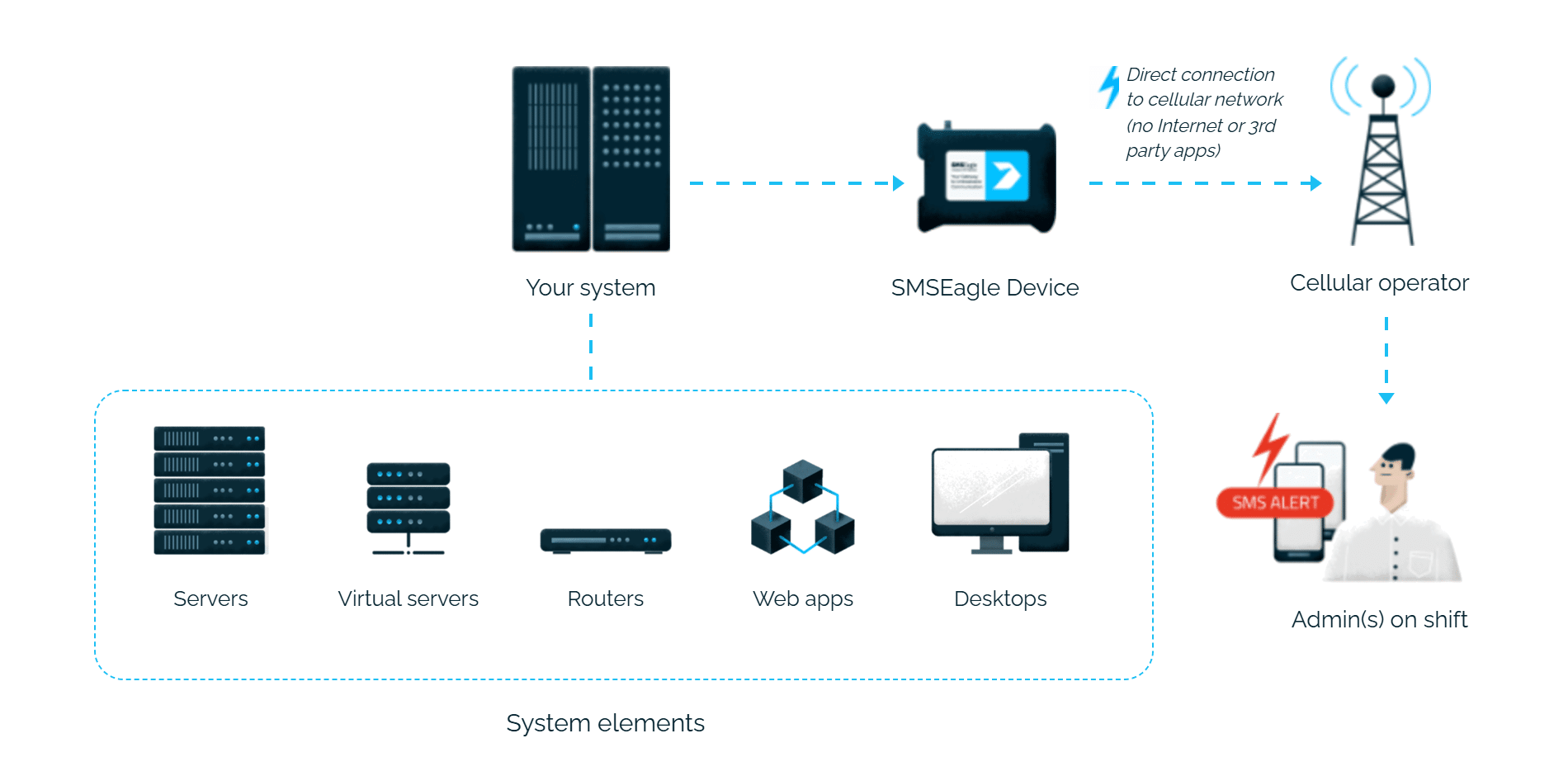
SMSEagle sends alerts through its own SIM card straight to the mobile network, so they don’t depend on internet access or a cloud SMS provider.

How it works

1

Event Trigger

An SCOM alert is raised and matches a configured subscription.

2

Communication

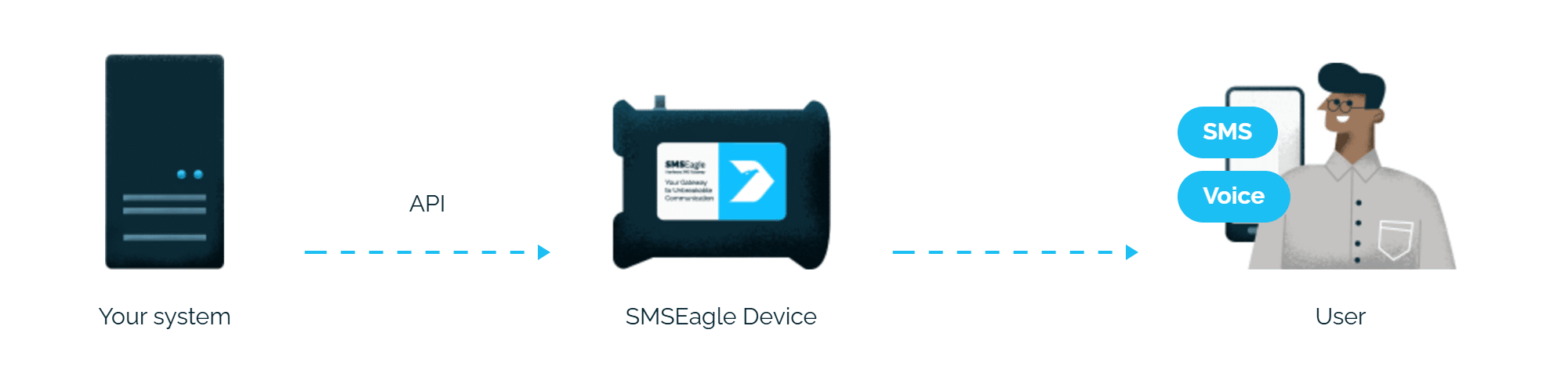
SCOM’s Command Notification Channel sends an HTTP API request directly to SMSEagle over your local network.

3

Alert

SMSEagle delivers the alert over its own cellular connection, not through a third-party service, as an SMS to the recipient’s phone.

Set up in about 10 minutes

Download the PowerShell integration script, create a user in SMSEagle, and configure a Command Notification Channel with a subscriber and subscription in SCOM.

SMSEagle sends SCOM alerts to the right person by SMS, day and night.

No per-message fees

SMSEagle sends SMS through a regular SIM card, so you only pay for your mobile plan.

Alerts keep going if one carrier fails

On devices with two SIM cards from different operators, SMSEagle switches to the second one when the first operator’s network is down.

Alerts keep working even if one device fails

Two SMSEagle devices can work as an HA cluster: if one fails, the other takes over sending.

SMSEagle configuration

Create a new user for this script in SMSEagle.

SCOM configuration

System Center 2012 – Operations Manager Setup

Download our integration script from: https://smseagle.eu/download/sendsms-powershell.zip, edit variables containing SMSEeagle IP, username, and password, and put it in desired location e.g C:\Temp.

The integration in SCOM 2012 will be configured via Command Notification Channel.
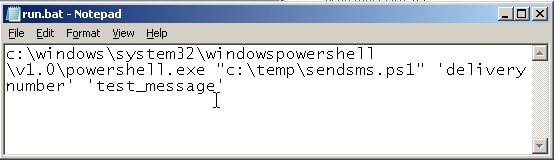
To enable an SMS notification channel:

  1. Log on to the computer with a user account that is a member of the Operations Manager Administrators role.
  2. In the Operations console, click Administration.
  3. In the navigation pane, under Notifications, right-click Channels. Click New and then click Command...
  4. Type a name for the channel, such as SMS channel and optionally provide a description. Click Next.
  5. In Full path of the command file: enter as following: c:\windows\system32\windowspowershell\v1.0\powershell.exe
    then in Command line parameters put “c:\temp\sendsms.ps1” -to [DELIVERY NUMBER] -message ‘$Data/Context/DataItem/AlertName$’
    then in Startup folder for the command line enter c:\windows\system32\windowspowershell\v1.0\
    Click Finish
  6. In [DELIVERY NUMBER] put number of cellphone
  7. As a result you should get your new just-added channel
  • Create a new subscriber

In subscribers you define who or what will receive the notifications.

  1. Go to Subscribers and create a new subscriber, with right-click and selecting New..
  2. Add the following parameters:
  3. Subscribers name, click Next
  4. Schedule: Always send notifications, click Next
  5. Address name: your previously saved name of your channel, click Next
  6. Channel Type: Command
    Command Channel: your previously saved name of your channel, click Next
  7. In Schedule choose: Always send notifications , click Finish
  8. Subscriber is configured. Click Finish again.
  • Create subscription

Here you configure which alerts go to which subscribers using what channel.

  1. Go to Subscriptions and create a new subscription, with right-click and selecting New..
  2. Name: your desired subscription name, click next
  3. Criteria: Notify on all alerts, click next
  4. In Subscribers choose Add: and select your just-added subscriber, click Ok to Add
  5. Choose the channel where you want to the notification to go to by choosing Add.. and selecting your channel. Then add it by clicking OK. Click next
  6. Press Finish

Test if notification is working by checking if :

  1. Notification is downloaded
  2. Notification is active
  3. Create test alert and see if it’s raised

Explore SMSEagle Demo device

SMSEagle is a hardware & software solution that guarantees a swift delivery of your messages to designated recipients, whether it’s for notifications, alerts, or important updates.

After registering to a demo you get a remote access to our physical device NXS-9750.

  • 14-days free trial
  • Access to over 20 functionalities

What is hardware
SMS Gateway?

Learn more about
SMSEagle features


