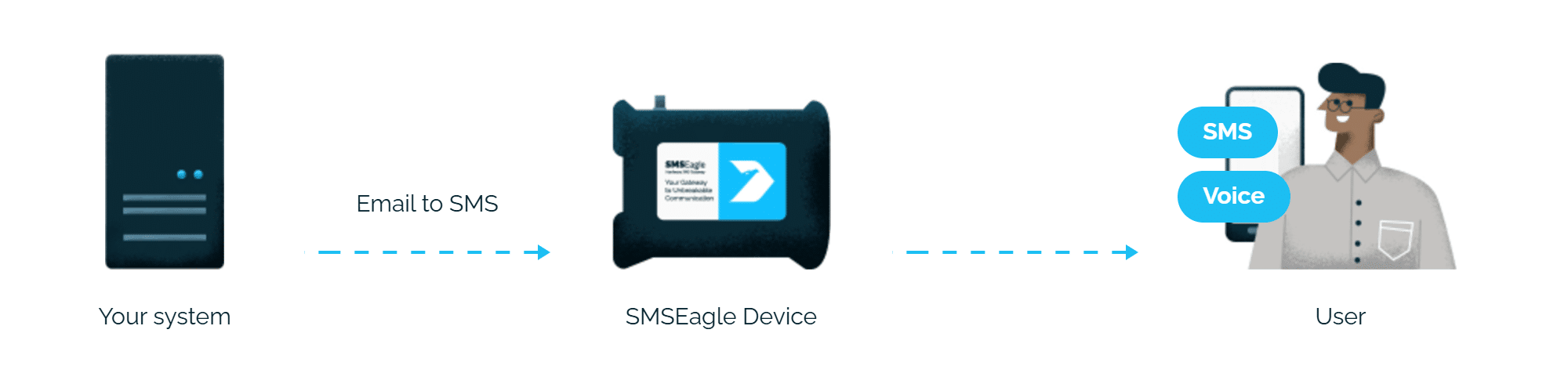
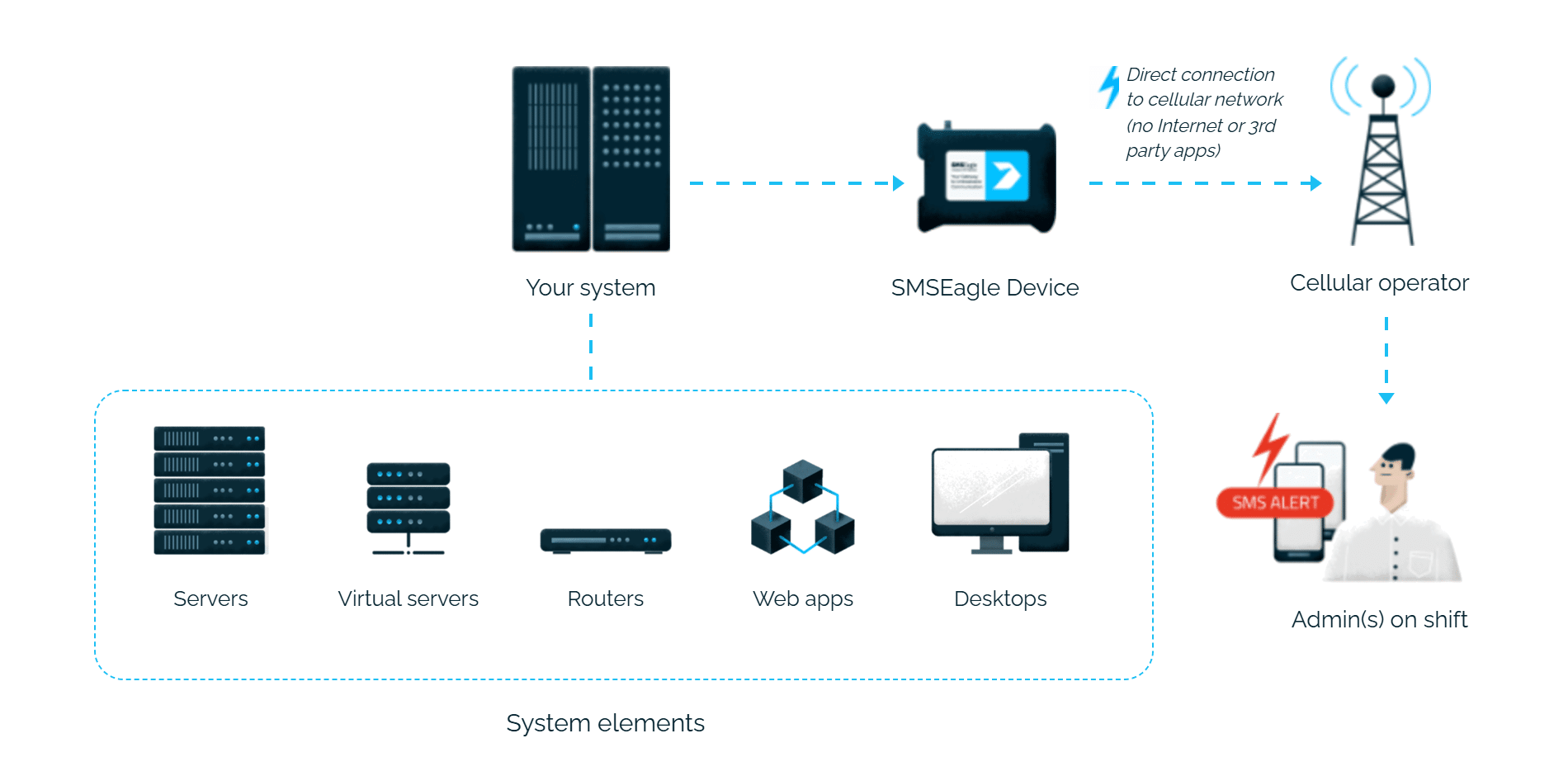
Kaseya alerts reach the person on duty as an SMS or a phone call. SMSEagle sends them over its own cellular connection, so they don’t depend on internet access or a cloud service.
SMSEagle sends Kaseya alerts to the right person by SMS or phone call, day and night.
No mail server needed
SMSEagle can receive emails from Kaseya itself, so alerts don’t depend on your company mail server.
If the first person doesn't respond, the alert is sent to the next
Escalation groups and shift schedules make sure the Kaseya alert reaches the person on duty, and the next person on the list if nobody responds.
An SMS followed by a phone call
After the SMS with a Kaseya alert, SMSEagle can also call: a ring-only call or a call that reads the alert aloud. You set it once in the Email to SMS rule.
SMSEagle configuration
Kaseya Network Monitor integration uses Email To SMS plugin (see details: Email To SMS plugin).
Kaseya configuration
Network Monitor Setup
This integration will use Email To SMS plugin (see details: Email To SMS plugin). This plugin is included in each version of SMSEagle device.
Enable Email To SMS plugin in the web interface: Settings > Channels > Email > Email to SMS.
Create a forwarding rule in Automation > Email > Email to SMS. You can forward all emails to SMS or emails from specific domains.
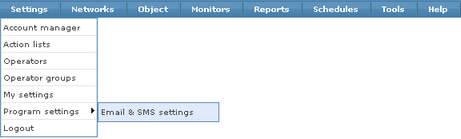
From the top menu go to: Settings → Program settings → Email & SMS settings
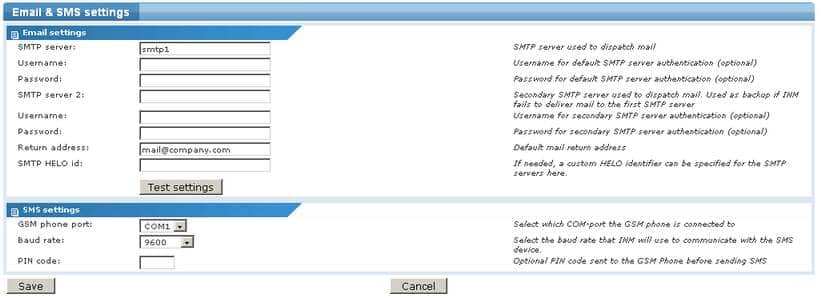
The Email and SMS settings page will be displayed.
SMTP server The SMTP server is used to send email notifications to users. Enter the address to the SMTP server you want to use. Note that the SMTP server must be able to accept all the email addresses that you are planning to use. This is the primary SMTP server that will normally be used (you can use SMSEagle as SMTP server).
SMTP server username and password If your SMTP server requires authentication, enter the username and password in these fields.
SMTP server 2 The secondary SMTP server is used when KNM cannot connect the primary SMTP server.
SMTP server username and password If your secondary SMTP server requires authentication, enter the username and password in these fields.
Return address Most SMTP servers are configured to only accept incoming emails with a valid return address. Since KNM is unable to receive emails you must specify a return address where emails that could not be delivered will be sent.
SMTP HELO ID If needed, a custom HELO identifier can be specified for the SMTP servers here.
Event settings
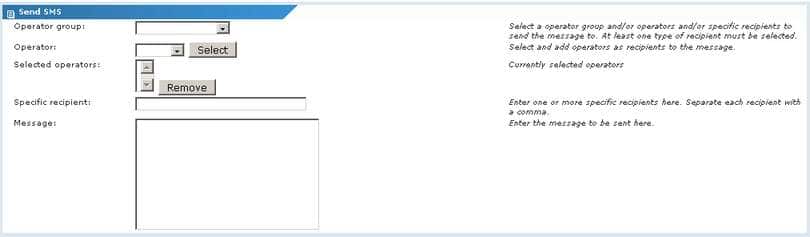
Operator group – Select an operator group to be the recipient of the SMS message.
Operator – Add specific operators as recipients to the message by selecting them from the list and click on the “Select” button.
Selected operators – Operators currently selected as recipients are listed here. To remove an operator, select it from the list and click on the “Remove” button.
Specific recipient – Enter specific phone numbers here. Separate multiple entries with a comma.
Message – Specify the message body text here.
Adding actions to an Action list is done from the Action list information view. To open this view, click on the name of an Action list from the Action list view. The Action list information view is displayed.
The Action list information view
In the upper section of the Action list information view, basic properties of the Action list is displayed, such as its name and description. In the section in the bottom, all actions that has been added to this action list are displayed.
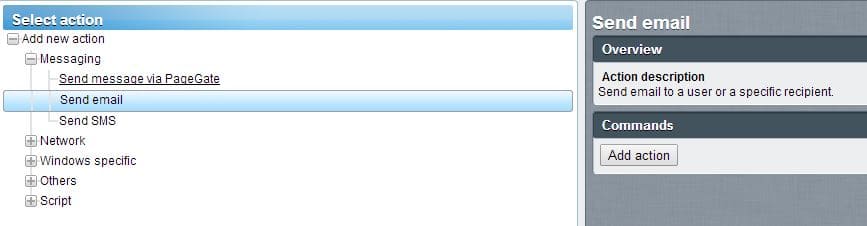
Adding a new action To add a new action to the Action list, click on the “Add action” command in the list. The new action page will appear.
Select the desired action by clicking on it. The properties page for the select action will appear.
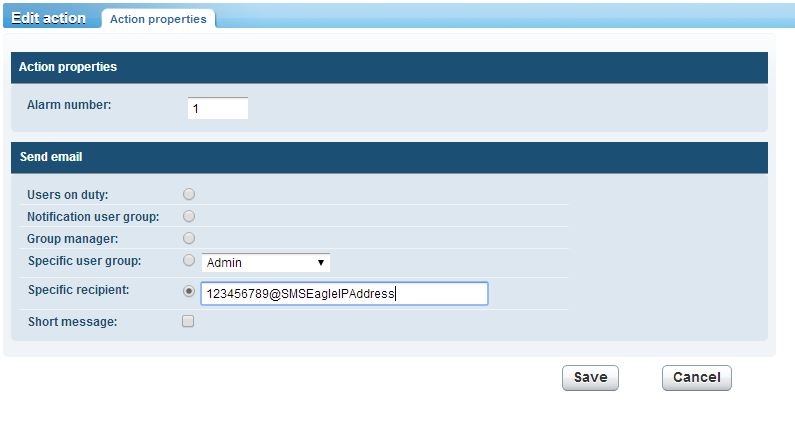
The action properties page
Specific recipient – Email address in the form: PHONE_NUMBER@IP_ADDRESS_OF_SMSEAGLE Short message – recommended to be checked
SMSEagle as SMTP Server (optional)
For sending e-mail messages you can use SMTP server installed on the SMSEagle device. Then the configuration of SMTP server is as follows:
SMTP host: IP address of your device
SMTP port: 25
Authentication: SMSEagle SMTP server doesn’t require authentication
Encryption: none
SMTP server on the SMSEagle device will accept messages addressed for it only. The other messages will be rejected.
Wake-up Calls & Text-to-speech Calls (optional)
SMSEagle has a voice feature that offers wake-up calls for urgent ring-only alerts or text-to-speech calls to convert text alerts into voice calls. Complete the following steps if you want to add a follow-up voice call:
in the SMSEagle web interface: Automation > Email > Email to SMS edit the forwarding rule you created earlier
in the parameter “Call after sending SMS” choose a desired value:
Ring only: SMS will be followed with a wake-up (ring only) call
Yes – text to speech: SMS will be followed with a simple text-to-speech voice call (English language only)
Yes – text to speech (advanced): SMS will be followed with a text-to-speech voice call (better quality & multiple language support)
Explore SMSEagle Demo device
SMSEagle is a hardware & software solution that guarantees a swift delivery of your messages to designated recipients, whether it’s for notifications, alerts, or important updates.
After registering to a demo you get a remote access to our physical device NXS-9750.