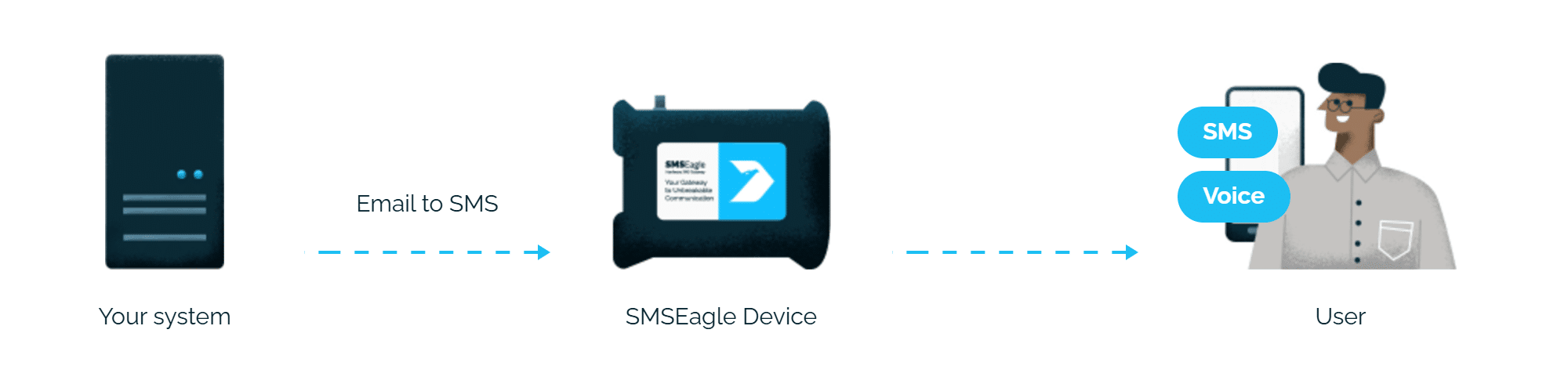
HPE OM alerts reach the person on duty as an SMS or a phone call. SMSEagle sends them over its own cellular connection, so they don’t depend on internet access or a cloud service.
An HPE OM automatic command sends the alert by email or through the SMSEagle API, with no extra software to install.
No external SMS service needed
SMSEagle sends the SMS through its own SIM card, so you don’t pay for a cloud SMS service.
Works without internet
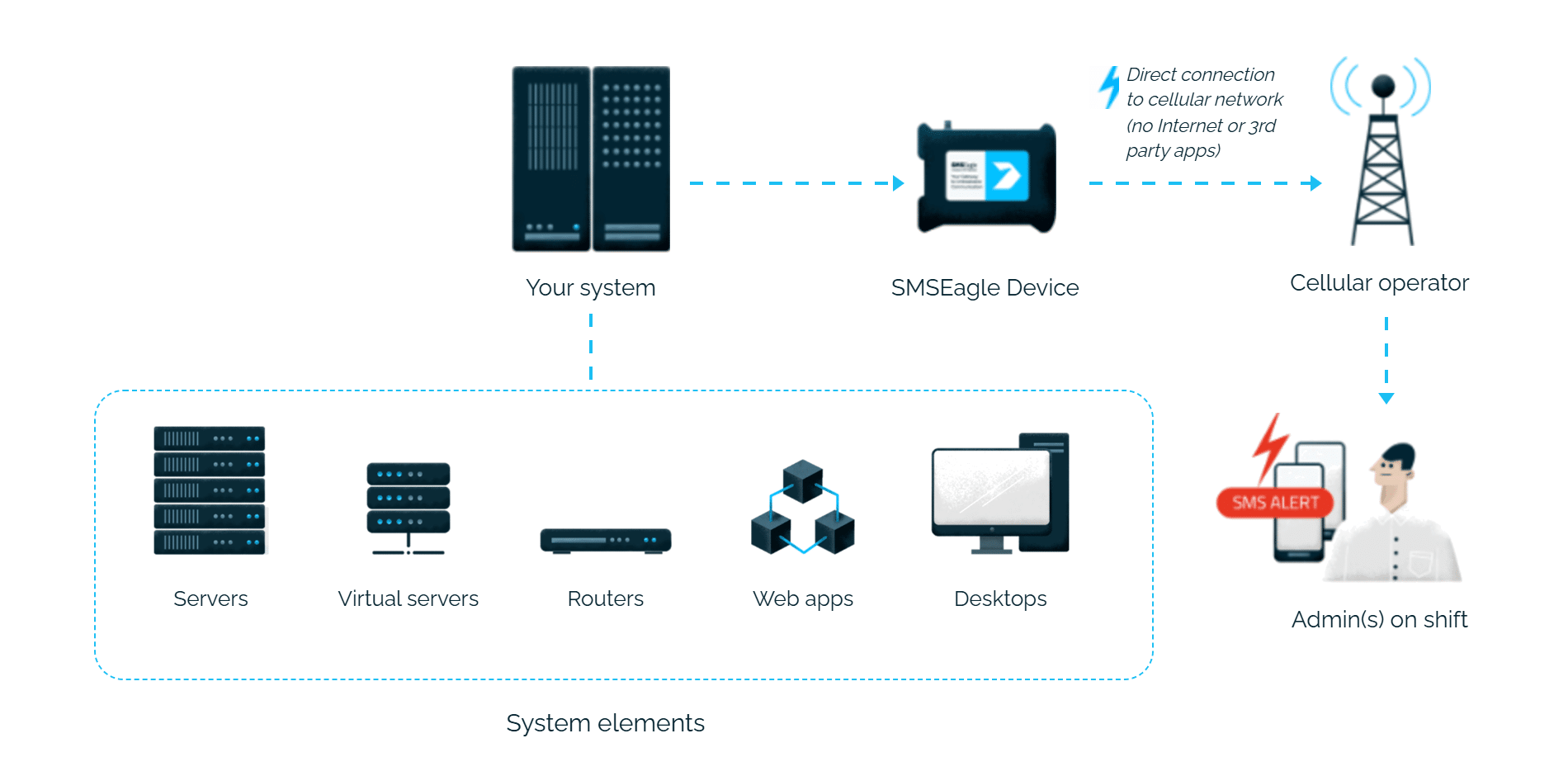
SMSEagle sends alerts through its own SIM card straight to the mobile network, so they don’t depend on internet access or a cloud SMS provider.
How it works
1
Event Trigger
An HPE OM policy rule matches a monitored event, for example a Windows Event Log error.
2
Communication
An HPE OM Automatic command runs, sending either an email (via Email2SMS) or an HTTP API request (via curl) to the SMSEagle device over your local network.
3
Alert
SMSEagle delivers the alert over its own cellular connection, not through a third-party service, as an SMS or a phone call to the recipient’s phone.
Set up in about 10 minutes
There are two ways to integrate: Email2SMS or HTTP API. Both work equally well – choose whichever fits your environment.
SMSEagle sends HPE OM alerts to the right person by SMS or phone call, day and night.
An SMS followed by a phone call
After the SMS with an HPE OM alert, SMSEagle can also call: a ring-only call or a call that reads the alert aloud. You set it once in the Email to SMS rule.
If the first person doesn't respond, the alert is sent to the next
Escalation groups and shift schedules make sure the HPE OM alert reaches the person on duty, and the next person on the list if nobody responds.
Email or API, whichever suits you
SMSEagle can receive HPE OM alerts by email or through the HTTP API, so you choose the method your network policy allows.
SMSEagle configuration
Email To SMS plugin or API
HPE OM can integrate with SMSEagle either via the Email To SMS plugin or via the HTTP API – both options are covered below.
Email To SMS: enable Email to SMS in the web interface (Settings > Channels > Email > Email to SMS) and create a forwarding rule in Automation > Email > Email to SMS.
HTTP API (APIv1): create a new user in SMSEagle (System > Users) with access level “User”, then in Settings > Global settings > API open the API v1 page, click Create API key, select that user as Owner, add the Send SMS permission and click Create key. The access token is shown only once.
HPE OM configuration
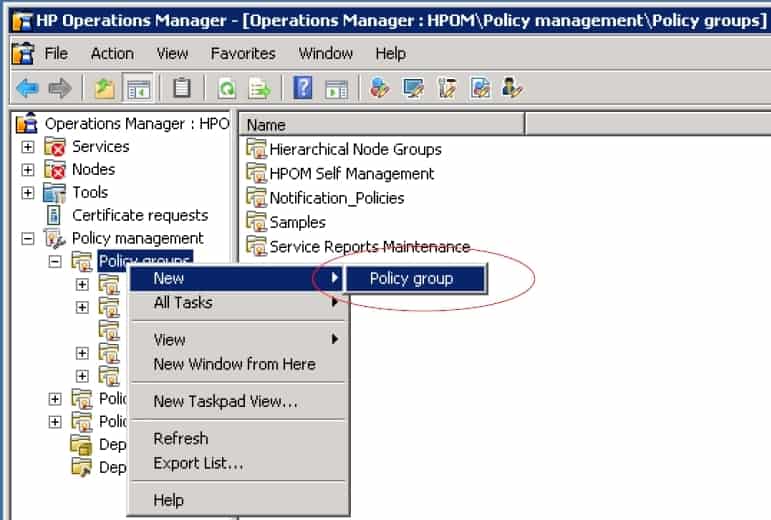
1. Create a new policy group
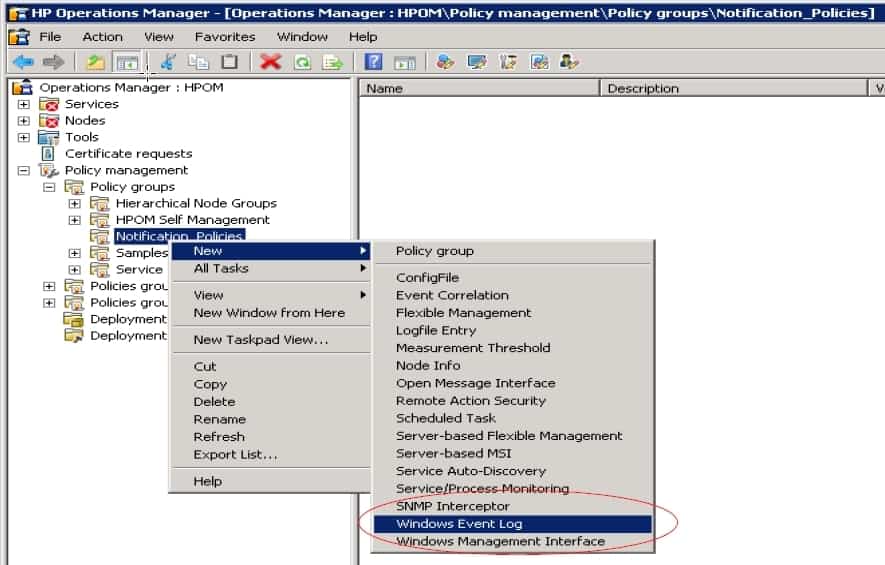
Go to Policy management > New > click on Policy group.
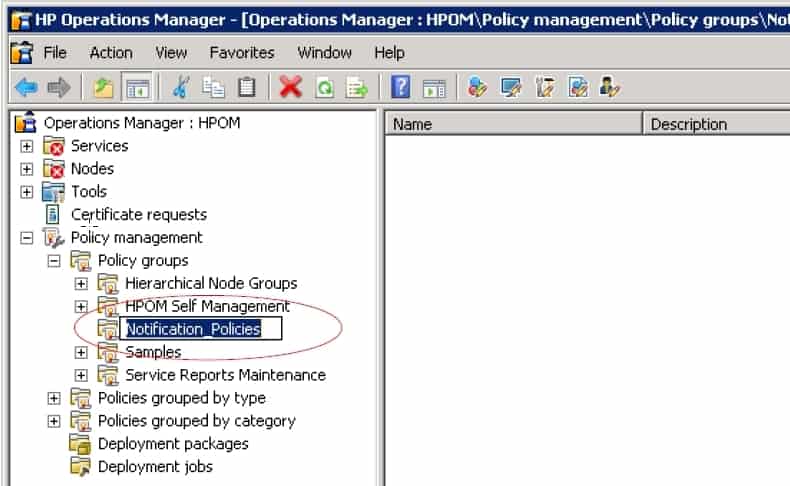
2. Name the policy group
Select a name for the policy group. In this example, we have used Notification Policies. The newly created policy group appears in the Policy Groups list.
3. Select Windows Event Log
Right-click on the created policy group and select Windows Event Log (in this example, testing was done on Windows Event Log).
4. Specify the EventLog
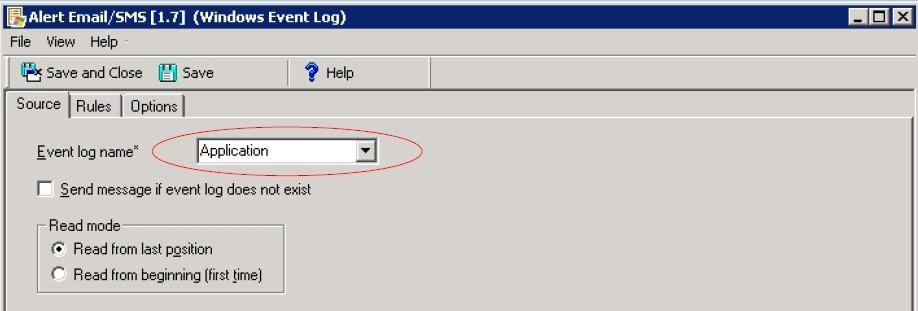
Specify the EventLog to be monitored (e.g. Application).
5. Create a new rule
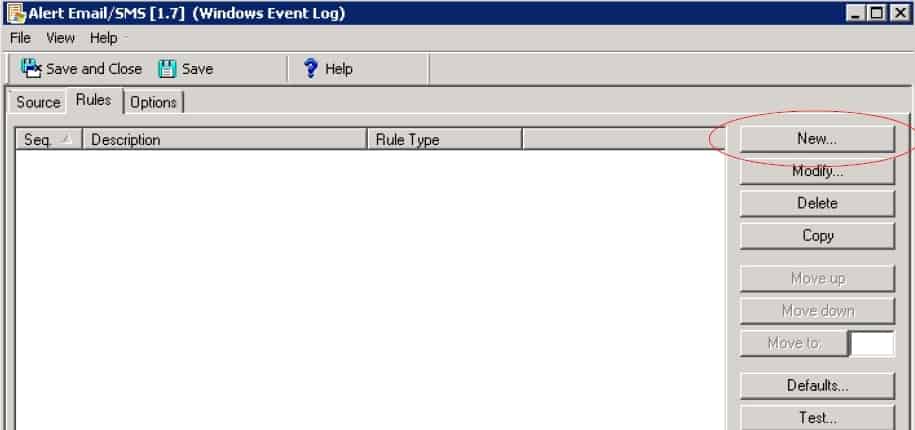
Click on the Rules tab and click New.
5.1. Create criteria for the rule
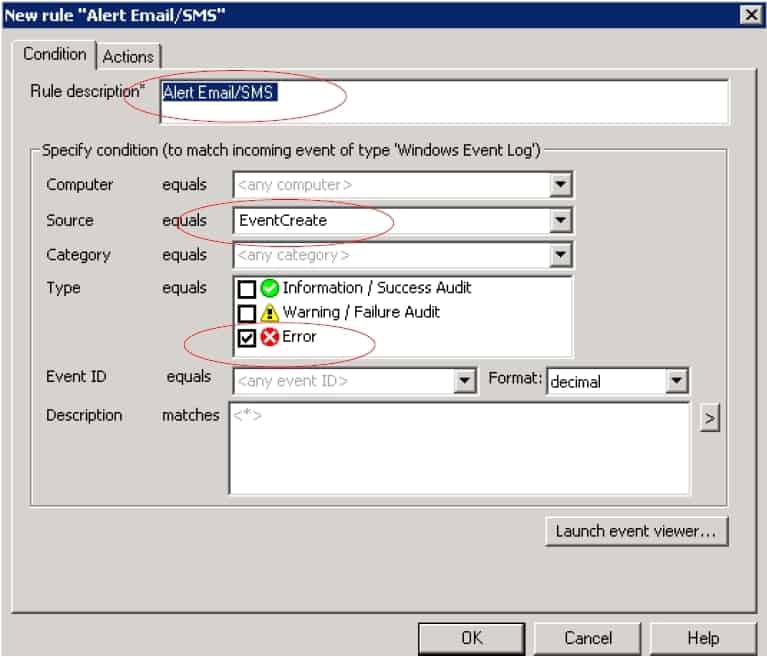
In this example, the following criteria were used:
Rule description: Alert Email/SMS
Source: EventCreate
Type equals: Error
When completed, click OK.
There are two ways of configuring HPOM to send event alerts with SMSEagle:
The first is using a command line to forward the email alerts generated by HPOM to SMSEagle using the Email2SMS plugin.
The second method is via an HTTP API request.
Integrating using email alerts (Email2SMS)
This integration will use the Email To SMS plugin (see details: Email To SMS plugin). This plugin is included in each version of SMSEagle device.
a. Enable Email to SMS in the web interface: Settings > Channels > Email > Email to SMS. Then create a forwarding rule in Automation > Email > Email to SMS. You can forward all emails to SMS or emails from specific domains.
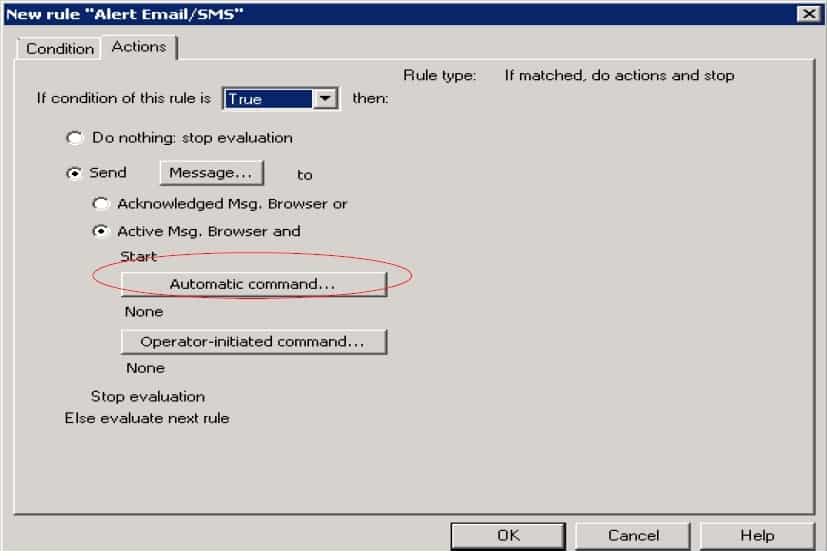
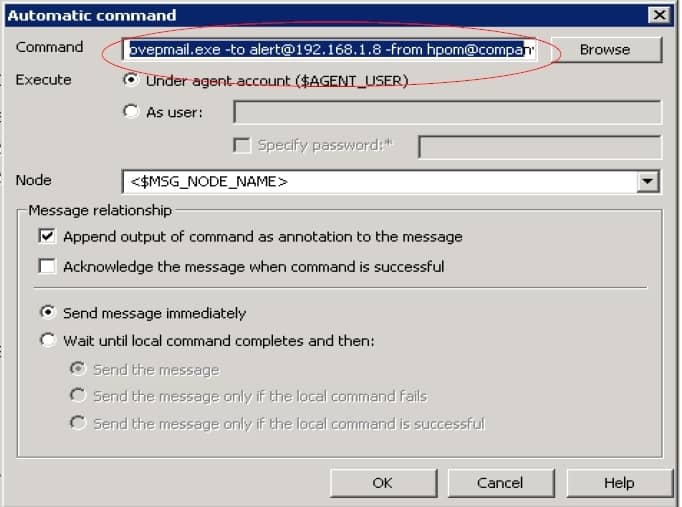
b. Go back to the HP OM application. Click the Actions tab and select Automatic command.
to address: email in the form CONTACT_NAME@IP_ADDRESS_OF_SMSEAGLE (CONTACT_NAME, or a PHONE_NUMBER/GROUP_NAME from SMSEagle’s phonebook), where IP_ADDRESS_OF_SMSEAGLE is your device’s IP address (e.g. alert@192.168.1.8)
from address: the assigned sender’s email address (e.g. hpom@company.com)
mailsrv: IP or domain name of the SMTP server to use (here, SMSEagle’s own built-in SMTP server at 192.168.1.8)
format: plain
body: the message you want to send, e.g. <$LOGFILE>
subject: email subject
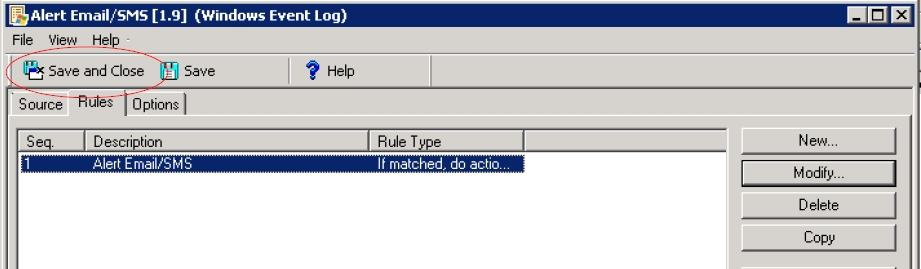
d. Click OK once completed. e. Click Save and close.
Integrating using API HTTP GET (curl)
The second option for connecting to SMSEagle is using the API (APIv1).
SMSEagle Setup:
Create a new user in SMSEagle (menu System > Users) with access level “User”.
Go to Settings > Global settings > API and open the API v1 page.
Click Create API key, fill in Key name and select that user as Owner.
Add access permissions in section Permissions for: Send SMS.
Click Create key. The access token is shown only once, right after saving.
HPE OM Setup
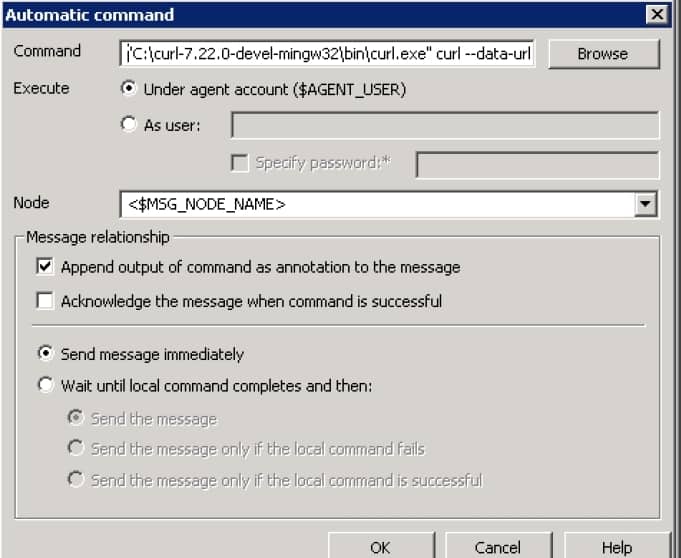
a. Install curl (download from curl.haxx.se and move the downloaded file into the C directory). b. Go back to the HP OM application. Click the Actions tab and select Automatic command.
REPLACE_WITH_SMSEAGLE_TOKEN: your API access token generated in the SMSEagle web interface
to: recipient phone number(s), separated with a comma
REPLACE_WITH_SMSEAGLE_IP: IP address of your SMSEagle device
message: your SMS message
d. Click OK once completed. e. Click Save and close.
6. Deploy the rule on the monitored system
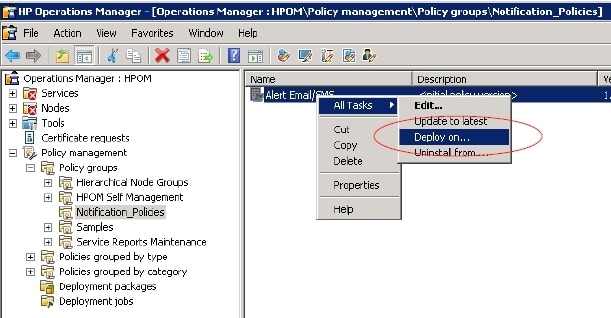
Select the created rule and click “Deploy on” to install the rule (Alert Email/SMS) on the monitored system/server.
Select the monitored system/server and click OK. Refer to HPOM Help on Policy Management for more information.
Wake-up Calls & Text-to-speech Calls (optional)
SMSEagle has a voice feature that offers wake-up calls for urgent ring-only alerts, or text-to-speech calls to convert text alerts into voice calls. Complete the following steps if you want to add a follow-up voice call:
In SMSEagle webGUI > Settings > Channels > Email > Email to SMS, edit the forwarding rule you created earlier.
In the parameter “Call after sending SMS” choose a desired value: Yes – ring only (a wake-up/ring-only call), Yes – text to speech (a simple text-to-speech voice call, English only), or Yes – text to speech (advanced) (better quality, multiple language support).
Explore SMSEagle Demo device
SMSEagle is a hardware & software solution that guarantees a swift delivery of your messages to designated recipients, whether it’s for notifications, alerts, or important updates.
After registering to a demo you get a remote access to our physical device NXS-9750.