Go to: Settings > System > Email
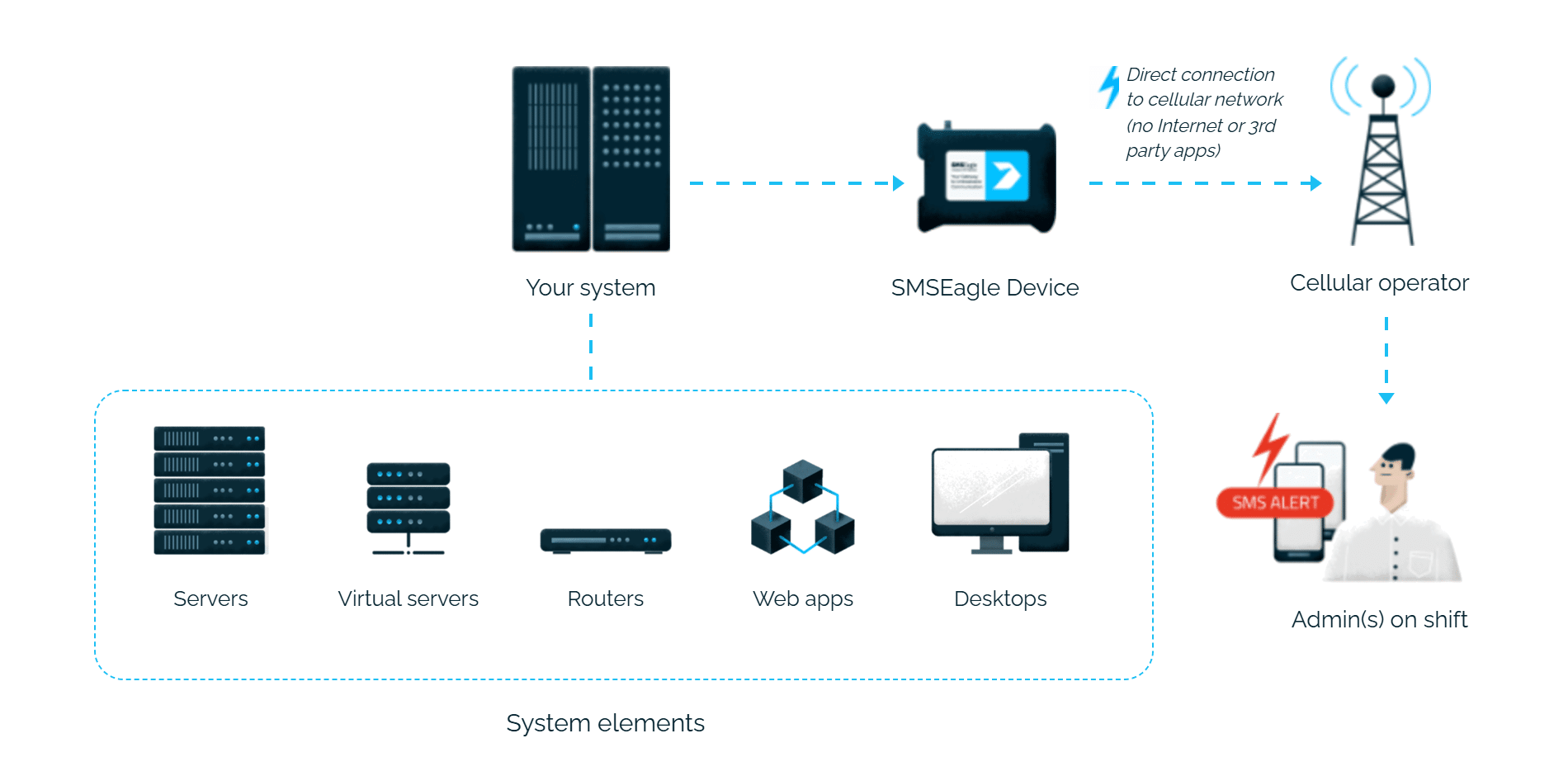
You don’t have to watch APC NetBotz 750 around the clock to know when something needs your attention. Whether it’s a temperature spike, a water leak, or a door left open, SMSEagle sends an SMS or voice call straight to the right person’s phone – powered entirely by its own hardware, independent of your network or the cloud.
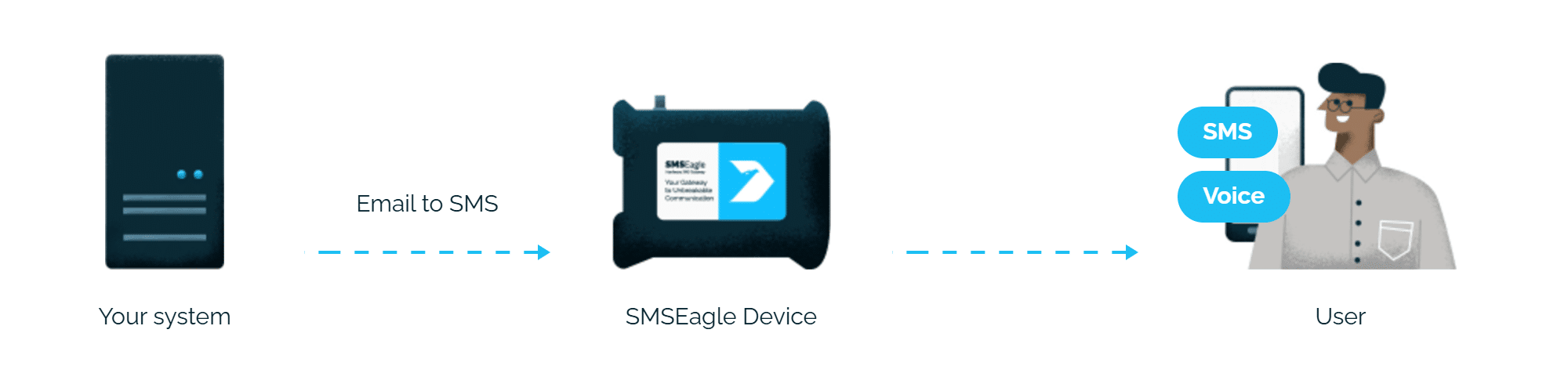
NetBotz sends its usual email notification, and SMSEagle turns it into an SMS, so you don’t pay for a cloud SMS service or an extra SMS module.
SMSEagle can receive emails from NetBotz itself, so alerts don’t depend on your company mail server.
One setup covers temperature, humidity, leak and door alarms, and the SMS go to the same phones.
An APC NetBotz 750 sensor crosses a configured threshold, or a status change/error occurs.
NetBotz sends an email notification to a special address in the format PHONE_NUMBER@IP.ADDRESS.OF.SMSEAGLE, using its built-in notification policies.
SMSEagle delivers the alert over its own cellular connection, not through a third-party service, as an SMS, MMS, or voice call, to the recipient’s phone.
Enable the Email to SMS plugin in SMSEagle, configure an SMTP server and notification policy in NetBotz, and you’re done.
NetBotz watches temperature, humidity, leaks and access to the rack. SMSEagle sends the alarm to the person responsible for the server room, even at night.
Escalation groups and shift schedules make sure the NetBotz alert reaches the person on duty, and the next person on the list if nobody responds.
After the SMS with a NetBotz alert, SMSEagle can also call: a ring-only wake-up call or a call that reads the alert aloud. You set it once in the Email to SMS rule.
This integration will use Email To SMS plugin (see details: Email To SMS plugin). This plugin is included in each version of SMSEagle device.
Go to: Settings > System > Email
Configure a service to send notification messages via email when the status changes or errors occur. You must configure an SMTP server before you can configure email notifications.
Click APPLY to save your changes, or RESET to discard them.
Go to Settings > Notification Policies
Configure notifications to be sent when alarms are generated. Notifications can be sent via email. You can create new email notification policies or edit existing policies.
Click OK to save your policy.
For sending e-mail messages you can use SMTP server installed on the SMSEagle device. Then the configuration of SMTP server is as follows:
Notice: SMTP server on the SMSEagle device will accept messages addressed for it only. The other messages will be rejected.
SMSEagle has a voice feature that offers wake-up calls for urgent ring-only alerts or text-to-speech calls to convert text alerts into voice calls. Complete the following steps if you want to add a follow-up voice call:
SMSEagle is a hardware & software solution that guarantees a swift delivery of your messages to designated recipients, whether it’s for notifications, alerts, or important updates.
After registering to a demo you get a remote access to our physical device NXS-9750.