How to Master Modbus SMS and Voice Alerts [Step‑by‑Step]

In industrial environments, Modbus TCP gets used to keep an eye on PLCs, sensors and automation systems. But the thing is, Modbus just doesn’t come with built-in notification tools that tell you when something has gone wrong. As a result, Modbus SMS alerts are usually handled by a separate layer that takes in register data & sends out SMS & voice alerts.

2 ways to send Modbus SMS alerts: direct sending vs alerting

If you search for “Modbus SMS”, you’ll find two common approaches:

1) Direct sending: bramka lub modem obsługujący protokół Modbus mapuje określone rejestry, umożliwiając wysyłanie wiadomości SMS bezpośrednio przez zapis do rejestru.

2) Alerting layer: a monitoring or edge system polls Modbus registers, evaluates alarm conditions, and sends SMS notifications when thresholds or states are met. 

The alerting layer is the more well-used approach in industries – it lets you set up condition based triggers, escalation paths and acknowledgement workflows for reliable alarm handling. A pretty straightforward way to do this would be to use a dedicated on-premise monitoring system with built-in Modbus TCP support – like SMSEagle.

What is SMSEagle

SMSEagle is an on-premise hardware SMS gateway that cas be easily integrated with existing PLCs, network monitoring tools, and broader IT/OT systems. It goes beyond basic messaging by offering advanced functionalities like Email to SMS, automated workflows & alert management. Crucially, because it utilizes cellular networks, it operates entirely offline as a reliable out-of-band communication alerting solution, guaranteeing that your critical alarms are delivered even if your primary internet or IP networks fail.

What this guide focuses on

Using Network Monitoring → Modbus TCP, SMSEagle enables you to:

  • Monitor Modbus registers in real time 
  • Trigger Modbus SMS alerts instantly 
  • Escalate critical events with voice calls (Text-to-Speech) 

All of this works locally, without relying on external cloud services.

Below is a practical, step-by-step guide you can copy into your internal SOP, plus ideas for scaling alerting (groups, escalation, shifts, HA). 

What you’ll build with SMSEagle
(in 10–15 minutes)​

    • A Modbus TCP monitoring task on SMSEagle that reads a coil/register on your PLC/device and triggers an alert condition. 
    • SMS notification to a person or a group.  
    • Optional voice alert: wake-up call or text-to-speech (TTS) call for urgent alarms.   
    • Optional: escalation so alerts hop from one on-call person to the next until someone acknowledges. 

How Modbus SMS alerting works

SMS is often used in industrial alerting because it works independently of dashboards, apps, and VPN access. When IP connectivity is unstable or operators are off‑site, SMS remains a reliable notification channel.  

In practice, SMSEagle periodically polls Modbus registers and evaluates conditions you define. As a result, alerts are sent to selected recipients when a condition is met. 

Basic Modbus SMS flow: 

  1. Read Modbus register  
  2. Compare with condition  
  3. Trigger SMSvoice alert > sent directly to cellular carrier.  

Prerequisites (quick checklist)

1. Modbus TCP device reachable from SMSEagle 

    • IP address or hostname 
    • Port (typically 502) 
    • Unit ID (aka slave ID) 
    • Register/coil address you want to monitor

2. SMSEagle basics 

    • SMSEagle device with SIM inserted  
    • Your recipients (phonebook contacts / groups) are defined (recommended)

3. For voice alerts 

Step-by-Step configuration

Step 1 (Recommended):
Prepare recipients: contacts & groups 

Before sending SMS from Modbus, it is recommended to define recipients in the phonebook. 

Even if you can type a phone number directly, you’ll save time by building a phonebook group such as “OT On-Call”. 

    1. Go to Phonebook → Contacts 
    2. Add people who should receive alarms (name + phone number). 
    3. Go to Phonebook → Groups 
    4. Create a group, e.g. OT_OnCall and add members. 
[Screenshot: Phonebook → Groups → “OT_OnCall” members list]
[Screenshot: Phonebook → Groups → “OT_OnCall” members list]

Why groups matter: Network Monitoring can send alerts to a single number or a group of users 

Step 2:  Create a Modbus TCP monitoring task 

SMSEagle Network Monitoring supports multiple probe types (ICMP, TCP/UDP Port, SNMP, Modbus TCP). For Modbus TCP, you can monitor register values via the Modbus TCP/IP protocol.  

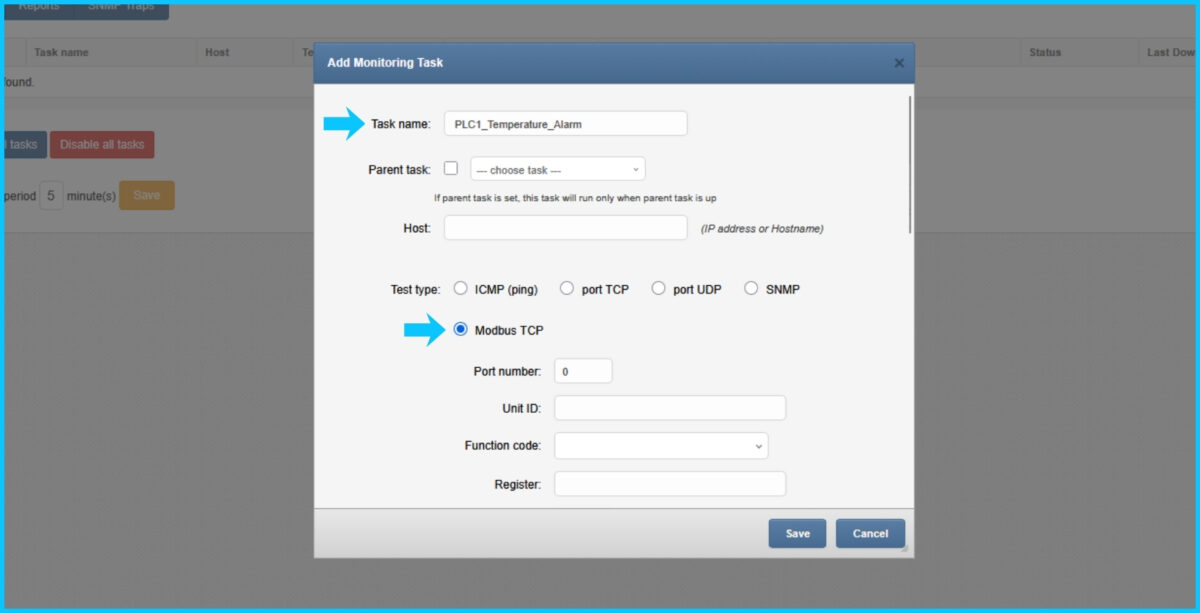
    1. Navigate to: Network Monitoring → Add task 
    2. Set a Task name (e.g., PLC1_Temperature_Alarm). 
    3. Select probe/type: Modbus TCP 
[Screenshot: Network Monitoring → Add Task → Type: Modbus TCP]
[Screenshots: Network Monitoring → Add Task → Type: Modbus TCP]

Fill in Modbus TCP parameters 

SMSEagle’s Modbus TCP probe typically requires:  

    • Host: IP/hostname of the Modbus device 
    • Port: default 502 
    • Unit ID: Modbus unit identifier 
    • Function code (what to read):  
      • Read Coils (1) 
      • Read Discrete Inputs (2) 
      • Read Holding Registers (3) 
      • Read Input Registers (4)  
    • Register: Modbus address to monitor 
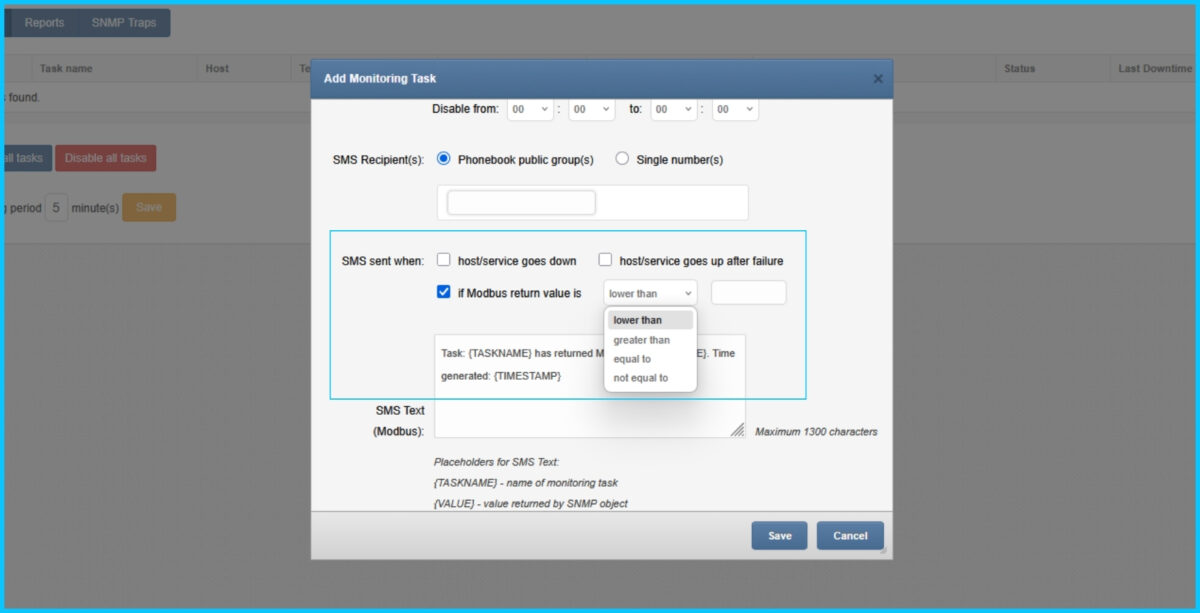
    • Condition (“SMS sent when”): Defines when the Modbus SMS is sent (value equals / not equals / greater / less than threshold). 
[Screenshot: Modbus TCP parameters (Host/Port/Unit ID/Function/Register/Condition)]
[Screenshots: Modbus TCP parameters (Host/Port/Unit ID/Function/Register/Condition)]

Example configurations 

Example A: Alarm bit (coil) 

    • Function: Read Coils (1) 
    • Register: 100 (your alarm coil) 
    • Condition: value equals 1 → send alert  
       

Example B: Temperature threshold (holding register) 

    • Function: Read Holding Registers (3) 
    • Register: 40021 
    • Condition: value greater than 850 (e.g., 85.0°C if scaled by ×10) 

Tip: If your PLC uses scaling (×10, ×100), incorporate it in the threshold and in the message text. 

Step 3: Set schedule & timeouts (avoid false positives) 

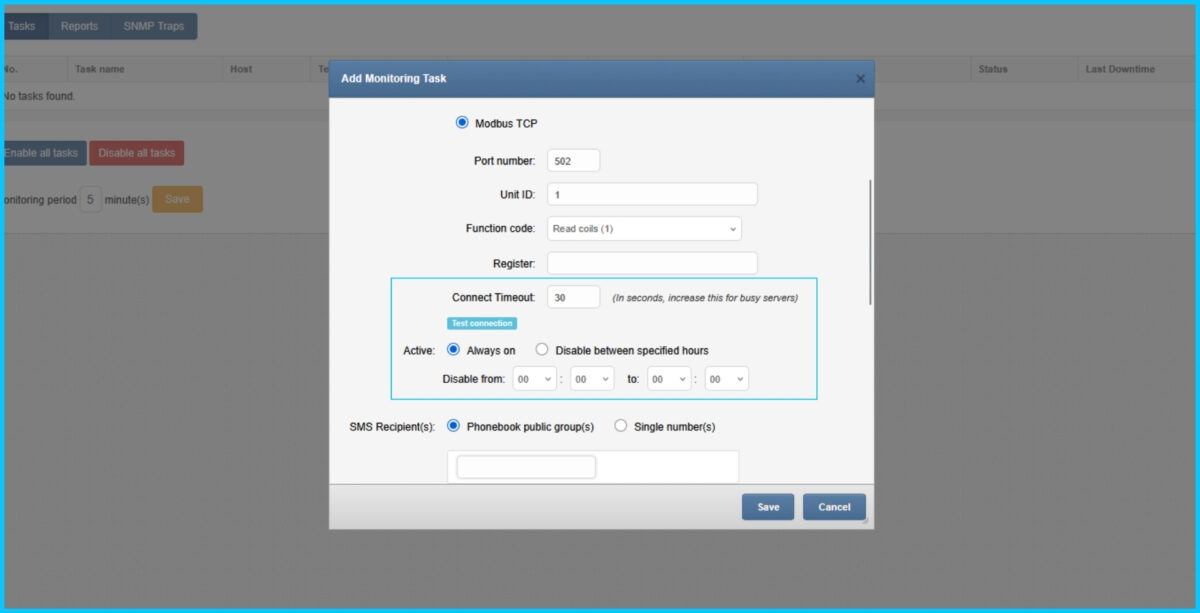
Network Monitoring lets you define schedules and adjust timeouts for busy devices.  

    1. Timeout:
      If your PLC is slow or on a congested network, increase timeout from the default (SMSEagle mentions a default timeout of
      30 seconds). 

    2. Schedule 
      • Always enabled (24/7), or 
      • Disabled during maintenance windows (e.g., nightly restarts).  

This ensures Modbus SMS notifications are reliable and meaningful. 

[Screenshot: Task schedule settings + timeout field]

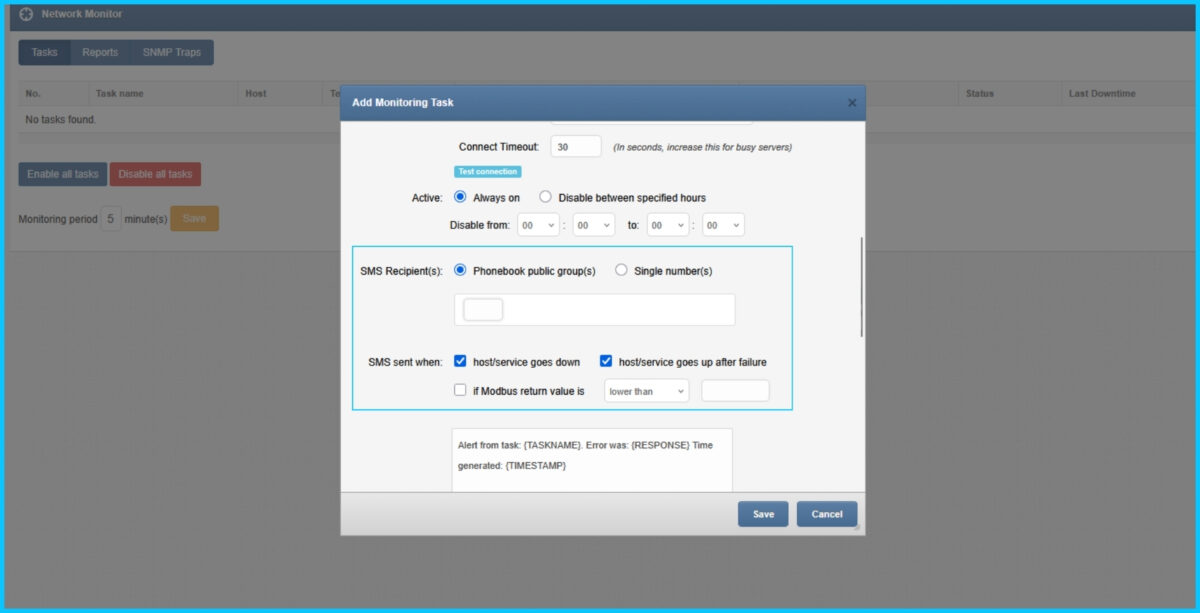
Step 4: Configure SMS recipients & trigger moments 

In the task settings: 

    1. Recipients: choose a phone number or select your group (OT_OnCall).  
    2. Define when the SMS from Modbus is sent: 
      • When condition becomes true / device “down” 
      • Optionally when it recovers (“up after failure”)  
[Screenshot: Recipients selection (number vs group) + “send on down/up” options]

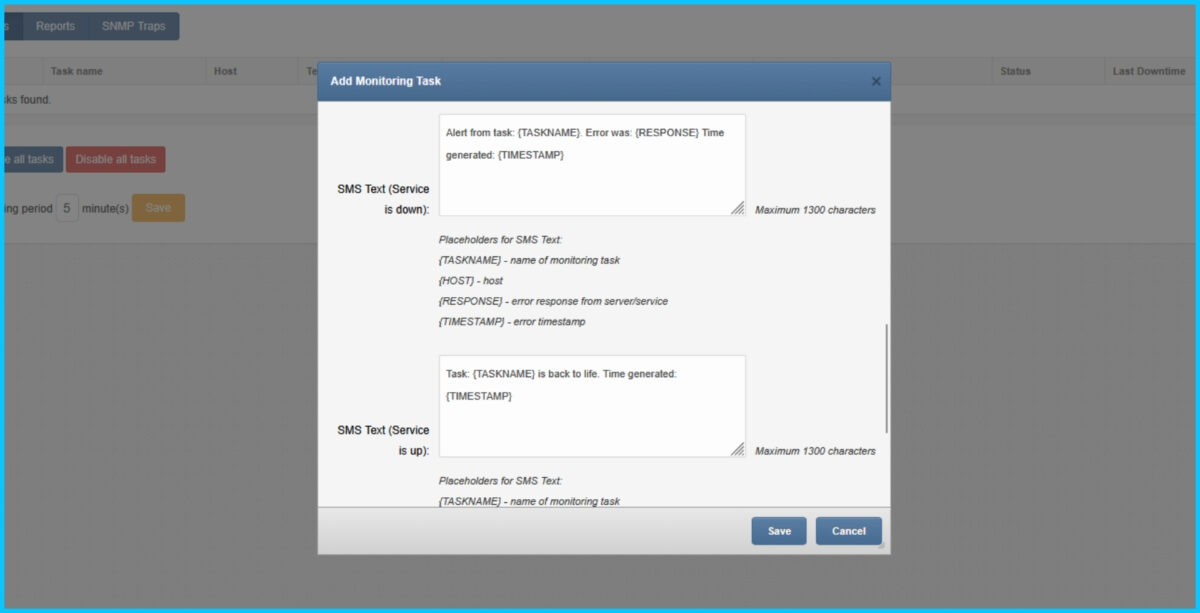
Step 5: Write a clear SMS message (use placeholders) 

SMSEagle Network Monitoring supports SMS templates with placeholders like: 
{TASKNAME}, {HOST}, {RESPONSE}, {TIMESTAMP}  

A good message is short but actionable: 

Suggested SMS template 

ALERT: {TASKNAME} on {HOST}. Value matched condition. Time: {TIMESTAMP}. Response: {RESPONSE} . Check PLC cabinet A3. 

[Screenshot: SMS template editor with placeholders dropdown]

Best practice: Include a human hint like “Check PLC cabinet A3” or “Call maintenance” in the static part of the template. Including context improves response time during incidents. 

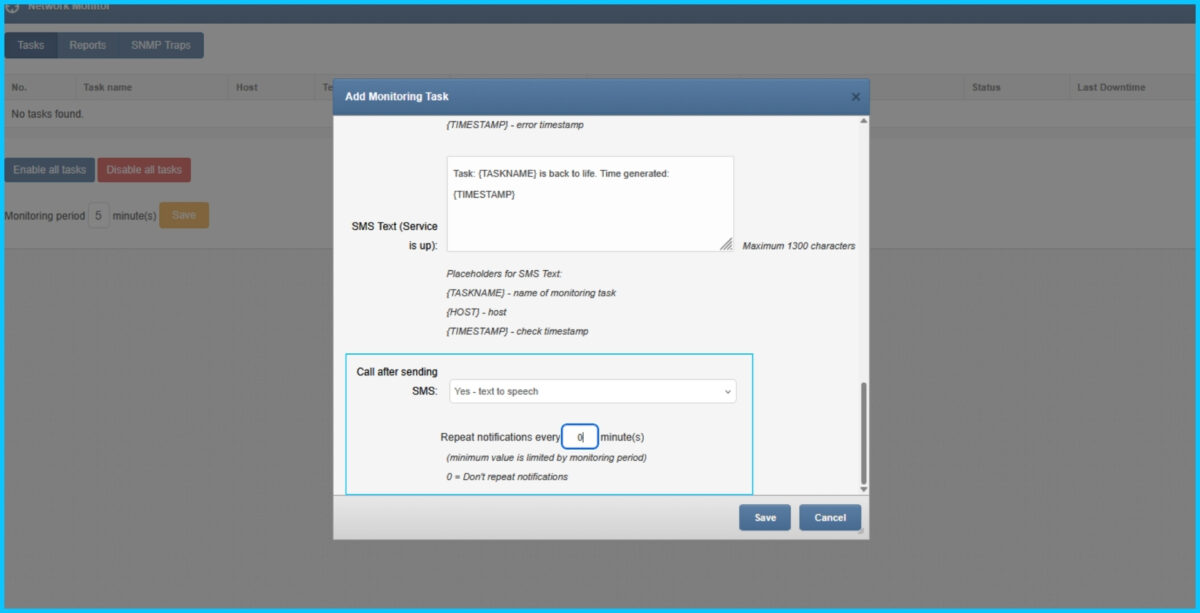
Step 6: Enable voice alerts (optional) 

For critical alarms, SMS alone may not be enough – especially at night. SMSEagle supports voice alerting, including: 

    • Wake-up calls (ring only) 
    • Text-to-speech (TTS) automated calls 
    • Audio file calls The Network Monitoring feature notes that when a problem is detected, SMSEagle can send SMS alerts and optionally voice calls, and voice alerting can be enabled in rule definition (requires Voice-Call add-on).

This is useful for high‑severity Modbus SMS alerts during night shifts. 

Configure voice follow-up (typical pattern) 

  1. In the task/rule settings, locate Voice call / follow-up options. 
  2. Choose one:  
    • Wake-up call (rings the recipient to grab attention)  
    • TTS Text-To-Speech (reads an alarm text as a voice call)  

3. Set call duration / TTS mode if prompted. 

[Screenshot: Network Monitoring task → Voice call follow-up settings]

Choosing the right voice mode 

    • Wake-up call: fastest attention-grabber, great as “SMS + ring” combo.  
    • TTS Simple: fast but English-only.  
    • TTS Advanced: multi-language, higher quality, works offline on the device. 
    • Audio file call: consistent, pre-recorded message  

Step 7: Test your Modbus alert end-to-end 

Quick testing approaches 

    • Force the PLC value (toggle a coil, write a register to exceed threshold). 
    • Use a Modbus test tool from an engineering PC to confirm the register is readable (helps isolate network/firewall issues). 
    • Temporarily set a very easy condition (e.g., “value not equal 0”) to validate the pipeline.

Validate in SMSEagle 

Network Monitoring provides task status and details such as last downtime and response information.  

Level up: advanced alerting patterns  

1) Send SMS to a group (one task → many responders) 

Instead of hardcoding numbers, target a phonebook group so you can change on-call staff without editing tasks. Network Monitoring supports sending to a group of users 

Use case: “Line 2 Maintenance” group gets machinery alarms, “IT On-Call” group gets network alarms. 

2) Use Escalation (don’t rely on “someone will see it”) 

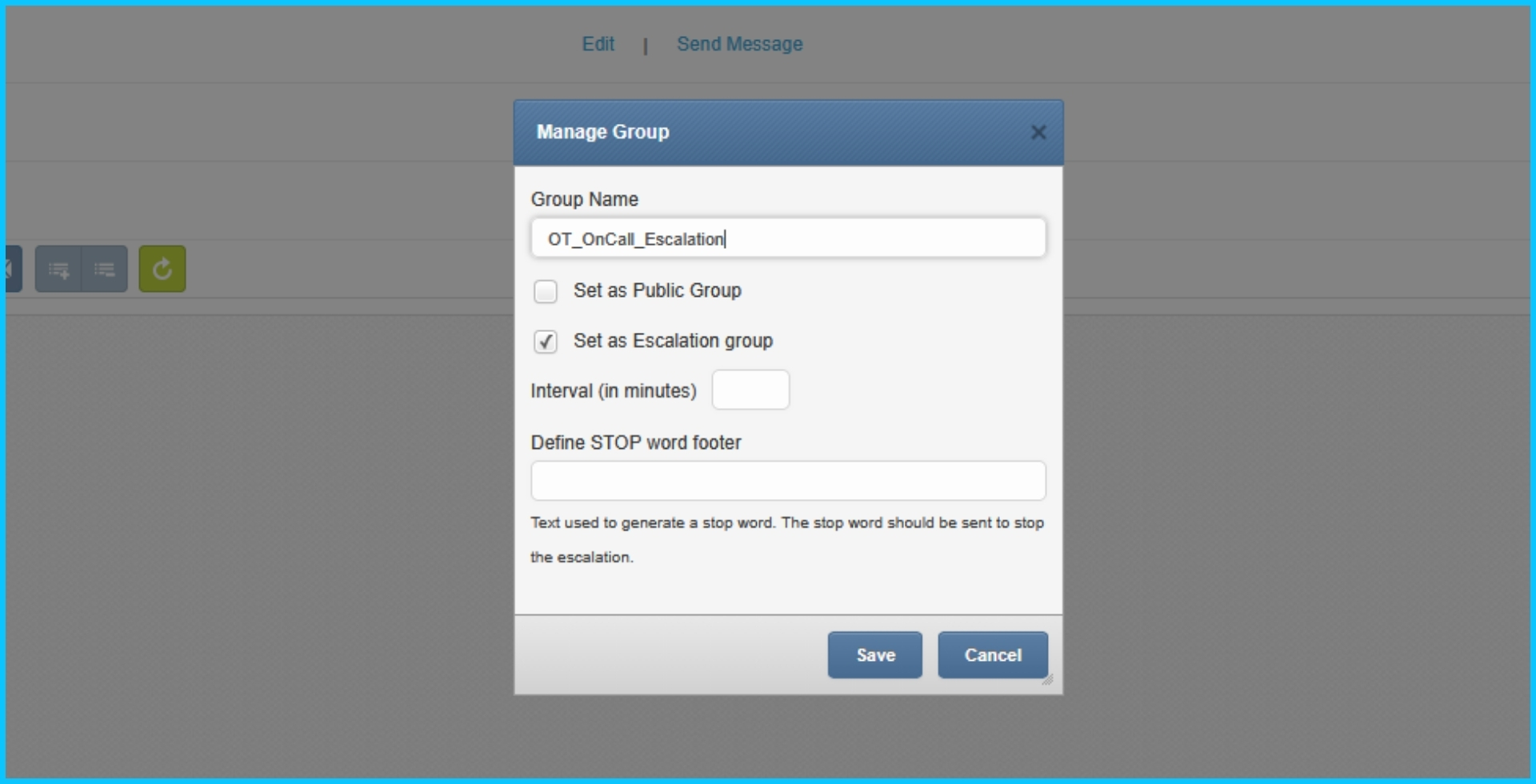
SMSEagle supports built-in escalation: alerts can be escalated through group members in a predefined order until someone acknowledges with a keyword.

How to apply escalation to Modbus alarms 

    • Send the Modbus alarm to an Escalation-enabled group (e.g., OT_OnCall_Escalation) 
      Define:  
    • escalation order 
    • timeout per person (e.g., 3 minutes) 
    • acknowledgment keyword (e.g., ACK)  

Why it matters: It prevents “broadcast fatigue” and ensures ownership. 

[Screenshot: Escalation group settings (order, timeout, ACK keyword)]

3) Add Shift Management (alert only people who are on duty) 

SMSEagle includes Shift management so messages are sent during employees’ work hours by assigning contacts to shifts.  

Use case: Day shift gets production line warnings; night shift gets only high-severity alerts. 


4) High Availability (HA) for mission-critical alerting 

If alerts are business-critical, consider Failover / HA cluster: SMSEagle can be set up as a high-availability cluster of two devices.  

Use case: Power plant, water treatment, production lines where alerting must survive hardware failure. 


5) Best practices for Modbus alert design (avoid noise) 

    • Debounce / persistence: Alert only if condition persists for N polls (prevents transient spikes). 
    • Separate severities:  
    • Warning → SMS to group 
    • Critical → SMS + voice call + escalation 
    • Include context: machine name, line number, location, and a next step (“check breaker QF3”). 
    • Maintenance windows: disable task during planned downtime (Network Monitoring supports schedules).  

Key benefits​

  • Immediate Awareness: Set the device to watch a digital input and trigger SMS alerts directly when a value is equal to an alarm state.

  • On-Premise Reliability: Using cellular hardware ensures that SMS messages and voice calls continue even if the facility’s external internet connection (WAN) is down.

  • Advanced Workflows: Configure the system to choose between a simple message sent to phone numbers or a complex escalation to different users.

Bearded man in a dark shirt holds up a smartphone with a chat bubble coming from the screen, indicating messaging.

Modbus SMS – FAQ (common gotchas)

Can I send voice alerts in multiple languages?

Yes – SMSEagle TTS Advanced supports multiple languages by using downloadable voice models, and the conversion is performed on-device (offline). 

Start with a 5–30s interval for Modbus TCP register polling in SMSEagle and tune it to your process dynamics and network load. If you see timeouts, increase the polling interval and/or the task timeout. 

Check basic connectivity (routing/VLAN), firewall rules to Modbus TCP port 502, and the correct Unit ID, then validate the register and function code with a Modbus client. If the PLC is busy, increase the timeout and reduce Modbus polling frequency. 

Use the PLC/SCADA register map: Modbus TCP values are often scaled (×10/×100) or stored as signed integers. For 32-bit values (two 16-bit registers), confirm word order/endianness and compare with the HMI value. 

Use debounce/persistence (alert only after N consecutive polls) and threshold hysteresis to reduce flapping in Modbus TCP monitoring. Also set SMSEagle schedules for maintenance windows to avoid unnecessary SMS alerts. 

Yes – configure an escalation group and an ACK keyword so an SMS acknowledgment can stop further escalation. SMSEagle can also log who acknowledged the alert for clear ownership. 

For most operations, send SMSEagle alerts to on-call groups so you can change rotations without editing Modbus TCP tasks. Use individual recipients mainly for testing or single-owner systems. 

Voice calls require the SMSEagle Voice (Calls) add-on and working GSM/SIM connectivity. TTS Advanced runs on-device (offline processing), but placing the call still requires cellular coverage. 

Modbus TCP typically has no authentication, so avoid exposing it to the internet. Segment your OT network and restrict access with firewall rules (SMSEagle → PLC on TCP 502). 

Create separate SMSEagle Modbus TCP monitoring tasks per signal/alarm and use consistent naming (e.g., Line_Device_Signal). At scale, standardize templates and use groups + escalation for SMS and voice alerts. 

Modbus SMS summary

To wrap up, integrating SMS capabilities into Modbus networks is a vital strategy for modern industrial control. While traditional Modbus RTU or TCP protocols are strictly poll-based and lack a native interface to “push” urgent notifications, a dedicated hardware gateway bridges this gap. By acting as a Modbus Master, the gateway actively polls a specific register or digital input and determines if critical alarms require human intervention.
 
By translating Modbus data into automated SMS and voice alerts, the system transforms passive industrial data into an active notification system. This secure, on-premise solution does not rely on third-party apps or cloud accounts to run, minimizing potential points of failure.

See Modbus SMS alerts in action 

Get access to SMSEagle demo device and test sending SMS alerts from Modbus TCP devices.

Discover SMSEagle

Software Updates

Add Monitoring Task dialog over a network management dashboard, showing a form with Task name, Host, and Modbus TCP settings

How to Master Modbus SMS and Voice Alerts [Step‑by‑Step]

The NIS2 Directive (EU 2022/2555) introduces a fundamental shift in the approach to cybersecurity risk management. An organisation’s responsibility no longer ends at its own infrastructure—it now explicitly extends to suppliers and service providers whose services are critical to business continuity.

Read More »