Home / Integration plugins / WHMCS SMS Integration

+

Send SMS from WHMCS

WHMCS can send SMS to your clients and your team through SMSEagle, your own hardware SMS gateway, for example about invoices, payments or service changes.

Works with WHMCS SMS Manager

The integration uses the SMS Manager module for WHMCS, where you enter the SMSEagle address and login details.

SMS to your clients

WHMCS can send SMS to clients, for example about invoices and payments, straight from your own SIM card.

No per-message fees

SMSEagle sends SMS through a regular SIM card, so you only pay for your mobile plan.

How it works

1

Billing or service event

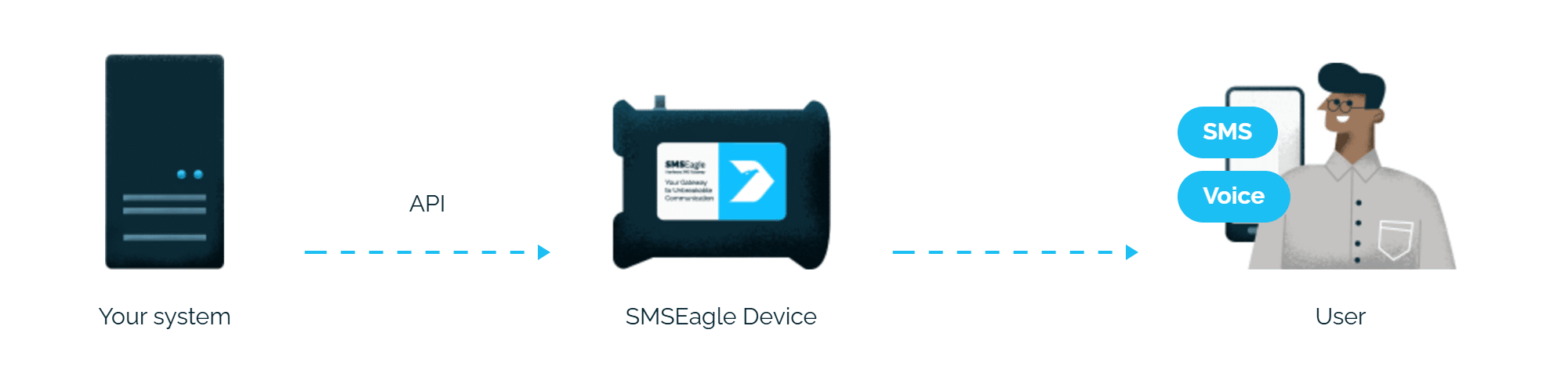
WHMCS’s SMS Manager addon fires on a configured event, for example an invoice becoming overdue, a service getting suspended, or a support ticket update.

2

API call to SMSEagle

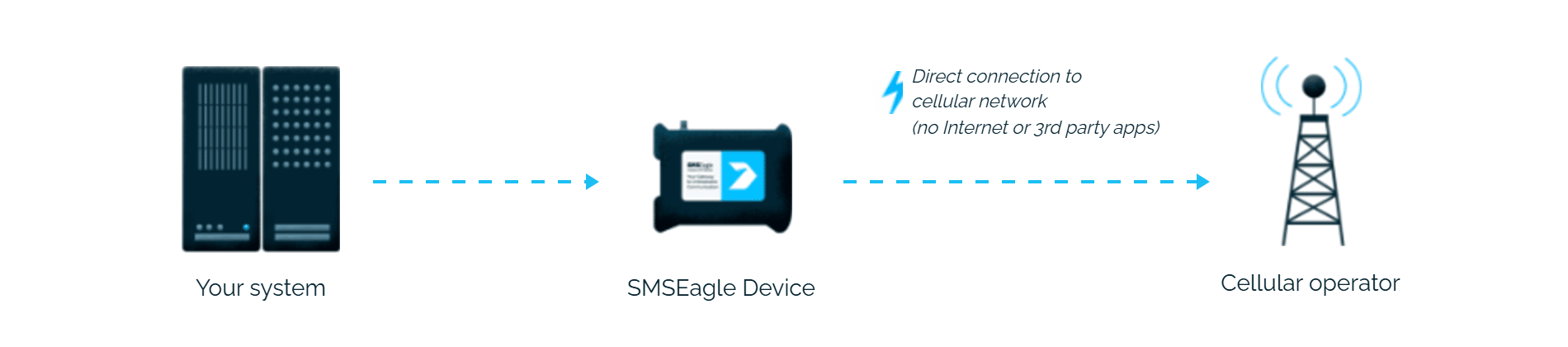
SMS Manager calls SMSEagle’s API directly with the client’s phone number and message text.

3

SMS delivered

SMSEagle delivers the alert over its own cellular connection, not through a third-party service, as an SMS to the recipient’s phone.

Set up in about 10 minutes

No coding required beyond the SMS Manager addon WHMCS Services already provides. Point its Primary SMS Gateway setting at SMSEagle’s API credentials, and billing and service notifications are texting customers in about 10-15 minutes.

SMSEagle sends SMS from WHMCS to your clients and team from your own device, with no cloud SMS provider.

No per-message fees

SMSEagle sends SMS through a regular SIM card, so you only pay for your mobile plan.

Alerts keep going if one carrier fails

On devices with two SIM cards from different operators, SMSEagle switches to the second one when the first operator’s network is down.

Alerts keep working even if one device fails

Two SMSEagle devices can work as an HA cluster: if one fails, the other takes over sending.

SMSEagle configuration

  1. Create a new user in SMSEagle (menu System > Users) with access level “User”.
  2. Grant API access to the created user:
    • go to Settings > Global settings > API and open the API v1 page
    • click Create API key, fill in Key name and select that user as Owner
    • Add access permissions in section Permissions for: Send SMS, Send to contact, Send to group
    • click Create key. Then, in System > Users, open that user and tick Enable user/password authentication (APIv1 only).
  3. Open Settings > Global settings > Network > SSL, turn off Forward HTTP to HTTPS and click Save changes.


WHMCS configuration

This integration uses SMS Manager developed by WHMCS Services.
If your installation has no SMS Manager available, please refer to these articles at the WHMCS Services project pages:
WHMCS Services SMS Manager explained
WHMCS Services SMS Manager installation

All configuration related to SMS Gateway settings is done from the SMS Manager -> Configurations menu

In Primary SMS Gateway select SMSEagle:

Explore SMSEagle Demo device

SMSEagle is a hardware & software solution that guarantees a swift delivery of your messages to designated recipients, whether it’s for notifications, alerts, or important updates.

After registering to a demo you get a remote access to our physical device NXS-9750.

  • 14-days free trial
  • Access to over 20 functionalities

What is hardware
SMS Gateway?

Learn more about
SMSEagle features