

Home / Integration plugins / UCME-OPC SMS & Voice integration
UCME-OPC and SMSEagle logos with a plus sign, indicating a partnership.

Instant SMS and Voice Alerts for UCME-OPC.

Never miss a critical event.

Integrating UCME-OPC alarm notification software with the SMSEagle hardware SMS gateway lets you automatically send SMS and voice alerts from SCADA, HMI, DCS, BMS, Historian, and other OPC-connected systems. The solution creates a network-independent communication channel, which is key for keeping your monitoring and response teams informed at all times.
 
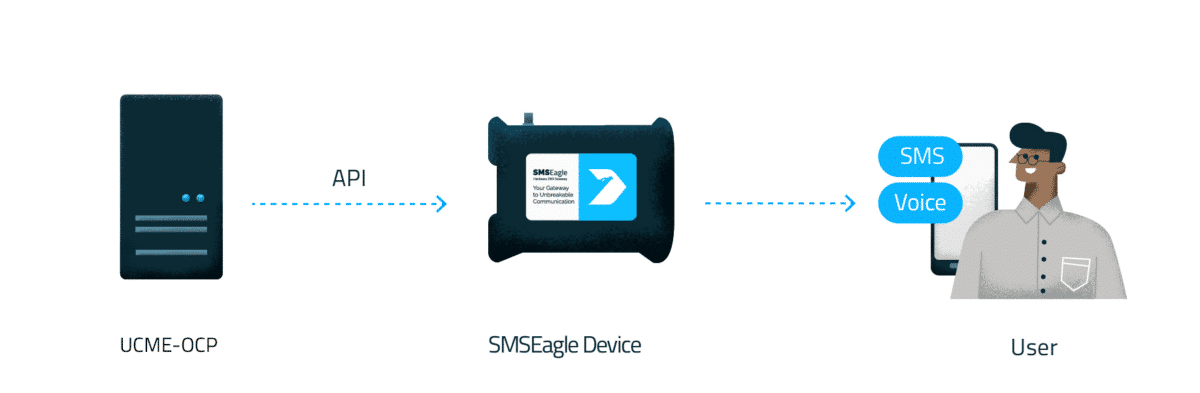
Diagram showing UCME-OCP server connected via API to an SMS Eagle device, which delivers SMS/Voice to the user

Benefits

Verified security badge: blue shield outline with a dark circle and white checkmark indicating protection and trust.

Reliable alert
delivery

Ensure critical alarms are delivered via SMS even if the network or email systems fail. This guarantees visibility and response in emergency situations.

Icon depicting a hand interacting with a circular timer/clock motif and a rectangular element, suggesting a user action with time or sequencing

Faster response
to incidents

Alerts go directly to technicians’ phones, reducing reaction time and minimizing downtime. No need to log into the system to be informed.

Communication tower emitting radio waves from a tall antenna structure

Independent
communication

On-premise SMS gateway removes dependency on external providers and cloud services. This improves security, compliance, and operational control.

Flexible, Excel-based configuration

Alarms, recipients, and escalations can be easily imported and managed using Microsoft Excel, saving setup time.


How it works?

1

Event Trigger

UCME-OPC detects an alarm event from a connected SCADA, HMI, DCS, BMS, or Historian system via OPC DA/UA

2

Communication

UCME-OPC sends a request to SMSEagle via the local network using the SMSEagle API (APIv2, token-based authentication).

3

Alert

SMSEagle sends a cellular SMS and/or automated voice call (text-to-speech, wave, or ring call) to the maintenance team.

UCME-OPC connected systems diagram showing sensors, room controls, chiller, air flow, and automation controllers with an SMS alert path to admins via the SMS Eagle device and cellular network on the right.

Integrate in 10 minutes

By integrating UCME-OPC with SMSEagle, organizations can extend their alarm notification capabilities with reliable SMS and voice communication delivered through a dedicated hardware gateway. This integration helps ensure that critical alarms reach the right people quickly, enabling faster responses to equipment failures, operational issues, and other time-sensitive events.

Empower UCME-OPC with complete
Out-of-Band alert delivery

Critical notifications
without internet

Offline-ready alerts. Critical notifications delivered via GSM/SMS, ensuring communication remains active even during complete internet or local network outages.

Person on roller skates holds a sign reading 'No Internet Needed,' signaling offline access.
Person typing at a desktop computer with orange interconnected chain icons floating above, suggesting a network or workflow.

Automation & notification rules

Customize the content of your alarm text using string manipulation or TextBuilder with special keywords. Automate SMS text delivery using schedules or triggers.

Guaranteed delivery

No alarm goes unanswered. Escalation workflows, voice calls, and failover (HA cluster) ensure alerts reach the right person and keep going until someone reacts.

Admin settings UI with a General Settings form and a secondary Manage Group modal for escalation options.

About SMSEagle

SMSEagle’s a hardware SMS gateway. It’s used for sending and receiving notifications directly via the cellular network. The device runs on-premise, which means all data’s stored locally .

How to Set Up the Integration

Notice: Voice functions are only available to users who have purchased the VOICE add-on for their SMSEagle device.

Learn more about the Control See OPC Alarm Notification solution: Visit the official website.

SMSEagle Setup

    1. Create a new user in SMSEagle (menu Users > + Add Users).
    2. Grant API access to the created user:
      • click Access to API beside the newly created user
      • Enable APIv2
      • Generate new token (copy it for later use)
      • Add access permissions in section Messages for: Send SMS
      • Add access permissions in section Modem for: Make a ring call, Make a TTS, Make a TTS Advanced call (for voice alerting)
      • Save settings

Settings for the SMSEagle Ethernet modems

UCME-OPC supports the following models:

  • SMSEagle NXS-9700 5G single modem
  • SMSEagle NXS-9700 4G single modem
  • SMSEagle NXS-9750 4G (dual modem)

The SMSEagle modem can send/receive SMS with throughput of max. 60 SMS/min. The ideal choice for communication in environments where the number of messages is moderate. Compared to the single modem, dual modem series offers additional modem failover and other multi-modem features for higher reliability and throughput. The device can be connected to a device-failover-cluster for highest reliability and availability.

Modem’s main features:

  • Voice calls – wave file or text to speech.
  • SMS
  • Ring

Setting the modem’s fixed IP

Every new device has DHCP enabled. SMSEagle will obtain IP address automatically from your DHCP. Read the assigned IP address on your DHCP server.

Connect to the modem via its web interface (for example: https://192.168.1.170) and change its IP address. It is also recommended to disable DHCP. Login with provided username and password (can be found in Quick start guide attached to the device).

Login screen titled 'SMSEagle | Login' with user and password fields, a Sign in button, and a 'Forgot password' link.
Click on the menu position “Settings” and navigate to tab “IP Settings”.
Screenshot of General settings: network config form with MAC Address, DHCP toggle (Disabled selected), IP 192.168.1.170, Subnet 255.255.255.0, Gateway 192.168.1.1, DNS 1 192.168.1.1, DNS 2 8.8.4.4, Hostname smseagle, Use proxy: No.
Disable DHCP server. Enter your IP settings. Press “Save” button.

SMSEagle settings in UCME Configuration

In UCME Configuration, click on Options > Settings > SMSEagle. The following window will be displayed.

General Settings

Screenshot of SMS-Eagle settings window (Modem status tab) showing URL https://192.168.1.170/api/v2, API token, optional voice API URL, and checkboxes for day-of-week, read SMS, alarm ID, delay, and modem options (1 or 2) with Save/Defaults buttons.

Check the “Enable SMS-Eagle” checkbox to enable the use of this modem.
Set the modem’s IP address in the URL/IP Address field. For example: https://192.168.1.170/api/v2
Set the API Token field. To obtain the API token, click on the Users button.

Users page showing one user: ID 1, Admin SMS (Inbox Master); role Administrator, MFA Disabled, API v2; actions Edit and Access to API.
Click on “Access to API”.
The following window will be displayed. You may copy the token and paste it in UCME Configuration. Make sure that APIv2 is checked.
Dialog titled Access to API with APIv2 selected; options to generate a token, enable APIv1 auth, manage APIv2 methods and permissions (Read/Delete messages, Send SMS/MMS, etc.), and Save/Cancel buttons.

Text to speech properties

The modem has a built in Text-to-speech engine that supports the following languages: English and German. If you wish to use Text-to-Speech in other languages, you may use the Voice Maker provider that supports many languages. Learn more at https://voicemaker.in/ . You will need to obtain an API key from this provider.

Other settings:

  • Add day-of-week and Time to voice calls – check this field if you wish that each voice call will include the day-of-week (Sunday, Monday etc.…) and the time-of-day.
  • Add alarm-status (started/ended) to voice calls – check this field add the “Alarm started” or “Alarm ended” to the voice message.
  • Read incoming SMS – check this field to enable incoming SMS.
  • Delay between phone calls (seconds) – set the delay time between phone calls. Recommended value: 20 seconds.

Modem options

If you are using a dual modem, you may choose between the following options:

  • Use modem 2 only when modem 1 fails
  • Use modem 1 and 2 alternately (faster delivery)
Dialog: Modem options with two radio choices—use modem 2 only when modem 1 fails; or use modems alternately (faster delivery).

Click on the Modem status tab to view the modem status.

Screenshot of SMS-Eagle modem management window with two enabled modems (Modem 1 and Modem 2). Shows signal bars, network 019 4G, SIM status Operational, registration Home, IMEI/IMSI values, and numbers; includes Copy to clipboard buttons and Save/Cancel actions.

Voice calls – Text to Speech (TTS)

The SMSEagle modem supports built-in TTS functionality. Supported languages: English and German.
Check the following option to enable TTS.

  • Enable Voice call (via Modem TTS)

You may start a test TTS voice call by entering the call’s message and then clicking on the “Make TTS Call” button.

If you want that UCME will repeat the alarm message, set the following properties:

  • Repeat count
  • Repeat text
SMS-Eagle settings window for voice calls: language list with English (US) selected, ring duration 28 seconds, repeat count 2.

Ring Calls

Ring calls allows you to just call the recipients without playing the alarm message. This is a good option when you just want to get the recipients’ attention.

To test this functionality, enter the recipient’s phone number and click the ‘Make Ring Call’ button.

Screenshot of SMS-Eagle app: Ring Calls tab with Enable Ring calls, Ring duration 29 seconds, 'Make a Ring Call' button, To field and modem number options, and Save/Cancel buttons.

Wave Calls

When using wave calls, UCME will convert the alarm’s text into a wave file (utilizing the Voice Maker provider) and then upload the wave file to the modem make a phone call and play the wave file.


If you want that UCME will repeat the alarm message, set the following properties:

  • Repeat count
  • Repeat text

You may test this functionality using the “Make Wave Call” button.

 
SMS-Eagle Wave Calls dialog with Enable, 30s ring, German TTS, repeat 3, Make Wave Call; note: 8/16 kHz mono PCM; To: 9725...; Save.

SMS

Enable SMSEagle SMS using the checkbox.

You may test SMS sending using the “Send SMS” button.

 
SMS-Eagle window with Enable SMS checked: message field, Send SMS button, To field with a number, Modem Number 1 or 2, and Save options in Debug area.

SMS & Call Status

When testing SMS sending, or voice callout, you may monitor the SMS or call status in the following tab.
 
Screenshot of SMS-Eagle settings window with SMS & Call Status tab selected. 'Enable SMS-Eagle' is checked. Two empty tables: SMS Status and Voice Status. At bottom, 'To' field shows a phone number, modem number options 1 or 2, and DEBUG area with Save, Save and exit, Cancel buttons.

Explore SMSEagle Demo device

SMSEagle is a hardware & software solution that guarantees a swift delivery of your messages to designated recipients, whether it’s for notifications, alerts, or important updates.

After registering to a demo you get a remote access to our physical device NXS-9750.

  • 14-days free trial
  • Access to over 20 functionalities

What is hardware
SMS Gateway?

Learn more about
SMSEagle features


