Home / Integration plugins / SMS and voice alerts for Ignition SCADA

SMS & voice alerts for Ignition SCADA

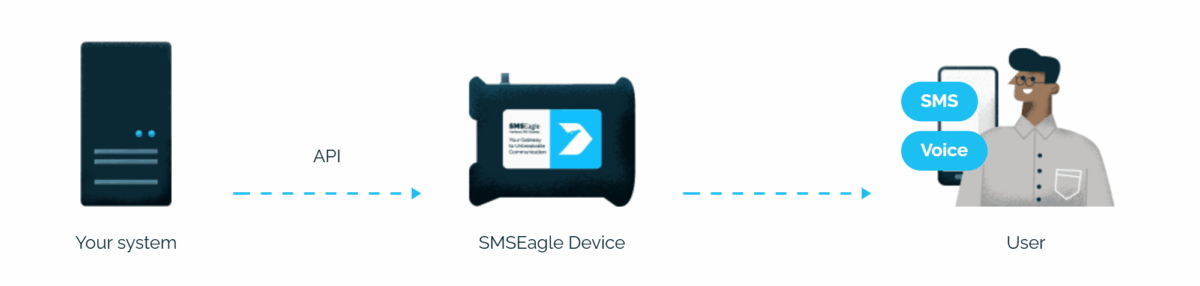
Integrating the Ignition SCADA/HMI platform (Inductive Automation) with the SMSEagle hardware SMS gateway lets you deliver process alarms as SMS messages, wake-up ring calls and text-to-speech voice calls (TTS Advanced). The result is an out-of-band notification channel that is independent of your IT network, which is essential for uninterrupted supervision of an industrial installation.

Alerts that get through

Critical alarms reach your team by SMS or voice call even when the WAN link, mail server or a cloud provider fails. OT networks are frequently isolated from the internet, which rules out cloud SMS providers entirely.

Faster incident response

Operators receive the alarm directly on their phone, without logging into a Perspective or Vision client. A TTS Advanced call wakes the on-call technician at night and reads out the alarm in a natural sounding voice in the local language.

No extra Ignition modules

The integration relies solely on the Alarm Notification module that the customer already runs. It requires neither the paid SMS Notification and Voice Notification modules, nor a Sierra Wireless AirLink modem, nor a SIP phone system.

Verified security badge: blue shield outline with a dark circle and white checkmark indicating protection and trust.

Communication you control

The gateway operates locally inside the plant network. Alarm content, phone numbers and process data never leave the customer’s infrastructure, which simplifies compliance with NIS2, ISO 27001 and OT/IT segmentation policies.

How it works?

1

Event Trigger

Ignition detects an alarm on a tag, for example a temperature limit breach or a power loss.

2

Communication

The alarm enters a Notification Pipeline, where a Script block calls a project library function that in turn calls the gateway’s REST APIv2 over the local network.

3

Alert

SMSEagle sends the SMS and/or places a voice call to the configured group of recipients.

About SMSEagle

SMSEagle’s a hardware SMS gateway. It’s used for sending and receiving notifications directly via the cellular network. The device runs on-premise, which means all data’s stored locally.

How to Set Up the Integration

Requirements

Item Requirement
Ignition version 8.1 or newer
Ignition module Alarm Notification (required, provides pipelines)
SMSEagle device latest software version recommended
Voice features VOICE add-on for the SMSEagle device
Network access from Ignition Gateway to the device over HTTP (80) or HTTPS (443)

SMSEagle Setup

  1. Create a new user in SMSEagle: Users > + Add Users, access level User.
  2. Click Access to API next to the newly created user.
  3. Enable APIv2 and click Generate new token. Copy the token, you will need it in Ignition.
  4. Grant permissions in section Messages:
    – Send SMS
  5. Grant permissions in section Calls (required for voice alerting):
    – Make a ring call
    – Make a TTS Advanced call
  6. Click Save settings.

Read the TTS Advanced voice ID

Open Calls > TTS Voice models and note the numeric ID of the voice model you want to use. For English the value is typically 2. This value goes into the Ignition configuration.

Note: To use HTTPS between Ignition and SMSEagle, a valid SSL certificate must be installed on the gateway and its CA certificate imported into the Ignition Gateway truststore (**Config > Networking > SSL/TLS**).

Ignition Setup

In the tag browser create a folder SMSEagle/Config and add the following memory tags:

Tag Type Example value
gatewayUrl String https://192.168.1.101 (no trailing slash)
accessToken String APIv2 token from step 1
voiceId Integer 2
callDuration Integer 20 (seconds)
verifySsl Boolean true
defaultRecipients String +48501234567,+48501234568

Security: The API token is stored in a tag. Restrict read access on the SMSEagle/Config folder to an administrative security level, and prefer HTTPS with a valid certificate over plain HTTP.

Project library

In the Designer open Project Browser > Scripting > Project Library, create a script named SMSEagle and paste the code below.

				
					import system

LOGGER = system.util.getLogger("SMSEagle")
CONFIG\_PATH = "\[default]SMSEagle/Config"


def getConfig():
    """Reads the gateway configuration from tags."""
    paths = \[
        "%s/gatewayUrl" % CONFIG\_PATH,
        "%s/accessToken" % CONFIG\_PATH,
        "%s/voiceId" % CONFIG\_PATH,
        "%s/callDuration" % CONFIG\_PATH,
        "%s/verifySsl" % CONFIG\_PATH,
    ]
    v = system.tag.readBlocking(paths)
    return {
        "url": str(v\[0].value).rstrip("/"),
        "token": str(v\[1].value),
        "voiceId": int(v\[2].value or 2),
        "duration": int(v\[3].value or 20),
        "verifySsl": bool(v\[4].value),
    }


def \_normalize(recipients):
    """Accepts a string or a list. Recipient formats:
    "+48111222333" phone number, "15:c" contact, "12:g" Phonebook group.
    """
    if recipients is None:
        return \[]
    if isinstance(recipients, basestring):
        return \[r.strip() for r in recipients.split(",") if r.strip()]
    return \[str(r).strip() for r in recipients if str(r).strip()]


def \_post(endpoint, payload, kind):
    """Posts a request to APIv2 and logs the outcome."""
    cfg = getConfig()
    if not cfg\["url"] or not cfg\["token"]:
        LOGGER.error("Missing configuration: gatewayUrl or accessToken")
        return False

    client = system.net.httpClient(
        timeout=10000,
        bypass\_cert\_validation=not cfg\["verifySsl"]
    )
    headers = {"access-token": cfg\["token"],
               "Content-Type": "application/json"}

    try:
        r = client.post(cfg\["url"] + endpoint, headers=headers, data=payload)
    except Exception, e:
        LOGGER.error("%s: connection error: %s" % (kind, str(e)))
        return False

    if r.good:
        LOGGER.info("%s sent, HTTP %s" % (kind, r.statusCode))
        return True

    LOGGER.error("%s rejected, HTTP %s: %s" % (kind, r.statusCode, r.text))
    return False


def sendSms(recipients, text, priority=None):
    to = \_normalize(recipients)
    if not to:
        LOGGER.warn("sendSms: empty recipient list")
        return False
    payload = {"to": to, "text": text}
    if priority is not None:
        payload\["priority"] = int(priority)
    return \_post("/api/v2/messages/sms", payload, "SMS")


def ringCall(recipients, duration=None):
    to = \_normalize(recipients)
    if not to:
        return False
    cfg = getConfig()
    payload = {"to": to, "duration": int(duration or cfg\["duration"])}
    return \_post("/api/v2/calls/ring", payload, "Ring call")


def ttsAdvancedCall(recipients, text, voiceId=None, duration=None):
    to = \_normalize(recipients)
    if not to:
        return False
    cfg = getConfig()
    payload = {
        "to": to,
        "text": text,
        "voice\_id": int(voiceId or cfg\["voiceId"]),
        "duration": int(duration or cfg\["duration"]),
    }
    return \_post("/api/v2/calls/tts\_advanced", payload, "TTS Advanced call")


def formatAlarm(event):
    return "%s | %s | prio %s" % (
        event.get("displayPath") or event.get("source"),
        event.get("label"),
        event.priority
    )


def notifyAlarm(event, recipients=None, mode="SMS",
                voiceId=None, duration=None):
    """Entry point for the Script block in a Notification Pipeline."""
    if recipients is None:
        recipients = system.tag.readBlocking(
            \["%s/defaultRecipients" % CONFIG\_PATH])\[0].value

    text = formatAlarm(event)
    mode = (mode or "SMS").upper()
    ok = True

    if mode in ("SMS", "SMS\_AND\_RING", "SMS\_AND\_TTS"):
        ok = sendSms(recipients, text) and ok
    if mode in ("RING", "SMS\_AND\_RING"):
        ok = ringCall(recipients, duration) and ok
    if mode in ("TTS", "SMS\_AND\_TTS"):
        ok = ttsAdvancedCall(recipients, text, voiceId, duration) and ok

    return ok


def testConnection():
    """Diagnostics. Call from the Designer script console."""
    cfg = getConfig()
    if not cfg\["url"]:
        return {"ok": False, "status": 0, "message": "gatewayUrl is not set"}

    client = system.net.httpClient(
        timeout=10000,
        bypass\_cert\_validation=not cfg\["verifySsl"]
    )
    headers = {"access-token": cfg\["token"]}

    try:
        r = client.get(cfg\["url"] + "/api/v2/modem/status", headers=headers)
    except Exception, e:
        return {"ok": False, "status": 0, "message": str(e)}

    if r.good:
        return {"ok": True, "status": r.statusCode,
                "message": "Connection OK"}

    hints = {
        401: "Invalid or expired API token",
        403: "API user lacks the required permissions",
        404: "Check the gateway address and firmware version (APIv2 required)",
    }
    return {"ok": False, "status": r.statusCode,
            "message": hints.get(r.statusCode, r.text)}



Notification Pipeline with a Script block

  1. In the Designer open Alarm Notification Pipelines and create a new pipeline, for example SMSEagle Alerts.
  2. Drag a Script block from the palette and connect it to the Start block.
  3. In the block editor enter the call:
				
					SMSEagle.notifyAlarm(event, mode="SMS\_AND\_TTS")
				
			
  1. In the tag’s alarm configuration set Active Pipeline to SMSEagle Alerts. Optionally set Clear Pipeline as well, to notify on return to normal.

The event object available inside a Script block is a ScriptableBlockPyAlarmEvent. It exposes alarm properties through event.get("displayPath"), event.get("label"), event.priority, and associated data through event.get("property\_name").

Values for the mode parameter

Value Behaviour Typical use
SMS text message only informational alarms and warnings
RING wake-up call only, ringing signal with no message discreetly waking the on-call technician
TTS TTS Advanced voice call only, reading out the alarm text critical alarm when the operator cannot look at a screen
SMS_AND_RING text message plus wake-up call written detail plus immediate attention
SMS_AND_TTS text message plus voice call with the message highest priority alarms, night and unattended operation

Recipients

By default the function reads the number list from the defaultRecipients tag. Recipients can also be passed explicitly:

				
					# specific numbers
SMSEagle.notifyAlarm(event, recipients=\["+48111222333"], mode="SMS")

# a group from the SMSEagle Phonebook (must be public)
SMSEagle.notifyAlarm(event, recipients=\["12:g"], mode="SMS\_AND\_TTS")

# a single Phonebook contact
SMSEagle.notifyAlarm(event, recipients=\["15:c"], mode="RING")


Managing recipients in the SMSEagle Phonebook gives you groups, shift schedules and escalation handled on the gateway side.

Optional: escalation in the pipeline

To keep retrying until an alarm is acknowledged, extend the pipeline with this sequence:

  • Script: SMSEagle.notifyAlarm(event, mode="SMS")
  • Delay 5 minutes
  • Switch on isAcked: if acknowledged, the pipeline ends
  • Script: SMSEagle.notifyAlarm(event, mode="SMS\_AND\_TTS")
  • Delay 10 minutes
  • Script: SMSEagle.notifyAlarm(event, recipients=\["20:g"], mode="SMS\_AND\_TTS")

Each Script block can use a different mode and a different recipient group, so successive escalation tiers need no duplicated configuration.

Test and verify

  1. In the Designer open Tools > Script Console and run:
				
					SMSEagle.testConnection()


Expected result: {'ok': True, 'status': 200, 'message': 'Connection OK'}.

  2. Send a test message:

				
					SMSEagle.sendSms(\["+48111222333"], "Ignition test")
SMSEagle.ttsAdvancedCall(\["+48111222333"], "Ignition test call")


  3. Force an alarm on a test tag (a Boolean memory tag with an alarm on value true).
  4. Check the Gateway logs: Status > Logs, filter SMSEagle.
  5. Verify the record in SMSEagle: Sent messages and Calls > Call history.

Troubleshooting

Symptom Cause
HTTP 401 invalid or expired API token
HTTP 403 API user lacks Send SMS, Make a ring call or Make a TTS Advanced call permission
HTTP 400 on a voice call missing voice_id, required for TTS Advanced
SSL handshake error gateway certificate not trusted by Ignition; import the CA into the Gateway truststore or set verifySsl to false for testing
Nothing in the log the pipeline is not assigned to the alarm, or the SMSEagle logger is filtered out
NameError: SMSEagle the library script has a different name than SMSEagle, or the project was not saved

Alternative: Email-to-SMS with no scripting

If the customer prefers not to maintain code, use the native Email notification profile in Ignition and point it at SMSEagle as the SMTP server.

  1. In Config > Networking > Email Settings create an SMTP profile pointing to the gateway IP address, port 25, no authentication.
  2. In Config > Alarming > Notification create an Email profile using that SMTP profile.
  3. In the users’ Contact Info add an Email contact in the format +48501234567@192.168.1.101.

Setup takes a few minutes but gives no access to voice calls. Recommended for non-critical alarms only.

How to monitor the Ignition server?

Ignition monitors your process well, but it will not raise an alarm about its own failure. The Network Monitor feature built into SMSEagle supervises the Gateway server independently:

  • host availability via Ping/ICMP,
  • Gateway web interface availability via an HTTP/HTTPS check,
  • CPU, RAM and disk usage via SNMP.

If responses stop, the gateway sends an SMS or places a call on its own, regardless of the state of the SCADA server. This ensures you can always keep an eye on your server hardware.

Explore SMSEagle Demo device

SMSEagle is a hardware & software solution that guarantees a swift delivery of your messages to designated recipients, whether it’s for notifications, alerts, or important updates.

After registering to a demo you get a remote access to our physical device NXS-9750.

  • 14-days free trial
  • Access to over 20 functionalities

What is hardware
SMS Gateway?

Learn more about
SMSEagle features