
Home / Integration plugins / OpenNMS SMS Integration

+

Send SMS/voice alerts from OpenNMS

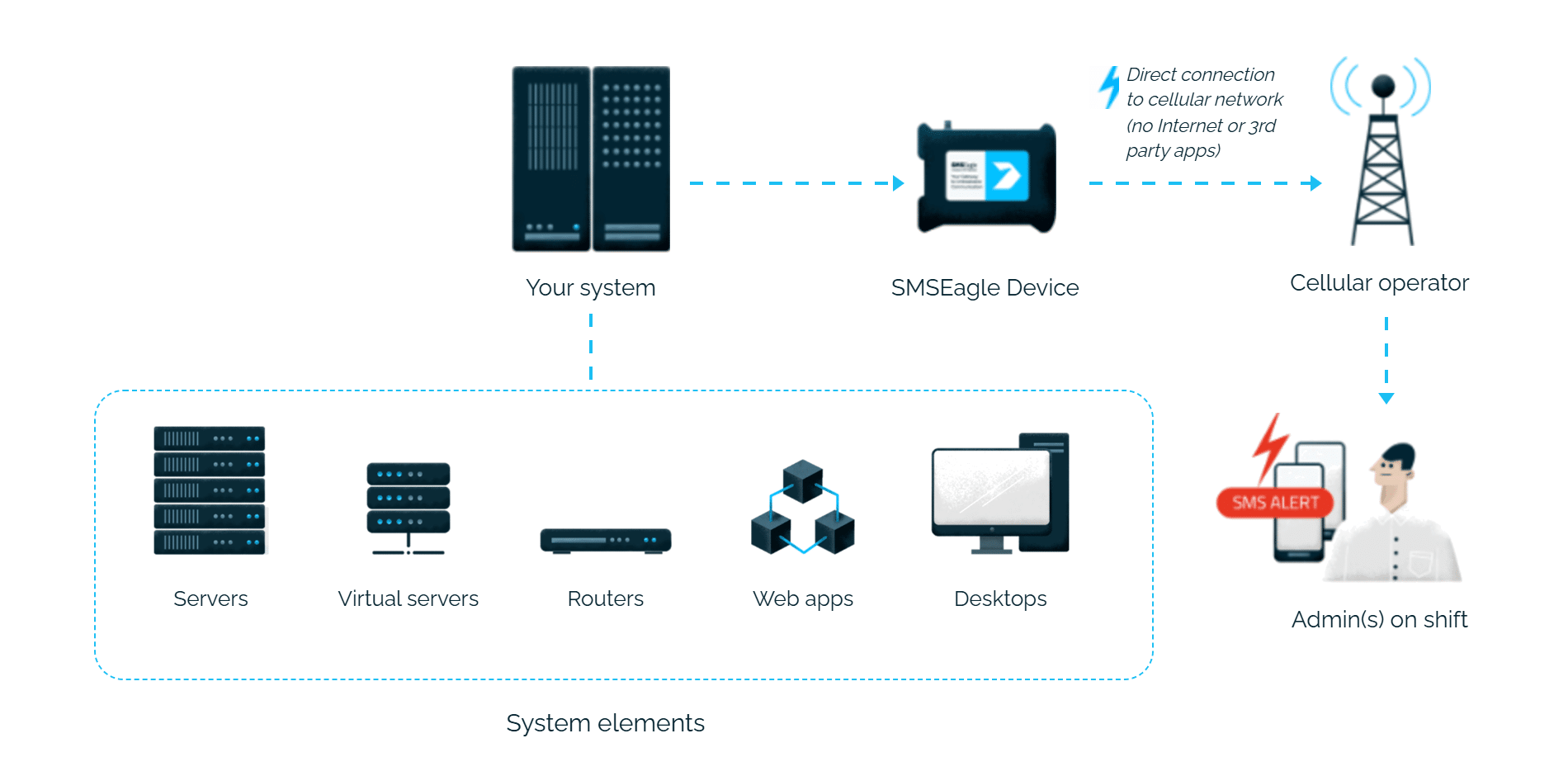
OpenNMS alerts reach the person on duty as an SMS or a phone call. SMSEagle sends them over its own cellular connection, so they don’t depend on internet access or a cloud service.

Uses OpenNMS email notifications

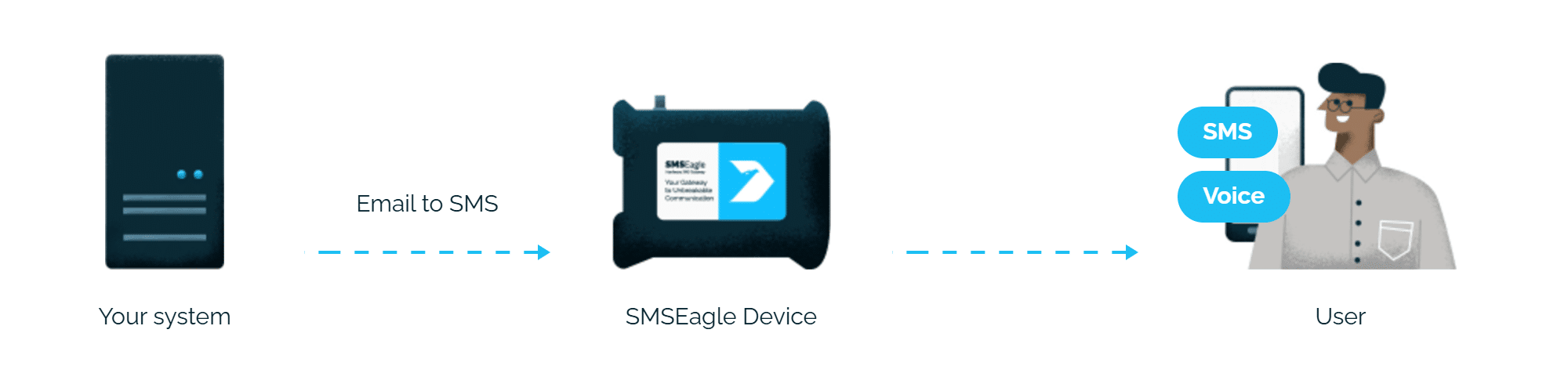
OpenNMS sends its usual notification email to PHONE_NUMBER@SMSEagle_address, and SMSEagle turns it into an SMS.

Alerts to the right people

OpenNMS destination paths decide who gets which notification, and the same people get it by SMS.

No per-message fees

SMSEagle sends SMS through a regular SIM card, so you only pay for your mobile plan.

How it works

1

Event Trigger

An OpenNMS event matches a configured notification rule, for example an authentication failure or a service outage.

2

Communication

OpenNMS sends an email notification to a special address in the format PHONE_NUMBER@IP.ADDRESS.OF.SMSEAGLE, using its built-in notification system.

3

Alert

SMSEagle delivers the alert over its own cellular connection, not through a third-party service, as an SMS or a phone call to the recipient’s phone.

Set up in about 10 minutes

Enable the Email to SMS plugin in SMSEagle, point OpenNMS’s mail configuration at your device, and configure a destination path and event notification.

SMSEagle sends OpenNMS alerts to the right person by SMS or phone call, day and night.

No mail server needed

SMSEagle can receive emails from OpenNMS itself, so alerts don’t depend on your company mail server.

Enable-the-service-in-Settings

If the first person doesn't respond, the alert is sent to the next

Escalation groups and shift schedules make sure the OpenNMS alert reaches the person on duty, and the next person on the list if nobody responds.

An SMS followed by a phone call

After the SMS with an OpenNMS alert, SMSEagle can also call: a ring-only call or a call that reads the alert aloud. You set it once in the Email to SMS rule.

SMSEagle configuration

  1. This integration will use Email To SMS plugin (see details: Email To SMS plugin). This plugin is included in each version of SMSEagle device.
    • Enable Email To SMS plugin in the web interface: Settings > Channels > Email > Email to SMS.
    • Create a forwarding rule in Automation > Email > Email to SMS. You can forward all emails to SMS or emails from specific domains.

OpenNMS configuration

Create a User
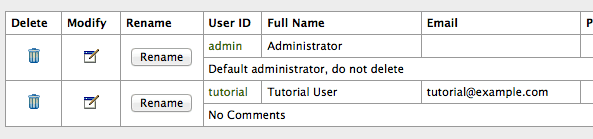
Click the Admin link in the menu bar, go to Configure Users, Groups and On-Call Roles, and then click Configure Users.
Then, click the Add New User link, and enter a username and password in the form, then click OK. Next, fill out the relevant user information.
Finally, click Finish down at the bottom of the form.

Destination Paths
To receive a notification, your user or a group that your user is in needs to be a part of a destination path. A destination path helps OpenNMS determine who is eligible to receive a particular notification, depending on user name, groups, duty schedules, and other rules.
Go to the Admin page, click Configure Notifications in the Operations section, then Configure Destination Paths, then click the New Path button.
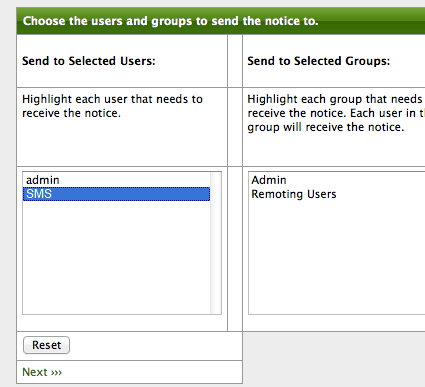
Give it a name, like SMS, then click Edit. Add your new user by selecting it, then click Next >>>.

On the next page, leave the defaults (javaEmail and on) and click Next >>> again.

Finally, click Finish and you should see your new tutorial path in the Existing Paths section.
Event Notifications
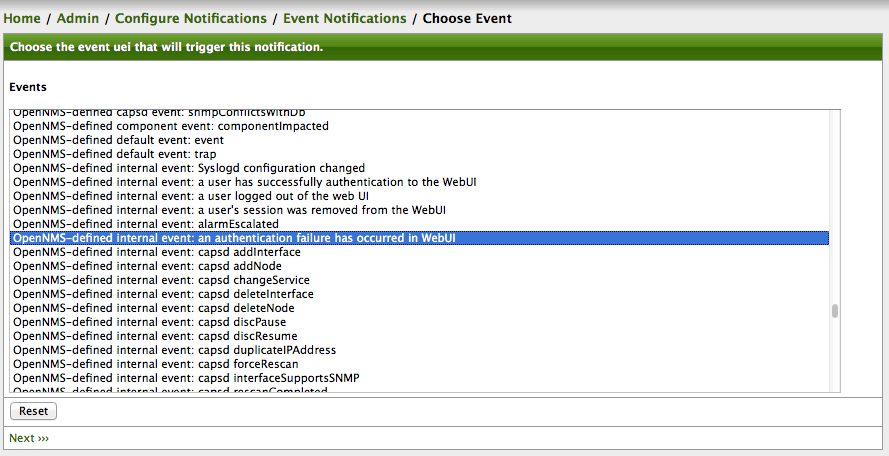
Go to the Admin page, click Configure Notifications in the Operations section, then Configure Event Notifications. In here you ‘ll see a list of events which are configured for notifications, some of which are turned off. You can create a new event notification by clicking the Add New Event Notification> button near the top.
Click the Add New Event Notification button at the top of the Event Notifications page. From Events choose OpenNMS-defined internal event: an authentication failure has occurred in WebUI.

Then click Next >>>.

On the next page, you can build a rule for matching a set of IP addresses and/or services. In this case, we’re just matching an internal OpenNMS event, so we’ll continue on and click Skip results validation >>>.
Finally, you can configure the information used to send the notification. Fill in the following values:

  • Name
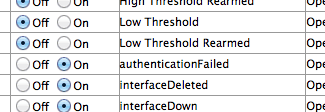
    authenticationFailed
  • Choose A Path
    Tutorial
  • Text Message
    The OpenNMS Web UI had a failed login attempt, by user ‘%parm[user]%’, from IP address %parm[ip]% (Exception message: %parm[exceptionMessage]%)
  • Short Message
    Authentication failed by user %parm[user]% (Notice #%noticeid%)
  • Email Subject Authentication Failed (Notice #%noticeid%)

And then click Finish.

You should now see your notification event in the list, but it will be disabled. Set the radio button to On to enable it, and you should be ready to send a notification.

Configure Mail

Unless you have an SMTP server running on your OpenNMS host, you will need to configure mail before notifications will work. Mail configuration for notifications is in the $OPENNMS_HOME/etc/javamail-configuration.properties file. In most cases, you should only have to change a few lines to point it at your mail server:


# This is the e-mail address that OpenNMS puts in the “From” field:
org.opennms.core.utils.fromAddress=FROM-EMAIL-ADDRESS
org.opennms.core.utils.mailHost=MAIL-SERVER-IP

Also, if your mail server requires authentication for sending, see the section under “These properties define the Mail authentication.” and edit them as appropriate for your environment.

Enable Notifications

By default, OpenNMS ships with notifications disabled, so you don’t get them accidentally as you’re just setting things up. The last thing you need to do once you have things configured as you like is to enable notifications.
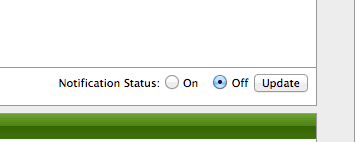
In the main OpenNMS Admin page, there is a radio selector labeled, Notification Status. Change it to On and click update.

SMSEagle as SMTP Server (optional)

For sending e-mail messages you can use SMTP server installed on the SMSEagle device. Then the configuration of SMTP server is as follows:

  • SMTP host: IP address of your device
  • SMTP port: 25
  • Authentication: SMSEagle SMTP server doesn’t require authentication
  • Encryption: none

SMTP server on the SMSEagle device will accept messages addressed for it only. The other messages will be rejected.

Wake-up Calls & Text-to-speech Calls (optional)

SMSEagle has a voice feature that offers wake-up calls for urgent ring-only alerts or text-to-speech calls to convert text alerts into voice calls. Complete the following steps if you want to add a follow-up voice call:

  • in the SMSEagle web interface: Automation > Email > Email to SMS edit the forwarding rule you created earlier
  • in the parameter “Call after sending SMS” choose a desired value:
    • Ring only: SMS will be followed with a wake-up (ring only) call
    • Yes – text to speech: SMS will be followed with a simple text-to-speech voice call (English language only)
    • Yes – text to speech (advanced): SMS will be followed with a text-to-speech voice call (better quality & multiple language support)

Explore SMSEagle Demo device

SMSEagle is a hardware & software solution that guarantees a swift delivery of your messages to designated recipients, whether it’s for notifications, alerts, or important updates.

After registering to a demo you get a remote access to our physical device NXS-9750.

  • 14-days free trial
  • Access to over 20 functionalities

What is hardware
SMS Gateway?

Learn more about
SMSEagle features