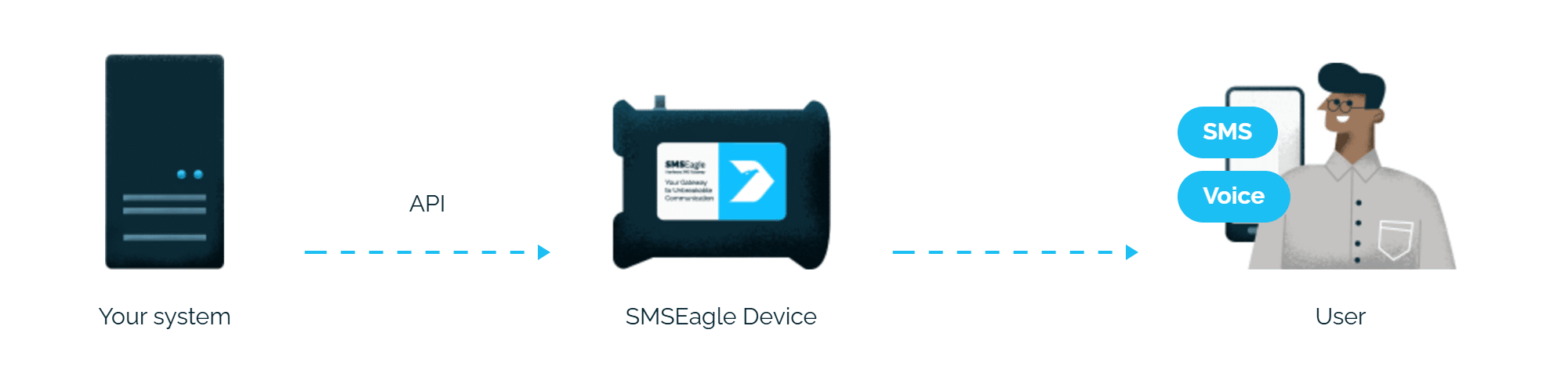
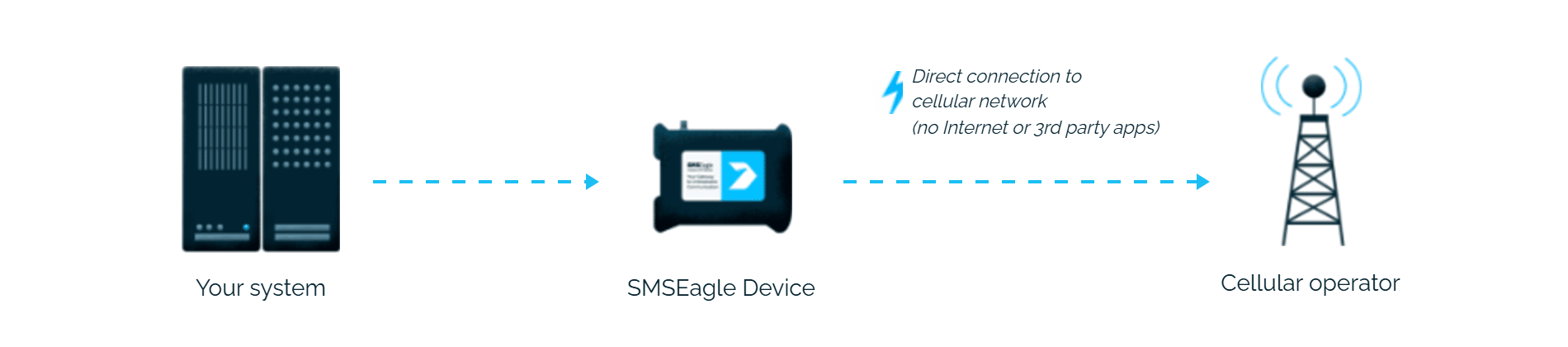
When a user signs in to an application protected by Okta, the one-time code is sent by SMS through SMSEagle, your own hardware SMS gateway, with no cloud SMS provider in between.
A one-time password is a security credential. Sending it through a cloud SMS provider means your codes pass through an external platform on every login. SMSEagle removes that intermediary: Okta passes the code to your own device, which sends it over the cellular network.
Codes keep going if one carrier fails
On devices with two SIM cards from different operators, SMSEagle switches to the second one when the first operator’s network is down.
Predictable cost, no vendor dependency
Cloud SMS OTP is billed per message, often at premium rates for authentication traffic. SMSEagle sends over a standard SIM at local carrier rates – no per-message fees, no external contract, no cloud provider that can raise prices or go down.
How it works
1
Login attempt
A user signs in to an Okta-protected application and passes the first factor (password).
2
Telephony Inline Hook
Okta generates a one-time code and sends it to the SMSEagle device’s APIv2 endpoint through a Telephony Inline Hook.
3
Code delivery
SMSEagle delivers the code over its own cellular connection, not through a third-party service, as an SMS to the user’s own phone.
Set up in about 10 minutes
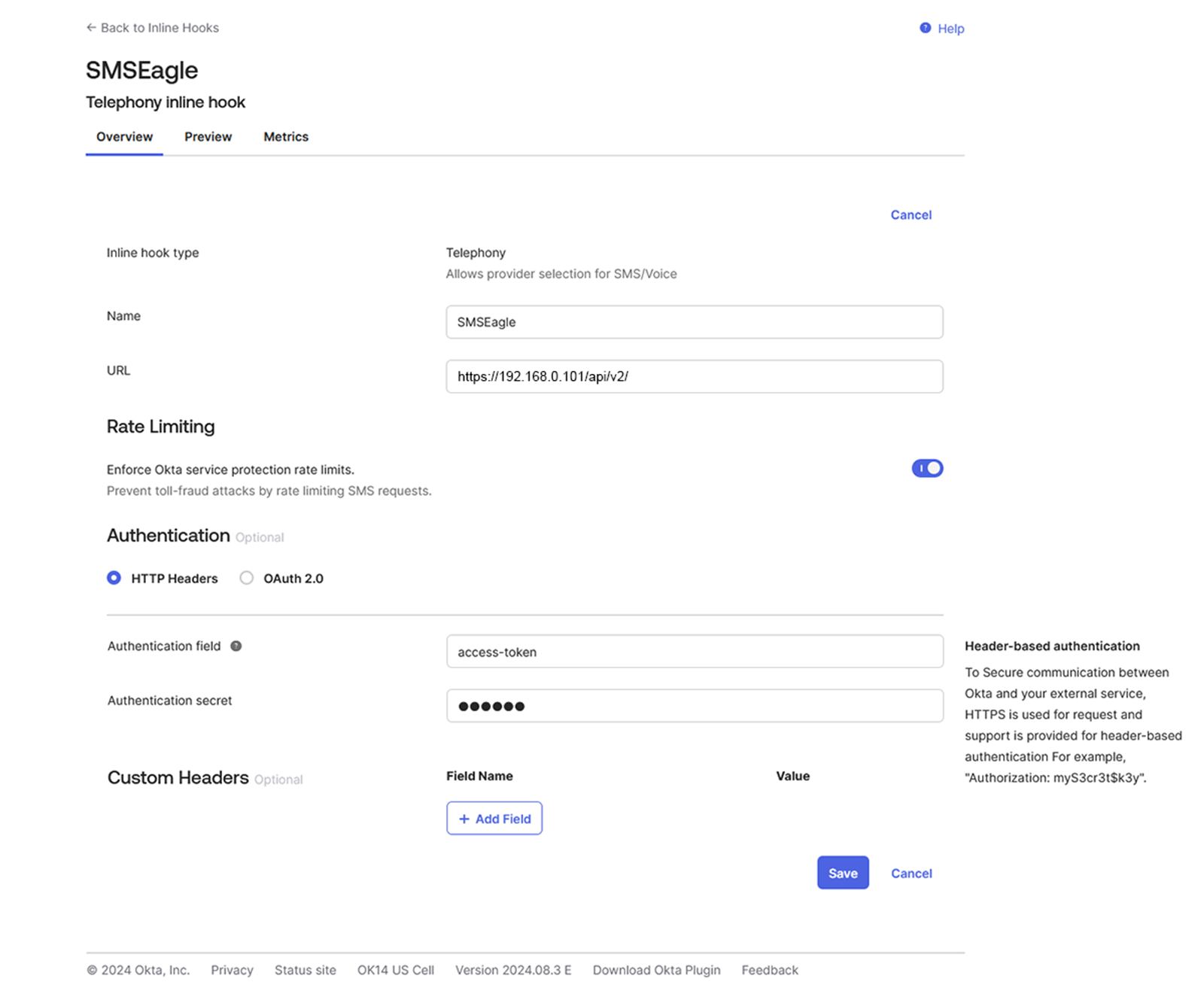
Add a Telephony Inline Hook in Okta with the SMSEagle address, and codes are sent by SMS.
SMSEagle sends Okta one-time codes by SMS from your own device, with no cloud SMS provider.
Works on any phone
An SMS code needs no app: people receive it on any mobile phone.
Every code sent is recorded
SMSEagle records every code it sends, together with its status, so you can check whether it was received.
Logins work even if one device fails
Two SMSEagle devices can work as an HA cluster: if one fails, the other takes over sending codes.
SMSEagle configuration
Create a new user in SMSEagle (menu System > Users, user access level: “User”).
Grant API access to the created user:
go to Settings > Global settings > API and open the API v2 page
click Create API key, fill in Key name and select the user created above as Owner
Add access permissions in section Messages for: Send SMS.
Add access permissions in section External for: Forward a message from Okta system.
click Create key. The access token is shown only once, right after saving
Okta configuration
In the Admin Console, go to Workflow>Inline Hooks.
Click Add Inline Hook, and then select Telephony.
Configure the following options: in the URL field paste: https://smseagle-ip/api/v2/messages/message_okta (where smseagle-ip is an actual IP address of your own SMSEagle device)
In HTTP headers set Authentication field: access-token and as a Authentication secret paste the access token for the SMSEagle APIv2
then click Save
Explore SMSEagle Demo device
SMSEagle is a hardware & software solution that guarantees a swift delivery of your messages to designated recipients, whether it’s for notifications, alerts, or important updates.
After registering to a demo you get a remote access to our physical device NXS-9750.