
Home / Integration plugins / n8n SMS and Voice Calls Integration

+

Send SMS and voice calls from n8n

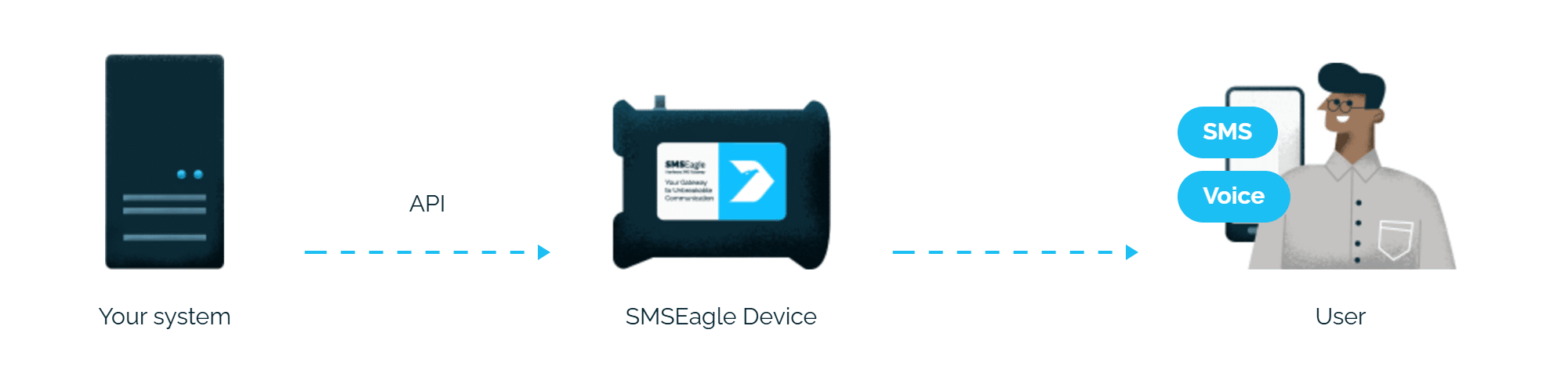
An n8n workflow can send an SMS or make a phone call through SMSEagle, your own hardware SMS gateway. Replies can come back into n8n and start the next step.

No plugin to install

n8n sends SMS with its standard HTTP Request node, so you only enter the SMSEagle address and API key.

Replies come back into n8n

SMSEagle can pass incoming SMS to an n8n webhook, so a reply can start the next step of your automation.

No per-message fees

SMSEagle sends SMS through a regular SIM card, so you only pay for your mobile plan.

How it works

1

HTTP Request node

Add a Core > HTTP Request node to the workflow, set Method to POST, and point the URL at your SMSEagle device’s API v2 endpoint (for example /api/v2/messages/sms for SMS).

2

Header Auth credential

Under Authentication, choose Generic Credential Type > Header Auth, and create a credential holding the access token generated on your SMSEagle device.

3

JSON body, runs like any node

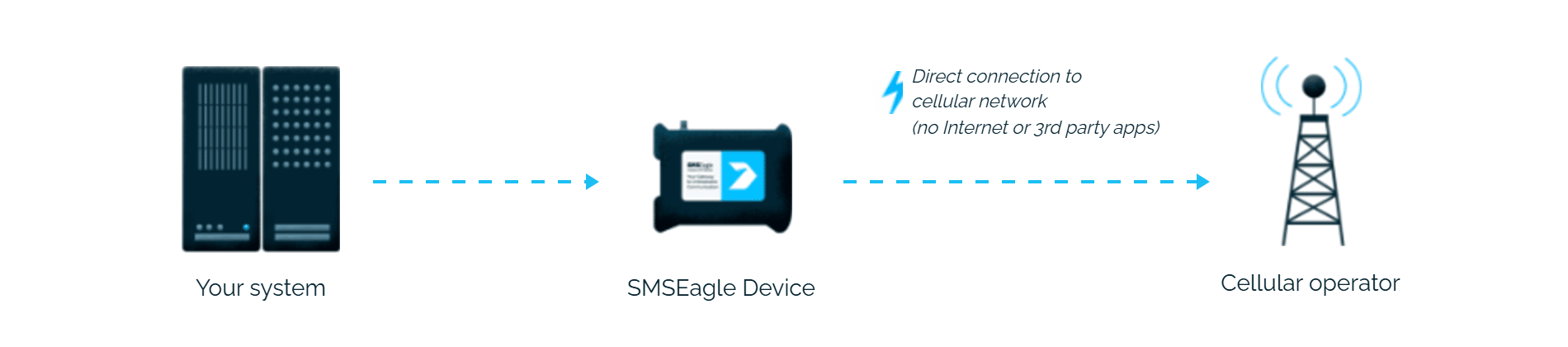
SMSEagle delivers the alert over its own cellular connection, not through a third-party service, as an SMS or a phone call to the recipient’s phone.

Set up in about 10 minutes

No dedicated SMSEagle node to install. A single HTTP Request node with a Header Auth credential is enough to send SMS, wake-up calls, or text-to-speech voice calls from any n8n workflow in 10-15 minutes.

SMSEagle lets n8n workflows send SMS and make calls from your own device, with no cloud SMS provider.

SMS and voice calls from one device

SMSEagle sends n8n alerts as an SMS, a ring-only call or a call that reads the alert aloud, all from a single device.

Fill-in-the-call-50

Alerts keep going if one carrier fails

On devices with two SIM cards from different operators, SMSEagle switches to the second one when the first operator’s network is down.

Alerts keep working even if one device fails

Two SMSEagle devices can work as an HA cluster: if one fails, the other takes over sending.

SMSEagle configuration

  1. Create a new user in SMSEagle (menu System > Users, user access level: “User”).
  2. Grant API access to the created user:
    • go to Settings > Global settings > API and open the API v2 page
    • click Create API key, fill in Key name and select the user created above as Owner
    • Add access permissions in section Messages for: Send SMS.
    • Add access permissions in section Calls for: Make a ring call, Make a TTS Advanced call.
    • click Create key. The access token is shown only once, right after saving

n8n configuration

SMSEagle API will be used to call SMS requests from n8n.

  1. Creating new node
    a) Go to your workflow > create new node
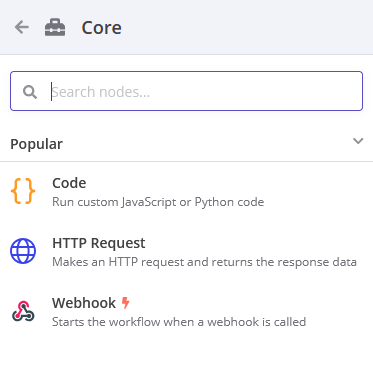
    b) Select Core -> HTTP Request

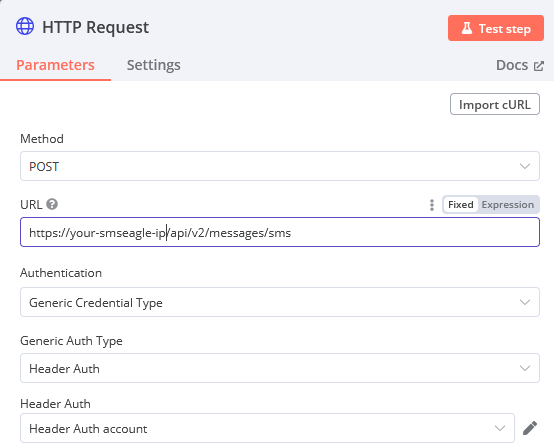
2. Configuring new HTTP Request Node

a) Method – select POST
b) In the URL field paste: https://smseagle-ip/api/v2/messages/sms
(where smseagle-ip is an actual IP address of your own SMSEagle device)
c) In the Authentication select: Generic Credential Type
d) In the Genering Auth Type select: Header Auth
e) In the Header Auth choose: Create new credential, and in new window fill the fields:

– name: access-token
– value: paste the access token from the previously created user

f) Save
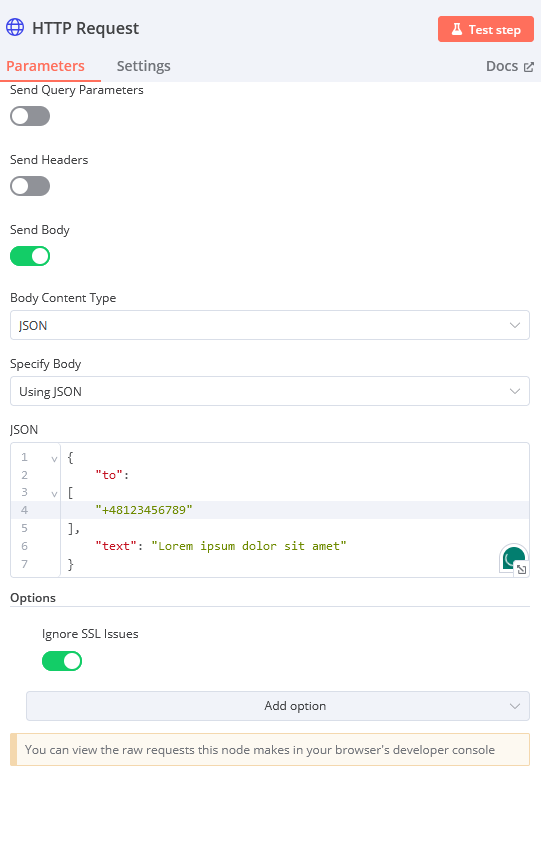
g) click on toggle at Send Body, choose Body Content Type: JSON
h) In the Specify Body select: Using JSON

{
"to": 
[
"+48123456789"
],
"text": "This is SMS message body."
}

You can use a phone number (for example +48111222333) or a group defined in SMSEagle Phonebook (for example admin-group) as recipient.

3. Test

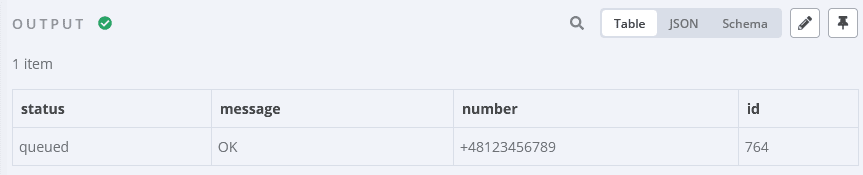
It’s possible to test the integration – click on Test step button, on the right panel you’ll see the SMSEagle API status output.

(Optional) Configure incoming SMS via CallbackURL

a) In n8n create new node, select Core -> Webhook
b) In HTTP Method select POST
c) Copy URL (either Test or Production)
d) In SMSEagle, create new CallbackURL rule, type POST, paste the URL from n8n and save the rule.
e) You can test webhook by clicking on ‘Listen for test event‘ in n8n, and ‘Test URL‘ in the SMSEagle.
f) Now in the n8n you’ll see the Output with received data.

(Optional) Configure voice calls

SMSEagle device offers wake-up calls (ring only) and voice calls (text to speech) for efficient alerting and notifications.
 
1. Wake-up (ring only) calls
To setup wake-up calls in the n8n perform the same steps as described above for SMS except:
  • Point 2 b). In the URL field paste: https://smseagle-ip/api/v2/calls/ring
    (where smseagle-ip is an actual IP address of your own SMSEagle device)
  • Point 2 h).

    In the Specify Body select: Using JSON

    {
    "to": ["+48123456789"],
    "duration": 30
    }

    You can use a phone number (for example +48111222333) as recipient.

    2. Voice (text-to-speech) calls
    To setup voice calls in the n8n perform the same steps as described above for SMS except:
    • Point 2 b). In the URL field paste: https://smseagle-ip/api/v2/calls/tts_advanced
      (where smseagle-ip is an actual IP address of your own SMSEagle device)
    • Point 2 h).

      In the Specify Body select: Using JSON

      { "to": ["+48111222333"],
        "voice_id": 2,
      "text": "Example voice alert text" }

Explore SMSEagle Demo device

SMSEagle is a hardware & software solution that guarantees a swift delivery of your messages to designated recipients, whether it’s for notifications, alerts, or important updates.

After registering to a demo you get a remote access to our physical device NXS-9750.

  • 14-days free trial
  • Access to over 20 functionalities

What is hardware
SMS Gateway?

Learn more about
SMSEagle features