Home / Integration plugins / Keycloak SMS OTP
Keycloak and SMS Eagle logos side by side, signaling a partnership or collaboration.

SMS OTP in Keycloak – integration manual

Integrate Keycloak with SMSEagle and set up MFA/2FA (Multi-Factor Authentication) using SMS OTP (One-Time Password) using on-premise SMS channel. Ensure full privacy of your data.”

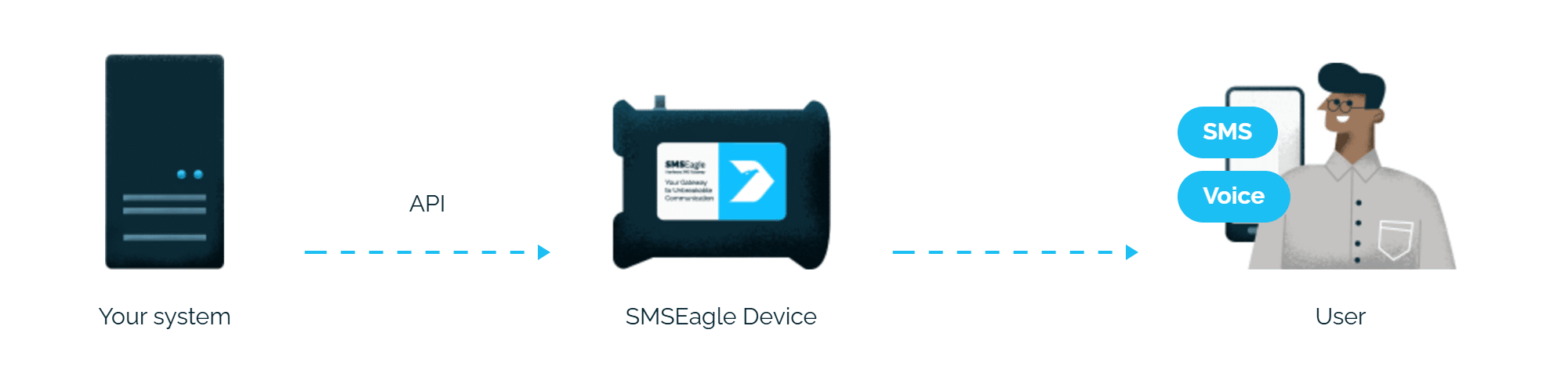
Diagram showing Keycloak server sending data via API to the SMS Eagle Device, which relays an SMS to the user with a smartphone on the right.

Benefits

Verified security badge: blue shield outline with a dark circle and white checkmark indicating protection and trust.

OTP codes never touch
a third party

A one-time password is a security credential. Sending it through a cloud SMS provider means your codes pass through an external platform on every login. SMSEagle removes that intermediary: Keycloak calls the gateway over your local network, and the code is sent from your own device over the cellular network.

Icon depicting a hand interacting with a circular timer/clock motif and a rectangular element, suggesting a user action with time or sequencing

Works in isolated and
air-gapped networks

Cloud SMS OTP needs outbound internet access from your identity infrastructure – a non-starter in air-gapped environments. SMSEagle sends messages on-premises over its own cellular connection, delivering OTP codes even in fully offline installations. A fit for regulated sectors- where data can’t leave the local network.

On‑prem SMS gateway keeps data private inside your infrastructure

Predictable cost, no vendor
dependency

Cloud SMS OTP is billed per message, often at premium rates for authentication traffic, and costs that grow with every login. SMSEagle sends over a standard SIM at local carrier rates: no per-message fees, no external contract, no cloud provider that can raise prices, or go down and lock your users out.

How it works?

1

Login attempt

A user signs in to a Keycloak-protected application and passes the first factor (password).

2

OTP request

Keycloak generates a one-time code and calls the SMSEagle device’s API over the local network.

3

Code delivery

SMSEagle sends the OTP to the user’s own phone via SMS. The user enters it to complete login.

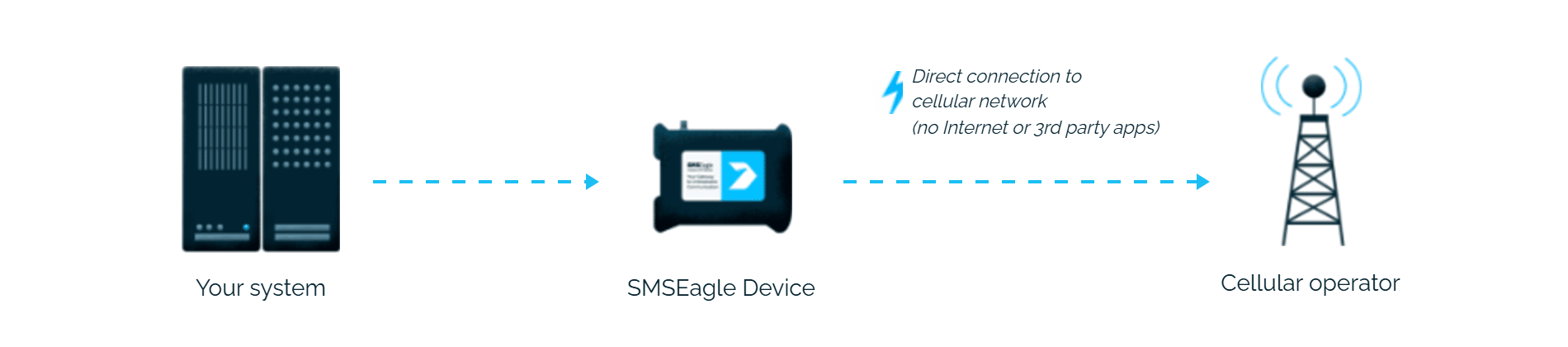
Flow: API sends from servers to SMSEagle Device, which connects via cellular network to a cellular operator, triggering an SMS alert to on-shift admins via mobile device.

Integrate in 10 minutes

Don’t waste time on complicated configuration.  With SMSEagle’s HTTP API and Keycloak event integration, you can start sending alerts and notifications in just a few steps. Connect Keycloak, configure event forwarding — and your SMS communication is ready to go.

About SMSEagle

SMSEagle’s a hardware SMS gateway. It’s used for sending and receiving notifications directly via the cellular network. The device runs on-premise, which means all data’s stored locally .

How to set up the integration

SMSEagle Setup

  • Create a new user in SMSEagle (menu Users > + Add Users, user access level: “User”).
  • Grant API access to the created user:
    • click Access to API beside the newly created user.
    • Enable APIv2
    • Generate new token
    • Add access permissions in section Messages for: Send SMS (single recipient).
    • Save settings.

KeyCloak configuration

This integration uses Keycloak-mfa-plugins repository to get a 2nd-factor authentication with a OTP/code/token send via SMS. Full instruction can be found under this link.

  1. Installation
    a) Go to https://github.com/netzbegruenung/keycloak-mfa-plugins/releases and download the latest .jar file
    b) Copy the created jar file into the providers directory of your Keycloak:
    cp netzbegruenung.keycloak-2fa-sms-authenticator.jar /path/to/keycloak/providers

    c) Run the build command and restart Keycloak:

    /path/to/keycloak/bin/kc.sh build [your-additional-flags]
    systemctl restart keycloak.service

2. Setup
a) Navigate to your Authentication flow configuration: https://keycloak.example.com/admin/master/console/#/YOUR-REALM/authentication. Then edit the Browser flow.
b) Add a new step next to the OTP Form step. Choose the SMS Authentication (2FA) authenticator and set it to Alternative.
c) Make sure that you name it sms-2fa. Additional executions with other names can be added. But this first execution will be used for the confirmation SMS when setting up a new phone number.

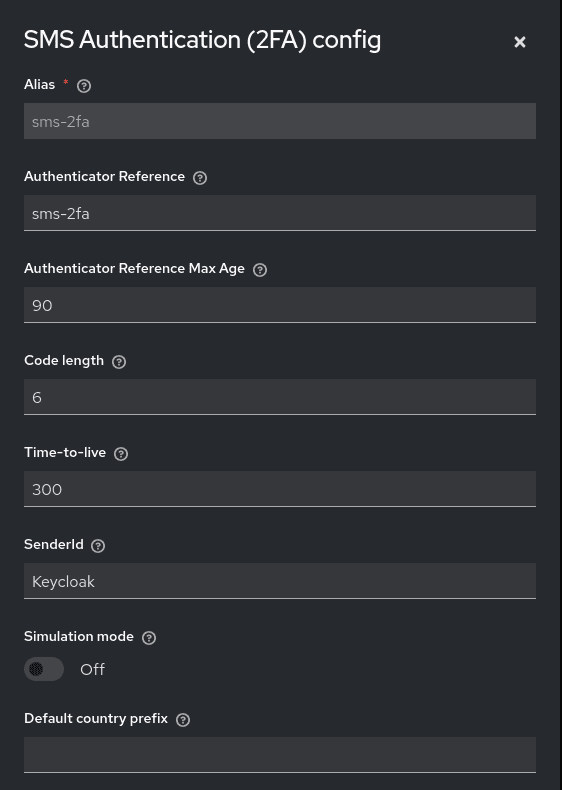
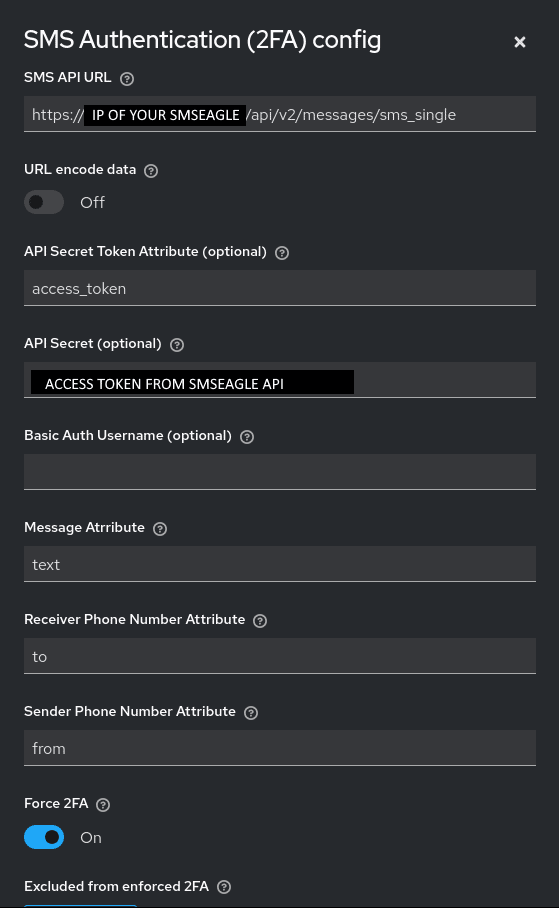
d) Go into the config of the execution and configure the plugin so that it works with the API of SMSEagle:
SMS API URL: https://IP.OF.YOUR.SMSEAGLE/api/v2/messages/sms_single
where IP.OF.YOUR.SMSEAGLE should be replaced with the actual IP or domain name of your SMSEagle device.
URL encode data: off
API Secret Token Attribute: access_token
API Secret: API access token generated in step SMSEagle setup
Message Attribute: text
Receiver Phone Number Attribute: to
Sender Phone Number Attribute: from
Force 2FA:  if the option is enabled and a user has no other 2FA method already enabled, users will have to set up the SMS Authenticator.

3. Usage

After the authenticator and the required actions are configured, users can set up SMS Authentication in the account console /realms/realm/account/#/account-security/signing-in by entering and confirming their phone number.

Explore SMSEagle Demo device

SMSEagle is a hardware & software solution that guarantees a swift delivery of your messages to designated recipients, whether it’s for notifications, alerts, or important updates.

After registering to a demo you get a remote access to our physical device NXS-9750.

  • 14-days free trial
  • Access to over 20 functionalities

What is hardware
SMS Gateway?

Learn more about
SMSEagle features