


Home / Integration plugins / AVTECH Room Alert SMS Integration

+

Send SMS/voice alerts from AVTECH Room Alert

AVTECH Room Alert can warn you the moment something goes wrong – a temperature spike, a water leak, or a power failure. SMSEagle hardware SMS gateway turns that warning into an SMS or a phone call to the person who needs to act.

No dedicated SMS module to buy

Room Alert’s built-in Email Settings are enough. SMSEagle turns that outgoing e-mail into an SMS, so you don’t need to pay for an SMS notification add-on to reach staff on their phones.

Runs entirely on your own network

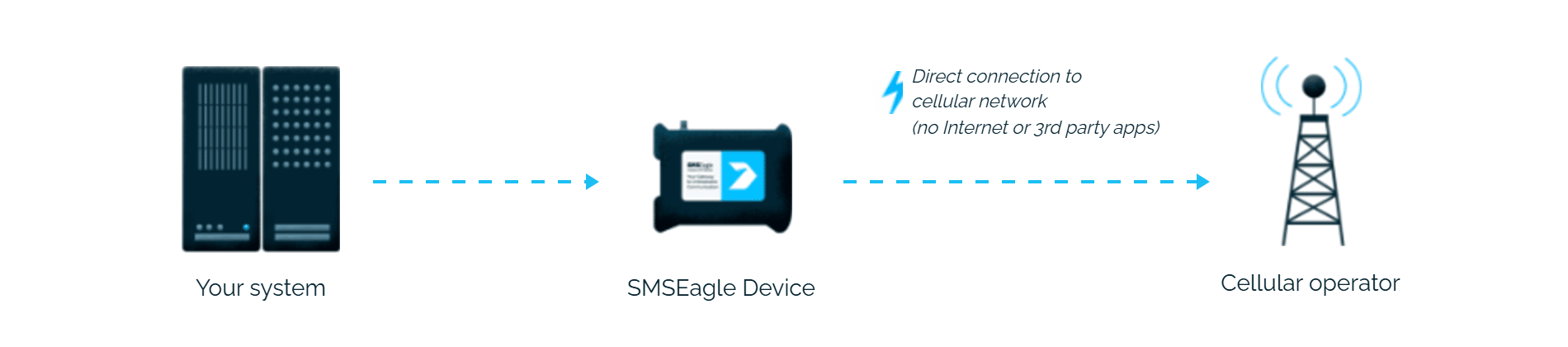
Notifications go from Room Alert to SMSEagle over e-mail (optionally using SMSEagle itself as the SMTP server), then out through SMSEagle’s own SIM card, so alerts don’t depend on a third-party cloud gateway.

One setup covers every sensor type

SMSEagle receives Room Alert’s standard e-mail notifications, so alerts from any sensor (temperature, humidity, power, water or motion) reach the same phones by SMS, with no separate integration per sensor.

How it works

1

Sensor event

A Room Alert sensor crosses a configured threshold (for example high temperature or power loss) and triggers an e-mail notification.

2

Email to SMSEagle

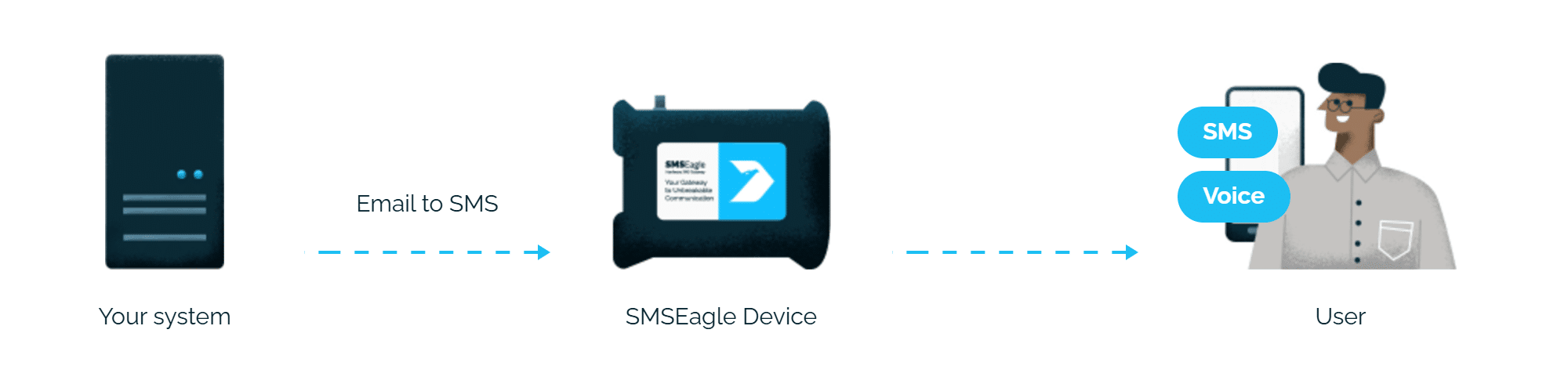
Room Alert sends that notification to the Email-to-SMS address configured under Email Recipients, formatted as PHONE_NUMBER@IP_ADDRESS_OF_SMSEAGLE.

3

SMS & voice alert

SMSEagle delivers the alert over its own cellular connection, not through a third-party service, as an SMS, MMS, or voice call, to the assigned recipient’s phone.

Set up in about 10 minutes

No custom development needed. Add SMSEagle’s Email-to-SMS address as an Email Recipient in Room Alert and sensor alarms start arriving as SMS in minutes, using the same setup screen you already use for e-mail.

SMSEagle sends AVTECH Room Alert alerts to the right person by SMS, phone call or WhatsApp, day and night.

SMS, voice calls, WhatsApp and email from one device

SMSEagle delivers Room Alert alerts by SMS, voice call, WhatsApp or email from a single device, so urgent alerts reach people where they actually look.

If the first person doesn't respond, the alert is sent to the next

Escalation groups and shift schedules make sure the Room Alert alert reaches the person on duty, and the next person on the list if nobody responds.

Alerts keep working even if one device fails

Two SMSEagle devices can work as an HA cluster: if one fails, the other takes over sending.

SMSEagle configuration

This integration will use Email To SMS plugin (see details: Email To SMS plugin). This plugin is included in each version of SMSEagle device.
  • Enable Email To SMS plugin in the web interface: Settings > Channels > Email > Email to SMS.
  • Create a forwarding rule in Automation > Email > Email to SMS. You can forward all emails to SMS or emails from specific domains.

AVTECH Room Alert configuration

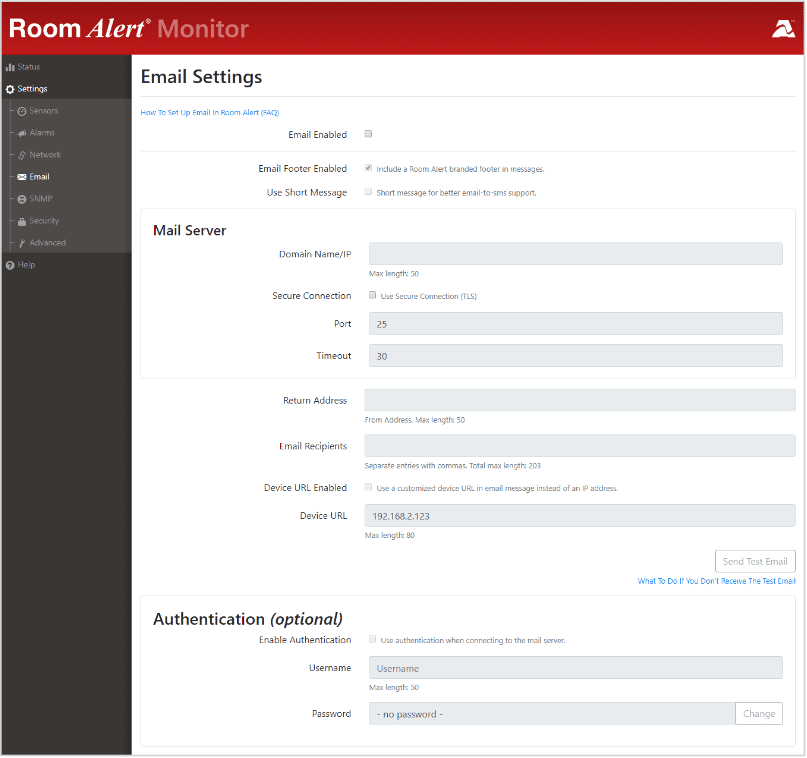
  1. Navigate to Settings → Email to open the Email Settings screen.
  2. Check Email Enabled.
  3. You may check Use Short Message to send a shorter email with a reduced character count.
  4. In Mail Server:
    •
    In Domain Name/IP, enter the domain name or IP address of your mail server.
    •
    In Secure Connection, select the checkbox if your mail server requires SSL or TLS encryption.
    •
    In Port, enter your mail server’s SMTP port. The default is 25, a commonly-used port.
    •
    In Timeout, you may leave the default, 30 seconds, or enter another interval.

    If you don’t have SMTP server configured, you may use SMSEagle as SMTP server (see notes below). In such case use the following configuration:
    a. In “Return Address” set value: noreply@localhost
    b. In “Domain Name/IP” set value: IP address of your SMSEagle device
    c. In “Secure Connection” uncheck the box
    d. In “Port” set value: 25

5. In Return Address, enter an email address that resides on your mail server. This is the address alert messages will come from.

6. In Email Recipients, enter the email and Email-to-SMS addresses that you’d like to send alerts to. You can separate each address with a comma. (Do not enter spaces after the commas.)
•
Email-to-SMS address: PHONE_NUMBER@IP_ADDRESS_OF_SMSEAGLE
Where:
PHONE_NUMBER is a destination phone number
IP_ADDRESS_OF_SMSEAGLE is the IP address of your device. For example: 123456789@192.168.0.101
Or
NAME_IN_PHONEBOOK@IP_ADDRESS_OF_SMSEAGLE
Where:
NAME_IN_PHONEBOOK is a username or group name (must be a public group) from SMSEagle’s phonebook
IP_ADDRESS_OF_SMSEAGLE is the IP address of your device.
For example: db-admins@192.168.0.101

7. Authentication (Optional)
If your mail server requires SMTP authentication, check Enable Authentication.
In Username, enter a valid username for your mail server that will facilitate authentication.
In Password, first select the Change button to enable the field. Then enter a valid password for your mail server that will facilitate authentication.

8. Select Save Settings at the top or bottom of the page. Your Room Alert will automatically reboot and commit your changes.
When your Room Alert reboots, return to the
Email Settings screen and select Send Test  Email to send a test email to the addresses you entered in Email Recipients.

SMSEagle as SMTP Server (optional)

As described in point 4 above, for sending e-mail messages you can use SMTP server installed on the SMSEagle device. In this scenario your email from AVTECH Room Alert will be directly sent to SMSEagle (without using any external email servers). SMTP server on the SMSEagle device will accept messages addressed for it only. The other messages will be rejected.


Wake-up Calls & Text-to-speech Calls (optional)

SMSEagle has a voice feature that offers wake-up calls for urgent ring-only alerts or text-to-speech calls to convert text alerts into voice calls. Complete the following steps if you want to add a follow-up voice call:

  • in the SMSEagle web interface: Automation > Email > Email to SMS edit the forwarding rule you created earlier
  • in the parameter “Call after sending SMS” choose a desired value:
    • Ring only: SMS will be followed with a wake-up (ring only) call
    • Yes – text to speech: SMS will be followed with a simple text-to-speech voice call (English language only)
    • Yes – text to speech (advanced): SMS will be followed with a text-to-speech voice call (better quality & multiple language support)

Explore SMSEagle Demo device

SMSEagle is a hardware & software solution that guarantees a swift delivery of your messages to designated recipients, whether it’s for notifications, alerts, or important updates.

After registering to a demo you get a remote access to our physical device NXS-9750.

  • 14-days free trial
  • Access to over 20 functionalities

What is hardware
SMS Gateway?

Learn more about
SMSEagle features
