Home / Integration plugins / ABB Cylon ASPECT SMS Integration

+

Send SMS alerts from ABB Cylon ASPECT

ABB Cylon ASPECT can warn you the moment something goes wrong – an HVAC fault, a threshold alarm, or a sensor failure. SMSEagle hardware SMS gateway turns that warning into an SMS to the person who needs to act.

No programming needed

ASPECT-Studio has built-in support for SMSEagle, so you only enter the device’s IP address, username and password, with no scripts to write.

Know when an alarm starts and when it ends

SMSEagle sends an SMS when an alarm appears in ASPECT, when the alarm ends, and when the ASPECT system restarts.

Only the alarms that matter

You choose which alarms (by priority) and at what times SMSEagle sends SMS, for example only outside working hours.

How it works

1

Event Trigger

An ASPECT alarm is triggered, cleared, or the ASPECT engine restarts.

2

Communication

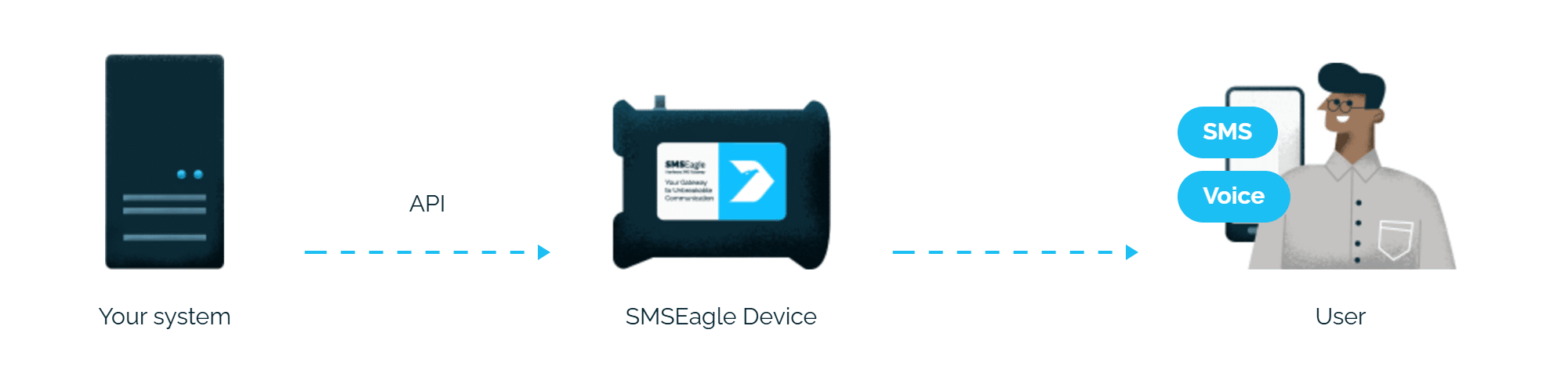
ASPECT’s built-in SMSEagle Gateway notifier sends an HTTP API request to the SMSEagle device over your local network.

3

Alert

SMSEagle delivers the alert over its own cellular connection, not through a third-party service, as an SMS, to the configured recipients.

Set up in about 10 minutes

Create an API user in SMSEagle, configure the SMSEagle Gateway notifier in ASPECT-Studio, and deploy the project.

SMSEagle sends ABB Cylon ASPECT alerts to the right person by SMS, day and night.

Alerts over the cellular network, without internet

SMSEagle sends ABB Cylon ASPECT alerts through its own SIM card, straight to the mobile network, so they don’t depend on internet access or a cloud SMS provider.

If the first person doesn't respond, the alert is sent to the next

Escalation groups and shift schedules make sure the ASPECT alert reaches the person on duty, and the next person on the list if nobody responds.

Alerts keep working even if one device fails

Two SMSEagle devices can work as an HA cluster: if one fails, the other takes over sending.

SMSEagle configuration

  1. Create a new user in SMSEagle (menu System > Users) with access level “User”.
  2. Grant API access to the created user:
    • go to Settings > Global settings > API and open the API v1 page
    • click Create API key, fill in Key name and select that user as Owner
    • Add access permissions in section Permissions for: Send SMS, Send to contact, Send to group
    • click Create key. Then, in System > Users, open that user and tick Enable user/password authentication (APIv1 only).
  3. Open Settings > Global settings > Network > SSL, turn off Forward HTTP to HTTPS and click Save changes.


ASPECT configuration

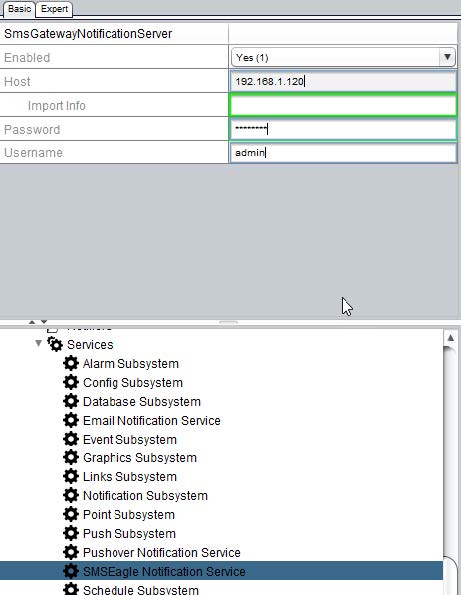
1. Open ASPECT-Studio and in your ASPECT Project tree navigate to Services>SMS Eagle Notification Service.

2. In the Basic properties tab fill in the Host (IP address of your SMSEagle), Password and Username for the user created on your SMSEagle device.

Note: Press ENTER after typing the password for the properties window to accept it.

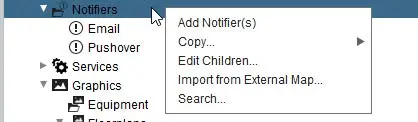
3. Navigate to Notifiers section in your ASPECT Project Tree. 

4. Right-click on Notifiers and select Add Notifier(s) in the context menu.

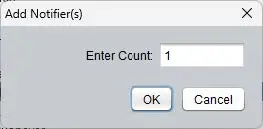
5. Set Enter Count to 1 and click on the OK button.

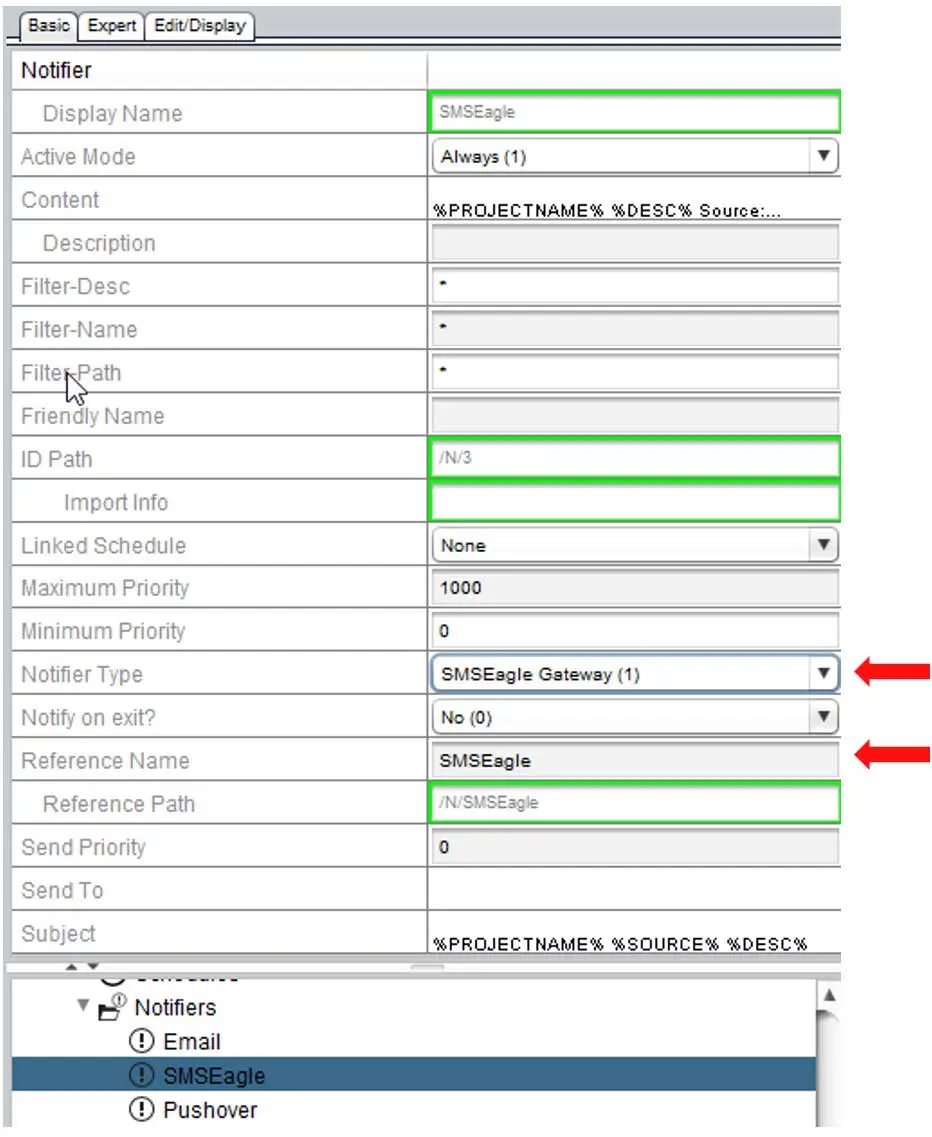
6. In the Basic properties tab change the Notifier Type to SMSEagle Gateway (1) and the Reference Name to SMSEagle.

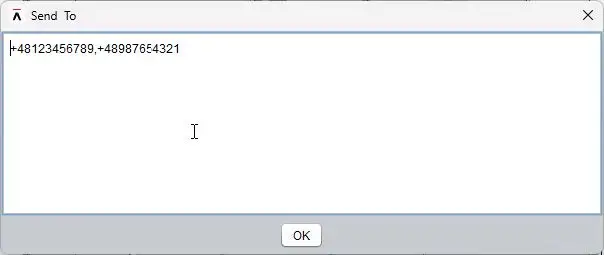
7. Double-click on the Send To property value and enter a comma-separated list of the mobile numbers of all recipients.


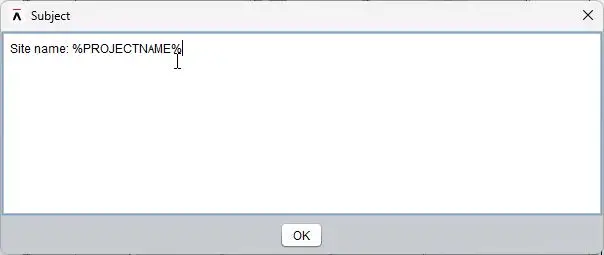
8. Double-click on the Subject property value to define the Subject of the SMS message.

Note: Both plain text and ASPECT TStrings (Tokenized Strings) can be used in this field

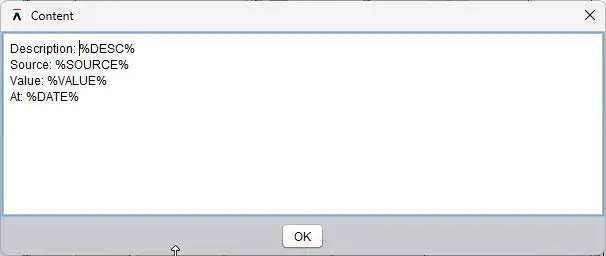
9. Double-click on the Content property value to adjust your message content.

Note: Both plain text and ASPECT TStrings (Tokenized Strings) can be used in this field

10. Set the Active Mode property to specify how this Notifier will become active.

Note: Notifier Active Mode can be Disabled, Always Active, Controlled by Schedule, or Inverted Schedule Control.
Disabled Notifiers will automatically stop evaluation – this is useful to temporarily suspend a notifier without deleting it.
Always Active Notifiers will always continue to evaluate.
Controlled by Schedule (with a corresponding schedule selection) will be true any time a schedule has an event/value and false any time that it does not have an event/value.
Inverted Schedule control (with a bound schedule) will be true any time that the bound schedule does not contain a value.

11. Set the Notifier’s alarm priorities to limit notifications to specific ASPECT alarm priorities.

12. Set the Notify on Exit property to receive notifications when alarm is cleared

13. Deploy the ASPECT project.
14. To test whether notifications being sent to all desired recipients, deliberately trigger an alarm.

That’s it! 😊

SMSEagle for ASPECT systems can send 3 types of messages:

  • ASPECT Engine Restart
  • Alarm triggered
  • Alarm cleared

Explore SMSEagle Demo device

SMSEagle is a hardware & software solution that guarantees a swift delivery of your messages to designated recipients, whether it’s for notifications, alerts, or important updates.

After registering to a demo you get a remote access to our physical device NXS-9750.

  • 14-days free trial
  • Access to over 20 functionalities

What is hardware
SMS Gateway?

Learn more about
SMSEagle features