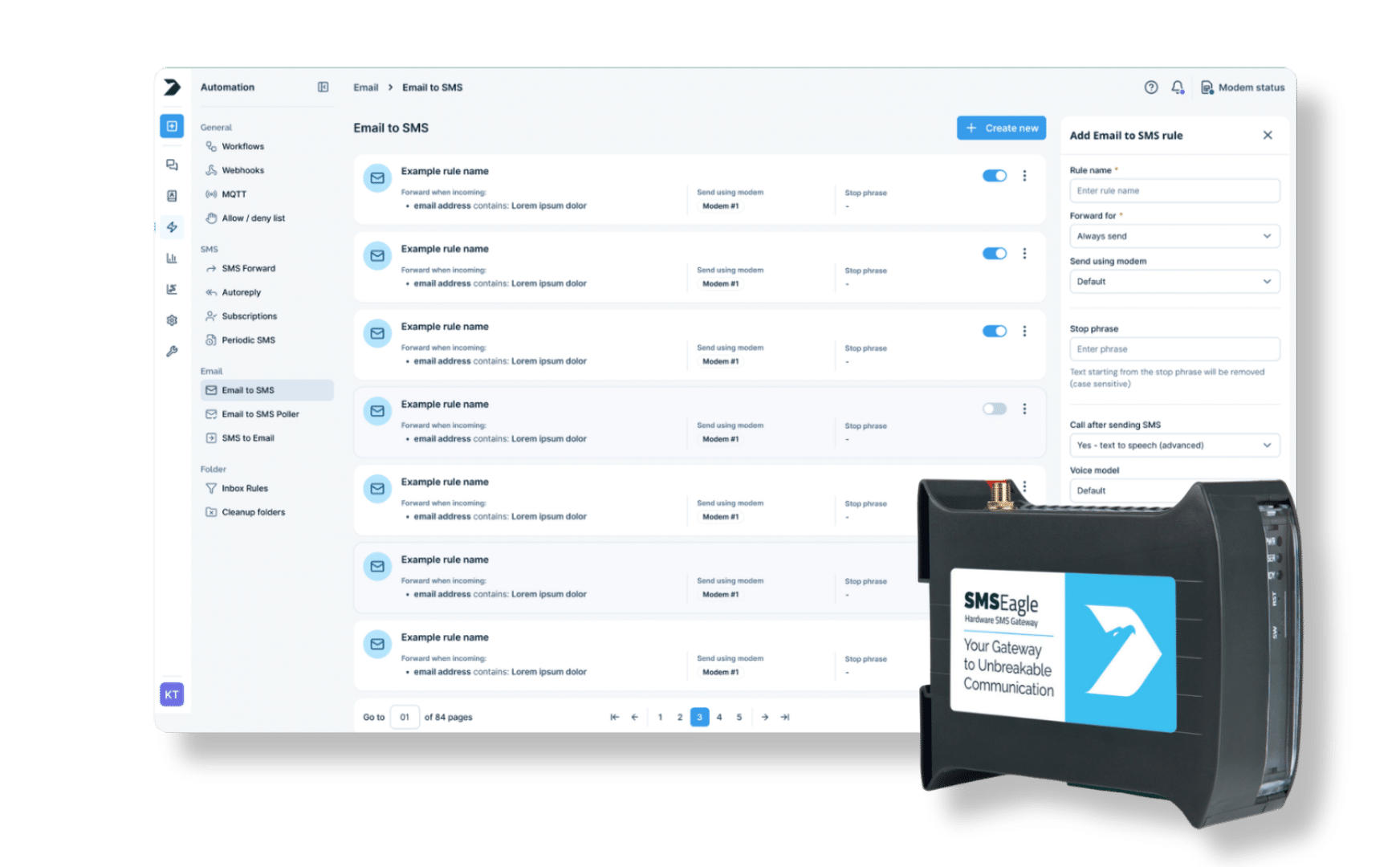
Connect Signal and SMS in one automated communication flow. With SMSEagle, incoming Signal messages are forwarded as SMS, so your message reaches every recipient, including people without the Signal app or without mobile data. Keep your communication reliable and fully under your control.
Bridge the gap between Signal and traditional SMS. Your messages reach their destination whether the recipient uses Signal or not.
Automation and integration
Forwarding runs directly on your SMSEagle hardware SMS gateway, without external cloud services. Combine it with Workflows to route or forward messages automatically.
Control over your data
Workflow rules and message processing run on your SMSEagle device, so you decide which messages are forwarded and to whom.
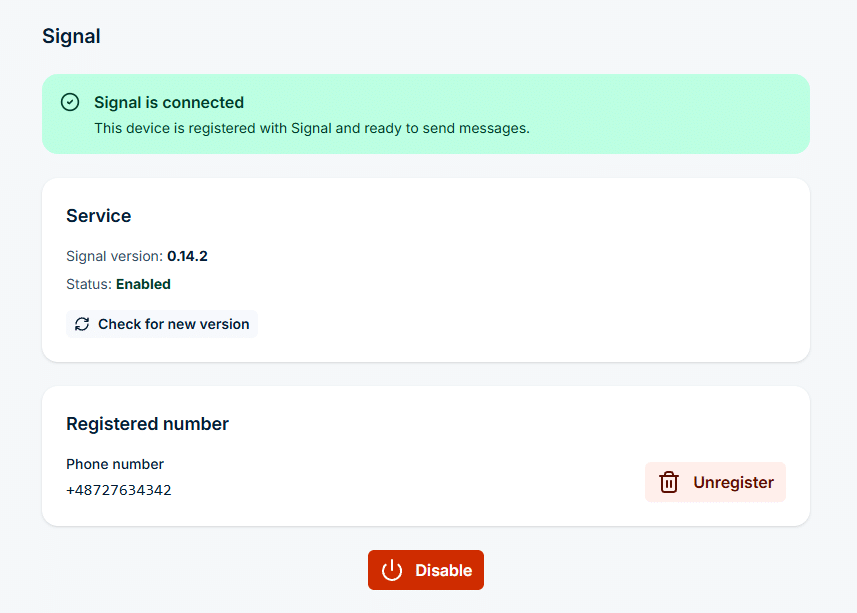
In the sidebar, go to Settings > Channels > Signal, enable the service, then register and verify a phone number. When the page shows Signal is connected, the device can send and receive Signal messages. Signal is available on selected device models only.
A workflow can only use channels that already work on their own.
Step 2
Name the workflow and pick the trigger
Go to Automation > General > Workflows and click Create new.
In Name, enter a descriptive title, for example Signal to SMS.
In Trigger, select Signal. The workflow starts each time a new Signal message arrives.
Step 3
Add conditions (optional)
Without conditions, the workflow handles every incoming Signal message.
To filter, click Add group, then Add condition. With the Signal trigger you can check the Sender or the Content, for example content contains ALARM.
Conditions in one group are joined with AND, groups are joined with OR.
Step 4
Add the Send SMS action
In the Actions panel, click Add action and select Send SMS.
Enter Phone numbers, or pick Contacts or Groups from the Phonebook.
In Message, use placeholders to pass the original text on, for example Signal from {{sender}}: {{content}}.
Step 5
Save the workflow
Click Save workflow at the bottom of the page.
From now on, each new Signal message that matches the conditions is sent on as an SMS. The workflow card shows how many times it has run and when it last ran.
Use cases
Signal to SMS use cases
IT and network operations
Monitoring alerts shared in Signal also reach engineers by SMS. SMSEagle forwards each Signal message as SMS to the on-call phone, so the alert gets through even when the engineer has no mobile data.
Manufacturing and industrial automation
When a supervisor reports an equipment fault on Signal, SMSEagle forwards the message as SMS to the maintenance team. Engineers in areas with poor internet access still receive it and can react quickly.
Logistics and transportation
Dispatchers send route changes on Signal. SMSEagle delivers the same message as SMS to drivers, so updates reach them even when their data connection drops.
Healthcare and emergency services
Alerts shared on Signal, such as a fault in a temperature-controlled storage room, are forwarded as SMS to the on-duty technician, who receives them even without mobile data.
Public sector
Teams that coordinate on Signal can make sure critical messages also reach staff who do not use the app, by forwarding selected Signal messages as SMS.
SMSEagle combines hardware and software into a single, self-contained gateway. It is designed for critical environments, so security is built in from the ground up, confirmed by CE, FCC, ISED, UKCA, PTCRB, RCM, IMDA, TDRA, CB Scheme, GCF, carrier certifications (Verizon, AT&T) and ISO 27001.
Yes. Create a workflow with the Signal trigger and a Send SMS action. Every incoming Signal message, or only those matching your conditions, is forwarded as SMS to the numbers, contacts or groups you choose.
Can I forward only selected Signal messages?
Yes. Add a condition group and check the sender or the message content, for example content contains ALARM. Conditions in one group are joined with AND, groups are joined with OR.
Can the SMS include the original sender and text?
Yes. Use placeholders such as {{sender}} and {{content}} in the message, for example Signal from {{sender}}: {{content}}.
Which SMSEagle devices support Signal?
Signal is available on selected device models only. If Settings > Channels > Signal is not in your sidebar, your device does not support it.
Does Signal use SIM credit?
No. Signal messages are sent and received over the network connection, not through the modem. The forwarded SMS is sent by the modem and uses your SIM card.