SMSEagle’s Email to WhatsApp function turns your incoming emails into instant WhatsApp messages. No cloud services, no manual forwarding — just fast, automated delivery straight to recipients’ smartphones. Ideal for IT alerts, service desk notifications, and business communication that can’t wait.
Convert incoming emails into WhatsApp messages and deliver them directly to users’ smartphones. This ensures critical information reaches recipients immediately – even when they’re away from their desks.
Easy setup with flexible rules
You can configure your automation in minutes using a visual Workflow Builder. Define triggers, conditions, and actions, for example, “if email subject contains ‘urgent’, send a WhatsApp message.”
Local and secure processing
All message conversions and transfers happen within your SMSEagle gateway. No sensitive data is sent through external cloud systems or third-party servers.
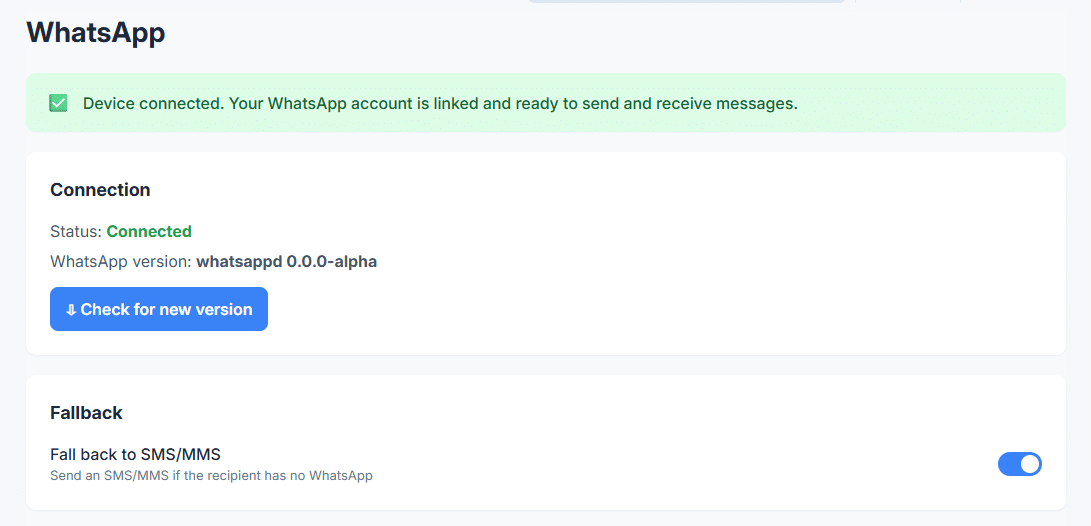
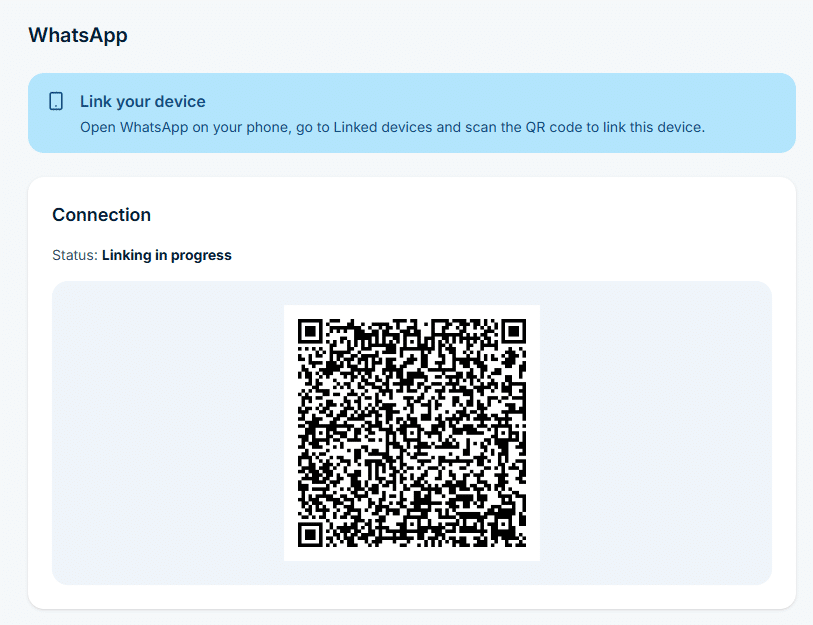
In the sidebar, go to Settings > Channels > WhatsApp, enable the service and link your WhatsApp account. When the status shows Connected, the device can send and receive WhatsApp messages.
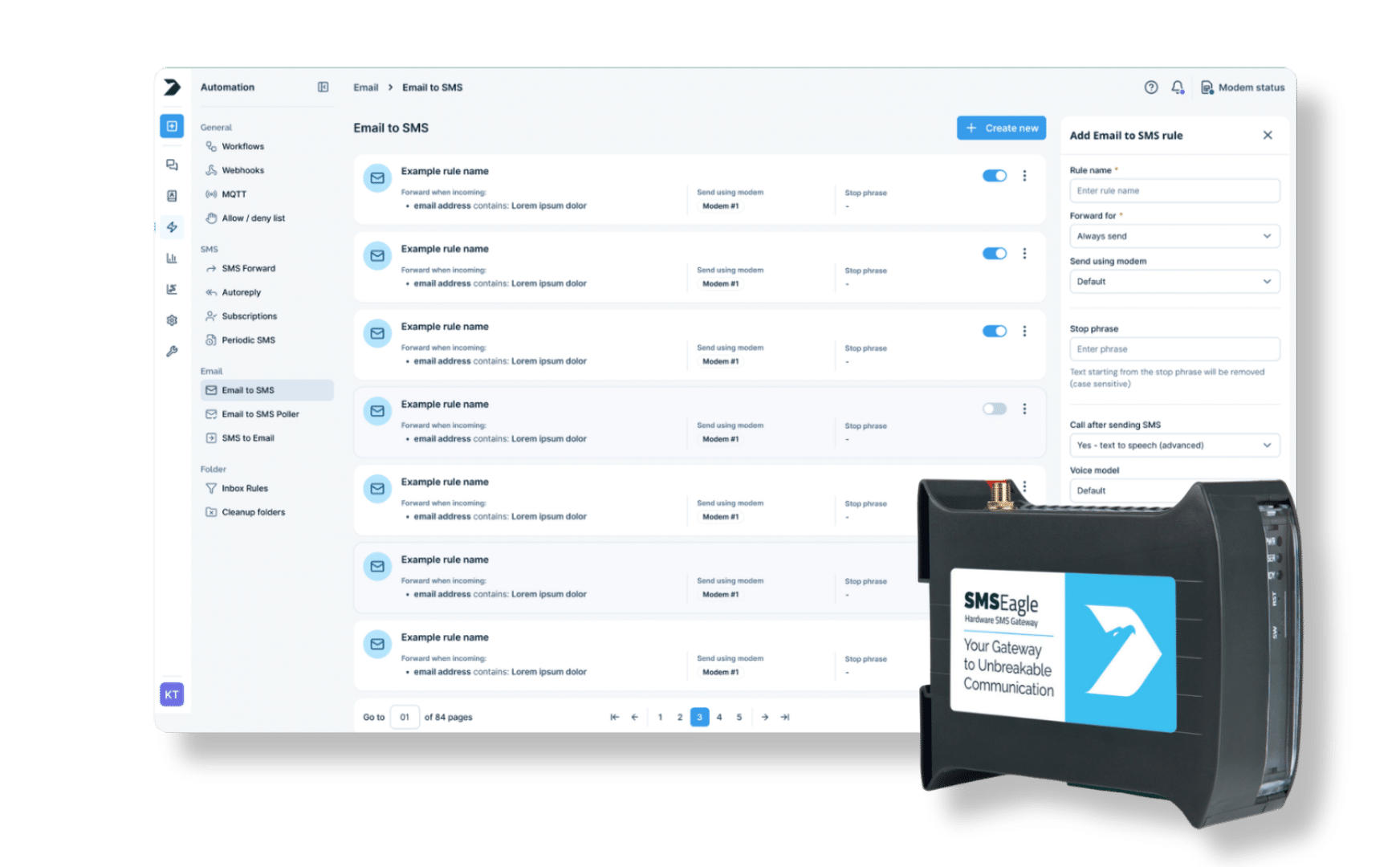
A workflow can only use channels that already work on their own. Emails reach workflows through the Email to SMS feature, so it must be configured as well.
Step 2
Name the workflow and pick the trigger
Go to Automation > General > Workflows and click Create new.
In Name, enter a descriptive title, for example Email to WhatsApp.
In Trigger, select Email. The workflow starts each time a new email arrives.
Step 3
Add conditions (optional)
Without conditions, the workflow handles every incoming email.
To filter, click Add group, then Add condition. With the Email trigger you can check the Sender, Recipient, Subject or Content, for example content contains ALARM.
Conditions in one group are joined with AND, groups are joined with OR.
Step 4
Add the Send WhatsApp action
In the Actions panel, click Add action and select Send WhatsApp.
Enter Phone numbers, or pick Contacts or Groups from the Phonebook.
In Message, use placeholders to pass the original text on, for example {{subject}}: {{content}}.
Step 5
Save the workflow
Click Save workflow at the bottom of the page.
From now on, each new email that matches the conditions is sent on as a WhatsApp message. The workflow card shows how many times it has run and when it last ran.
Use cases
Email to WhatsApp use cases
IT and network operations
IT and network teams rely on instant notifications when critical systems fail. With Email to WhatsApp, alerts from monitoring tools like Nagios, Zabbix, or PRTG are automatically forwarded to on-call engineers’ smartphones. For example, when a server goes down or a network switch stops responding, SMSEagle detects the alert email and sends it directly as a WhatsApp message. This guarantees that incidents are noticed immediately — not buried in an inbox — helping reduce downtime and speed up recovery.
Manufacturing and industrial automation
In manufacturing, every minute of downtime can cost thousands. When PLC or SCADA systems send an email about an equipment fault, SMSEagle automatically converts it into a WhatsApp message for the maintenance team. Technicians receive instant mobile alerts about overheating motors, pressure drops, or production halts — allowing them to react before small problems become major failures. This automation ensures continuity, efficiency, and reduced production loss.
Logistics and transportation
Timely information is key to smooth logistics operations. When dispatch systems or delivery platforms email notifications about route changes, delays, or incidents, SMSEagle automatically sends those updates as WhatsApp messages to drivers or coordinators. Staff receive live updates on their phones — no need to check email — allowing for faster route adjustments, improved coordination, and better customer communication.
Healthcare and emergency services
In healthcare, rapid response is critical. When hospital systems or medical monitoring devices detect a fault — such as a power outage, HVAC failure, or equipment malfunction — they send automated emails. SMSEagle transforms those emails into WhatsApp messages and delivers them directly to doctors, technicians, or facility managers. This ensures that vital alerts are read immediately, supporting uninterrupted patient care and operational safety.
Customer service and support centers
Support teams use Email to WhatsApp to make sure urgent customer issues are addressed quickly. When a high-priority ticket or escalation email is received, SMSEagle forwards it to the responsible agent or manager on WhatsApp. This ensures that no critical case is missed, even outside working hours. The result is faster response, improved service quality, and higher customer satisfaction — all without changing existing email workflows.
SMSEagle combines hardware and software into a single, self-contained gateway. It is designed for critical environments, so security is built in from the ground up, confirmed by CE, FCC, ISED, UKCA, PTCRB, RCM, IMDA, TDRA, CB Scheme, GCF, carrier certifications (Verizon, AT&T) and ISO 27001.
SMSEagle receives emails directly through its Email to SMS service, so your monitoring tools and other systems can send alerts to an address on the device. Enable the service in Settings > Channels > Email > Email to SMS before you create the workflow.
Can I forward only selected emails?
Yes. Add a condition group and check the Sender, Recipient, Subject or Content of the email, for example subject contains urgent. Only matching emails are sent on as WhatsApp messages.
Can the WhatsApp message include the email subject and text?
Yes. Use placeholders in the message, for example {{subject}}: {{content}}. You can also use {{sender}} and {{recipient}}.
Can I forward email attachments to WhatsApp?
Yes. The Send WhatsApp action has an Include attachments option, which passes the attachments of the incoming email on to WhatsApp.
What if a recipient does not use WhatsApp?
Turn on Fall back to SMS/MMS in the WhatsApp settings. A message addressed to a number that is not registered on WhatsApp is then sent as an SMS or MMS instead of failing.
Which SMSEagle devices support WhatsApp?
WhatsApp is available on selected device models only. If Settings > Channels > WhatsApp is not in your sidebar, your device does not support it.
WhatsApp is a trademark of Meta Platforms, Inc. This product is not affiliated with, endorsed by, or sponsored by WhatsApp or Meta Platforms.