Home / Integration plugins / Shinken SMS Integration

+

Send SMS alerts from Shinken

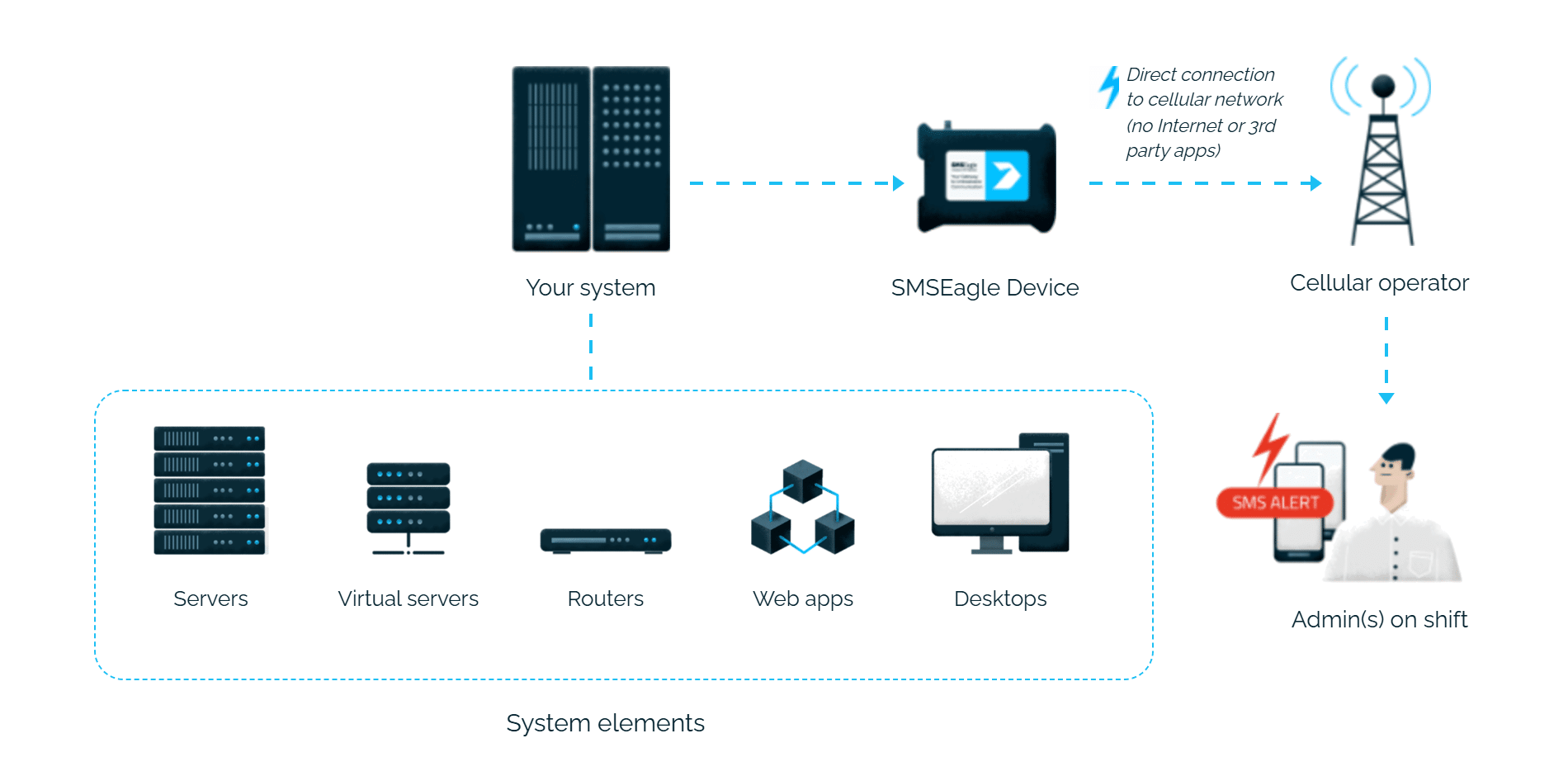
Shinken alerts reach the person on duty as an SMS. SMSEagle sends them over its own cellular connection, so they don’t depend on internet access or a cloud service.

A ready script to download

You download the script from the SMSEagle repository on GitHub and copy it to the Shinken server, with no code of your own to write.

You know what stopped working

Separate notifications for servers and services mean the SMS tells you straight away where the problem is.

Works without internet

SMSEagle sends alerts through its own SIM card straight to the mobile network, so they don’t depend on internet access or a cloud SMS provider.

How it works

1

Event Trigger

Shinken detects a host or service state change, for example a server going DOWN or a monitored service turning CRITICAL.

2

Communication

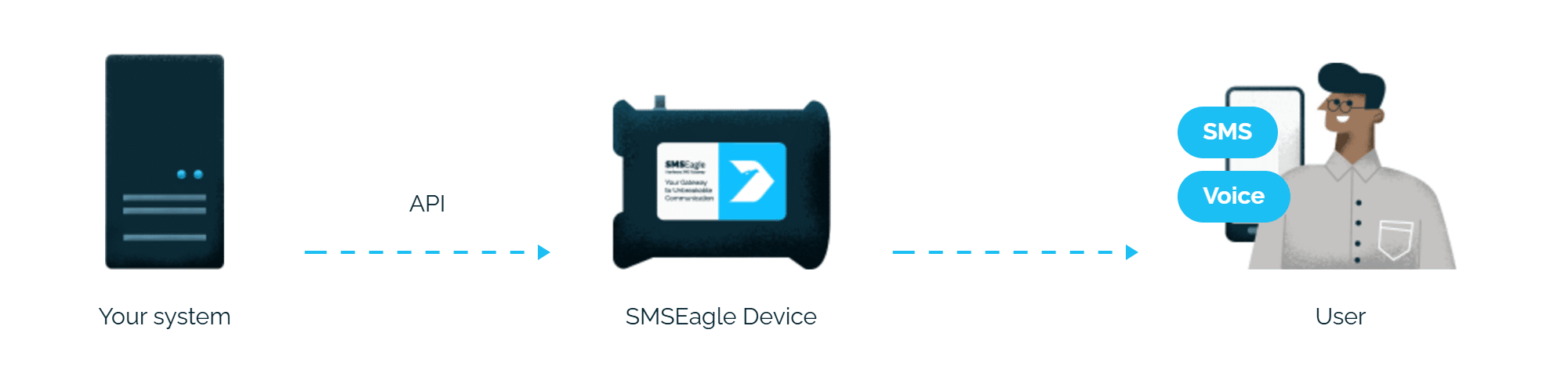
Shinken sends an HTTP API request directly to SMSEagle over your local network.

3

Alert

SMSEagle delivers the alert over its own cellular connection, not through a third-party service, as an SMS to the recipient’s phone.

Set up in about 10 minutes

It should take about five minutes to have it up and running. Generate an API token in SMSEagle, define the notification commands in Shinken, and you’re done.

SMSEagle sends Shinken alerts to the right person by SMS, day and night.

No per-message fees

SMSEagle sends SMS through a regular SIM card, so you only pay for your mobile plan.

Alerts keep going if one carrier fails

On devices with two SIM cards from different operators, SMSEagle switches to the second one when the first operator’s network is down.

Alerts keep working even if one device fails

Two SMSEagle devices can work as an HA cluster: if one fails, the other takes over sending.

SMSEagle configuration

  1. Create a new user for this script in the SMSEagle web interface: menu System > Users.
  2. Create an API key for that user in Settings > Global settings > API, page API v1:
    • a) click Create API key, fill in Key name and select that user as Owner
    • b) set the APIv1 permissions listed below, then click Create key
The access token is shown only once, right after saving. This API token will be referenced below as SMSEAGLEAPITOKEN. Replace SMSEAGLEAPITOKEN in script below with your value.

  • In the key form, add the permissions for APIv1 methods you want to use:
    • Send SMS => sms
    • Ring call => ring
    • Text-to-speech call => tts
    • Advanced text-to-speech call => tts_adv

Shinken configuration

1. Download latest version of the script notify_eagle_sms.pl from our repository: https://github.com/smseagle/smseagle-nagios
Place the plugin in your Shinken plugins directory.

2. Create the SMS notification commands (commonly found in file commands.cfg).
Replace SMSEAGLEURL with URL Address of your SMSEagle device (for example: http://192.168.50.150)
Replace SMSEAGLEAPITOKEN with your API token for your SMSEagle (for example: NZg2yNmWYb5Q7I3Y3Ifnk5E)

Define below commands:

define command {
        command_name notify-by-sms 
        command_line $USER1$/notify_eagle_sms.pl -s SMSEAGLEURL -a SMSEAGLEAPITOKEN -dstaddr $CONTACTPAGER$ -t "$NOTIFICATIONTYPE$ $SERVICESTATE$ $SERVICEDESC$ Host($HOSTNAME$) Info($SERVICEOUTPUT$) Date($SHORTDATETIME$)" 
} 

define command { 
        command_name host-notify-by-sms 
        command_line $USER1$/notify_eagle_sms.pl -s SMSEAGLEURL -a SMSEAGLEAPITOKEN -dstaddr $CONTACTPAGER$ -t "$NOTIFICATIONTYPE$ $HOSTSTATE$ Host($HOSTALIAS$) Info($HOSTOUTPUT$) Time($SHORTDATETIME$)" 
}

define command { 
        command_name notify-by-ring-call 
        command_line $USER1$/notify_eagle_sms.pl -s SMSEAGLEURL -a SMSEAGLEAPITOKEN -c ring -dstaddr $CONTACTPAGER$ -t "$NOTIFICATIONTYPE$ $SERVICESTATE$ $SERVICEDESC$ Host($HOSTNAME$) Info($HOSTOUTPUT$) Time($SHORTDATETIME$)" 
}

define command { 
        command_name host-notify-by-ring-call 
        command_line $USER1$/notify_eagle_sms.pl -s SMSEAGLEURL -a SMSEAGLEAPITOKEN -c ring -dstaddr $CONTACTPAGER$ -t "$NOTIFICATIONTYPE$ $HOSTSTATE$ Host($HOSTALIAS$) Info($HOSTOUTPUT$) Time($SHORTDATETIME$)" 
}

define command { 
        command_name notify-by-tts-call 
        command_line $USER1$/notify_eagle_sms.pl -s SMSEAGLEURL -a SMSEAGLEAPITOKEN -c tts -dstaddr $CONTACTPAGER$ -t "$NOTIFICATIONTYPE$ $SERVICESTATE$ $SERVICEDESC$ Host($HOSTALIAS$) Info($HOSTOUTPUT$) Time($SHORTDATETIME$)" 
}

define command { 
        command_name host-notify-by-tts-call 
        command_line $USER1$/notify_eagle_sms.pl -s SMSEAGLEURL -a SMSEAGLEAPITOKEN -c tts -dstaddr $CONTACTPAGER$ -t "$NOTIFICATIONTYPE$ $HOSTSTATE$ Host($HOSTALIAS$) Info($HOSTOUTPUT$) Time($SHORTDATETIME$)" 
}

define command { 
        command_name notify-by-tts-adv-call
        command_line $USER1$/notify_eagle_sms.pl -s SMSEAGLEURL -a SMSEAGLEAPITOKEN -c tts_adv -dstaddr $CONTACTPAGER$ -voiceid SMSEAGLEVOICE -t "$NOTIFICATIONTYPE$ $SERVICESTATE$ $SERVICEDESC$ Host($HOSTALIAS$) Info($HOSTOUTPUT$) Time($SHORTDATETIME$)" 
}

define command { 
        command_name host-notify-by-tts-adv-call
        command_line $USER1$/notify_eagle_sms.pl -s SMSEAGLEURL -a SMSEAGLEAPITOKEN -c tts_adv -dstaddr $CONTACTPAGER$ -voiceid SMSEAGLEVOICE -t "$NOTIFICATIONTYPE$ $HOSTSTATE$ Host($HOSTALIAS$) Info($HOSTOUTPUT$) Time($SHORTDATETIME$)" 
}

3. In your Shinken contacts (commonly found in file contacts.cfg) add the contact. Field “pager” should contain a mobile number for sms alerts in full international format without leading + sign, for example: 48xxxxxxxxx (if your mobile operator requires + sign in a telephone number put 00 instead)

Explore SMSEagle Demo device

SMSEagle is a hardware & software solution that guarantees a swift delivery of your messages to designated recipients, whether it’s for notifications, alerts, or important updates.

After registering to a demo you get a remote access to our physical device NXS-9750.

  • 14-days free trial
  • Access to over 20 functionalities

What is hardware
SMS Gateway?

Learn more about
SMSEagle features