

Home / Integration plugins / OpManager SMS Integration

+

Send SMS alerts from OpManager

OpManager alerts reach the person on duty as an SMS. SMSEagle sends them over its own cellular connection, so they don’t depend on internet access or a cloud service.

Native SMSEagle support in OpManager

SMSEagle is on the list of SMS providers in OpManager. Select it, enter the device address and access details, and alerts start arriving by SMS.

SMSEagle can also watch the OpManager server

If the OpManager server fails, it can’t send alerts. SMSEagle can check that server itself and send an SMS when it stops responding.

Works without internet

SMSEagle sends alerts through its own SIM card straight to the mobile network, so they don’t depend on internet access or a cloud SMS provider.

How it works

1

Event Trigger

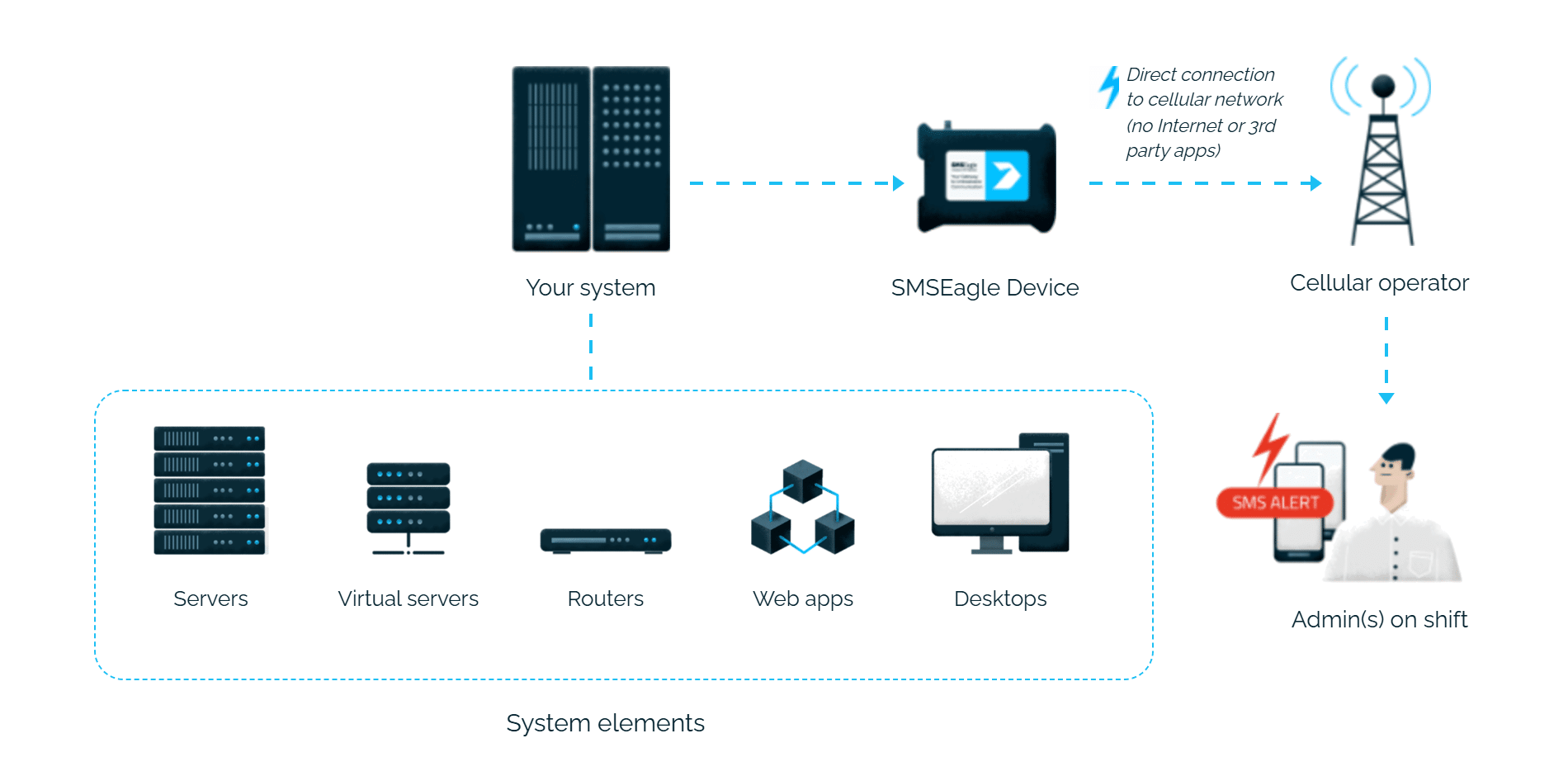
An OpManager notification profile matches a monitored condition.

2

Communication

OpManager’s built-in SMSEagle SMS Provider sends an HTTP API request to the SMSEagle device over your local network.

3

Alert

SMSEagle delivers the alert over its own cellular connection, not through a third-party service, as an SMS to the recipient’s phone.

Set up in about 10 minutes

Select SMSEagle as the SMS Provider in OpManager’s SMS Server Settings, create a notification profile, and you’re done.

SMSEagle sends OpManager alerts to the right person by SMS, day and night.

No per-message fees

SMSEagle sends SMS through a regular SIM card, so you only pay for your mobile plan.

Alerts keep going if one carrier fails

On devices with two SIM cards from different operators, SMSEagle switches to the second one when the first operator’s network is down.

Alerts keep working even if one device fails

Two SMSEagle devices can work as an HA cluster: if one fails, the other takes over sending.

SMSEagle configuration

  • Create a new user in SMSEagle (menu System > Users) with access level “User”.
  • Grant API access to the created user:
    • go to Settings > Global settings > API and open the API v1 page
    • click Create API key, fill in Key name and select that user as Owner
    • Add access permissions in section Permissions for: Send SMS, Send to contact, Send to group
    • click Create key. Then, in System > Users, open that user and tick Enable user/password authentication (APIv1 only).

OpManager configuration

SMSEagle API will be used to create SMS requests from OpManager.

1. Configure SMS Server Settings:

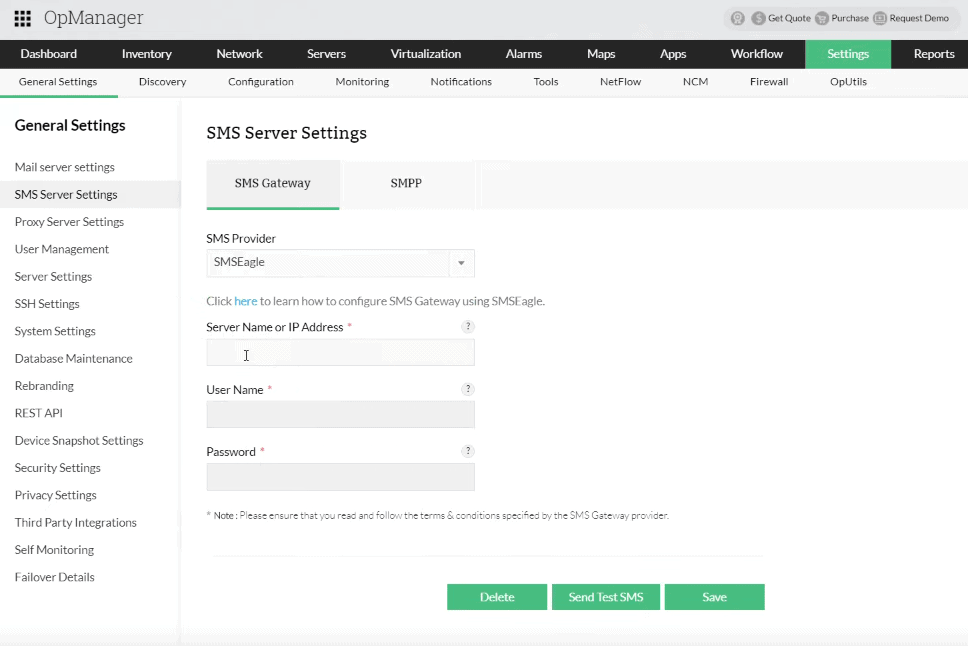
  • Go to Settings → General Settings → SMS Server Settings, under SMS Gateway, select ‘SMSEagle’ as the SMS Provider

  • Enter the Hostname or IP address of the SMSEagle device
  • Enter the User Name & Password for the user created earlier on SMSEagle
  • If you wish to test if the configuration is successful, click on the Test SMS button:
    • Enter a mobile number with country code and click Send SMS
    • Check the Gateway API response for more details on the SMS status
  • Save the configuration

2. Create a new Notification Profile:

  • choose SMS channel
  • select ‘SMSEagle’ as the SMS Provider

How to monitor your OpManager server? (optional)

OpManager is a perfect monitoring tool, but what if its server hardware fails? Even the best hardware can experience failures. That’s where SMSEagle steps in with its feature called Network Monitoring. SMSEagle can monitor IP addresses or TCP ports and instantly send an SMS or make a call when a failure is detected. This ensures you can always keep an eye on your monitoring server.

Explore SMSEagle Demo device

SMSEagle is a hardware & software solution that guarantees a swift delivery of your messages to designated recipients, whether it’s for notifications, alerts, or important updates.

After registering to a demo you get a remote access to our physical device NXS-9750.

  • 14-days free trial
  • Access to over 20 functionalities

What is hardware
SMS Gateway?

Learn more about
SMSEagle features